General Dynamics Itronix 72-0146-001
GD8200 User Guide
Getting Started
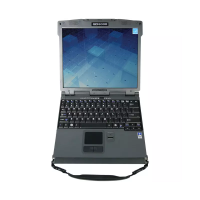
Standard Features
XGA Color DynaVue
®
II Display
Shock-Mounted, Ruggedized, Removable Hard Disk Drive with
Heater
Fully-Rugged Magnesium Case
Full-Size, 87-Key Sealed Keyboard with Embedded Numeric
Keypad and 12 Function Keys
Multi-Touch Touchpad
Internal 56K V.92 Fax/Modem
Lid Switch: The lid switch can be configured to suspend your
computer when the lid is closed and to resume when the lid is
opened.
Application Launch Key and User Programmable Buttons
Internal Gigabit Ethernet LAN
Two USB 2.0 Ports
One USB 3.0 Port
Type II PC Card Slot
Audio Jacks for External and Internal Speakers and Microphone
Stealth Mode: This feature allows you to use the computer in
an environment where sound and light could be dangerous or
disruptive
Microsoft
®
Windows
®
7 Operating System
Three-year Limited Warranty
Optional Features
Below is a list of some of the optional features supported by
your computer. Contact your authorized dealer if you decide to
perform a key component upgrade.
XGA Transmissive HiBright DynaVue
®
II Touchscreen
Display
Fingerprint Scanner
Radio ON/OFF Switch
Smart Card Reader (FIPS 201) or EXPRESS Card/54 Slot
CRMA Express Radio Technology: Flexible, Upgradeable Radio
Module for Significant Cost Savings
Integrated Wireless LAN Communications: 802.11a/b/g/n
Wireless LAN with Mini-PCI Wireless Card Support
Bluetooth
®
GPS
Media Bay Device: DVD Multi Drive or Media Bay Battery
Backlit Keyboard
Hazloc
Memory
Extra Media Bay Battery
Operating System Information
For information and help with Windows
®
7, select Start, Help
and Support, How to get started with your computer. You can
also browse or search help topics to learn more about using
the Windows
®
7 Operating System.
Tips for New Owners
Back up files often. Users who need to manage large amounts of
data may wish to use backup devices.
Create a set of recovery CDs or DVDs to recover your hard disk
in case it becomes corrupted. To do this, use the Recovery CD
Wizard by selecting Start, Programs, Mobile Computer Tools.
Don’t leave passwords anywhere on your notebook or carrying
case.
Install antivirus software and keep it updated.
For added security, consider using a computer lock with the com-
puter’s Security Slot.
Develop ergonomic work habits to help prevent related health
issues. The science of ergonomics studies the relationship
between health and a suitable work environment. For more
information on ergonomics, contact your nearest computer
bookstore, local library, reputable website.
Turning Off the Computer
To turn off your computer select Start, Shut Down, Shut Down
and follow the instructions on the screen.
If you are going to be away from the computer for a short
period, you can conserve power without shutting down the
system. See Managing Power and Battery Tips for details.
NOTE If you are unable to shut down your computer
normally, follow the instructions in Troubleshooting.
CAUTION Shutting off the computer improperly may result
in data loss.
Getting Started


 To Next Page