1-19
Checking the Serial Communication
Check that the settings related to the serial communication (such as buffer control, word
length, baud rate, parity bit...) match the actual configuration of your host system. If the
settings do not match, the printer may not print or may print garbage.
The following table indicates the factory settings concerning the serial communication.
These factory settings are commonly used in most DIGITAL environments.
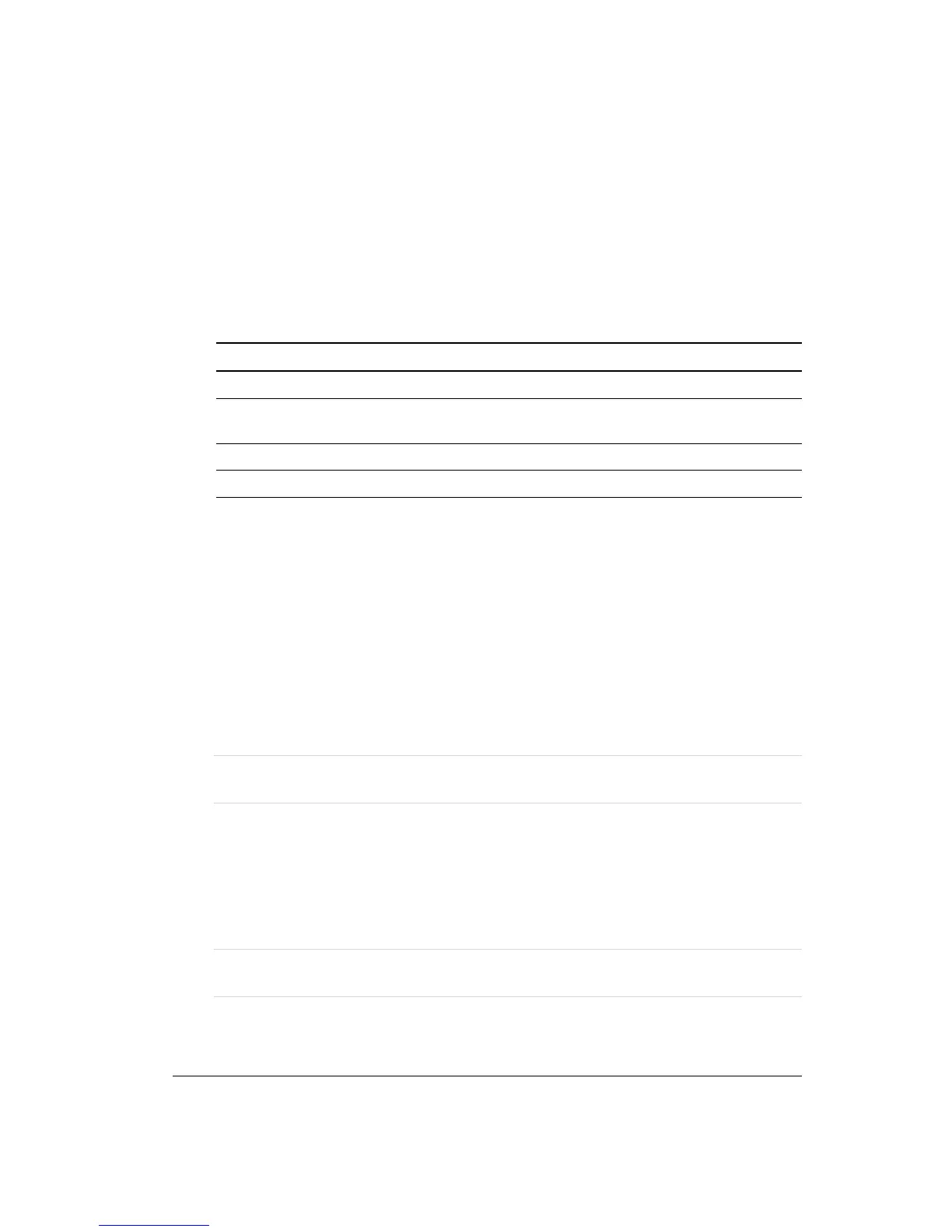
Option Factory Settings
Baud Rate 9600
Bit & Parity - 8 bits
- Parity: none
Buffer Control XON/XOFF
Disconnect on Fault No disconnect
If those settings do not match your environment, you can change them by entering the Set-
Up mode (see Chapter 4, “Using Set-Up Mode,” in the User Manual).
Printing a Test Page from your Host System
Follow the generic procedure below in order to print a test page.
1. Turn your computer or video terminal on.
2. Turn the printer on. The Fault indicator blinks.
3. Insert a sheet in the printer and press the FF/LOAD button.
4. Follow the instructions in your computer system’s documentation on printing a file.
Adjust your system settings in order to print on a single sheet, manually inserted.
Note: If you do not succeed in printing a test page, check that the printer protocol
matches the host system protocol.
Connecting the Printer to a PC Environment
In a PC environment, you need to connect the printer to your PC using a parallel interface
cable and install the Windows printer driver located on the User Documentation and
Software CD ROM.
Note: You must purchase the parallel interface cable separately. See Appendix A,
“Supplies and Options,” for the part number.


 To Next Page