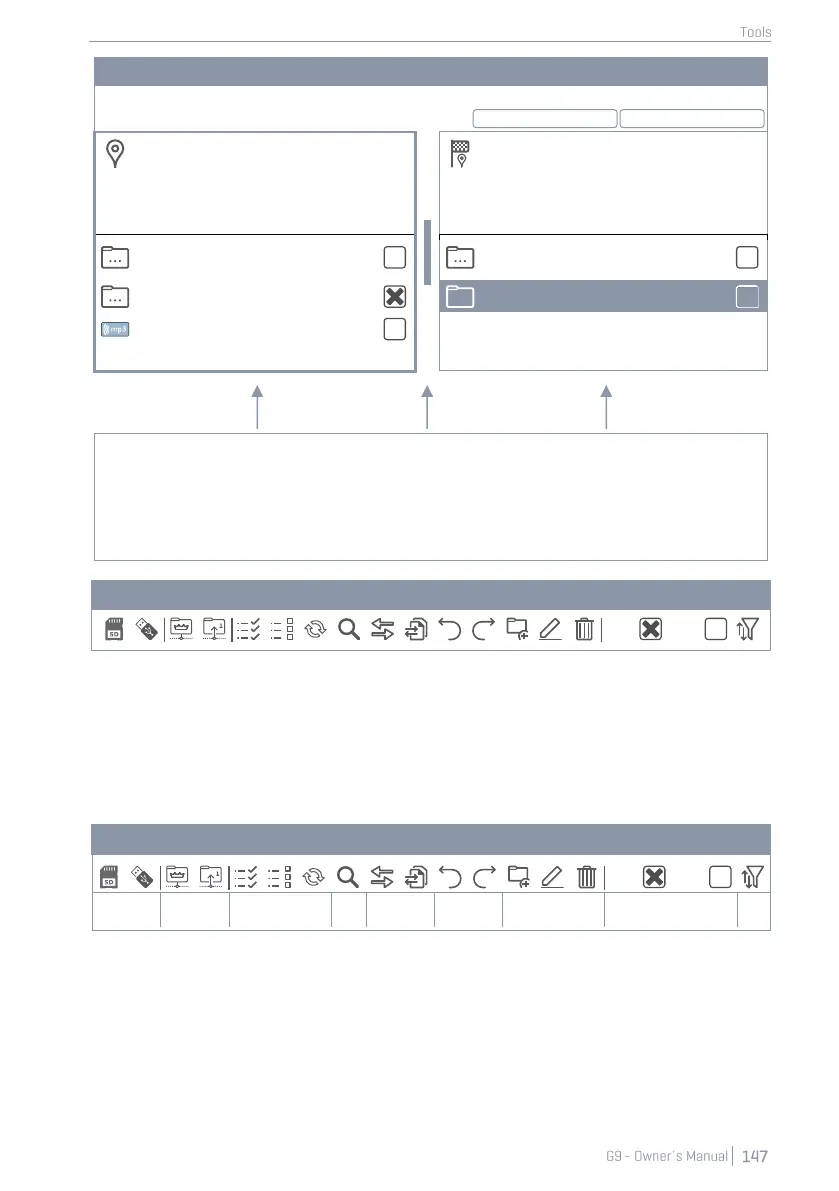
File Manager Split Windows
Directory Path split window 1
Directory Path split window 2 – The Flag indi-
cates that this directory is destination for the
compiled Collection in window 1
Empty Folder 1 (Highlighted)
Active split window
with highlighted frame
Resize Window
(tap and drag)
13.3.3 TASK BAR
The task bar hosts all tools to organize your files. Apart from filters and sorting properties, which apply
to both split windows, all functions (buttons) will take effect in the active split window above. The
active split window is characterized by a highlighted frame. To change the active window, simply
tap inside its frame and let the task bar functions affect the spilt window of your choice.
Enable/Disable Filters and List
Order
• with icons for navigation and actions
o Selection of drives
o Navigation via icons for path nodes (Root Directory, Folder level Up)
o Search function (active directory and below)
o Filter Manager for filters and ordering.
o Selection functions for transfer of collections (Transfer Job)
o Differentiation between highlighting and selecting
o Undo and Redo function (tracking the last 10 steps)


 To Next Page