9.1.1.1 INPUT CHANNELS
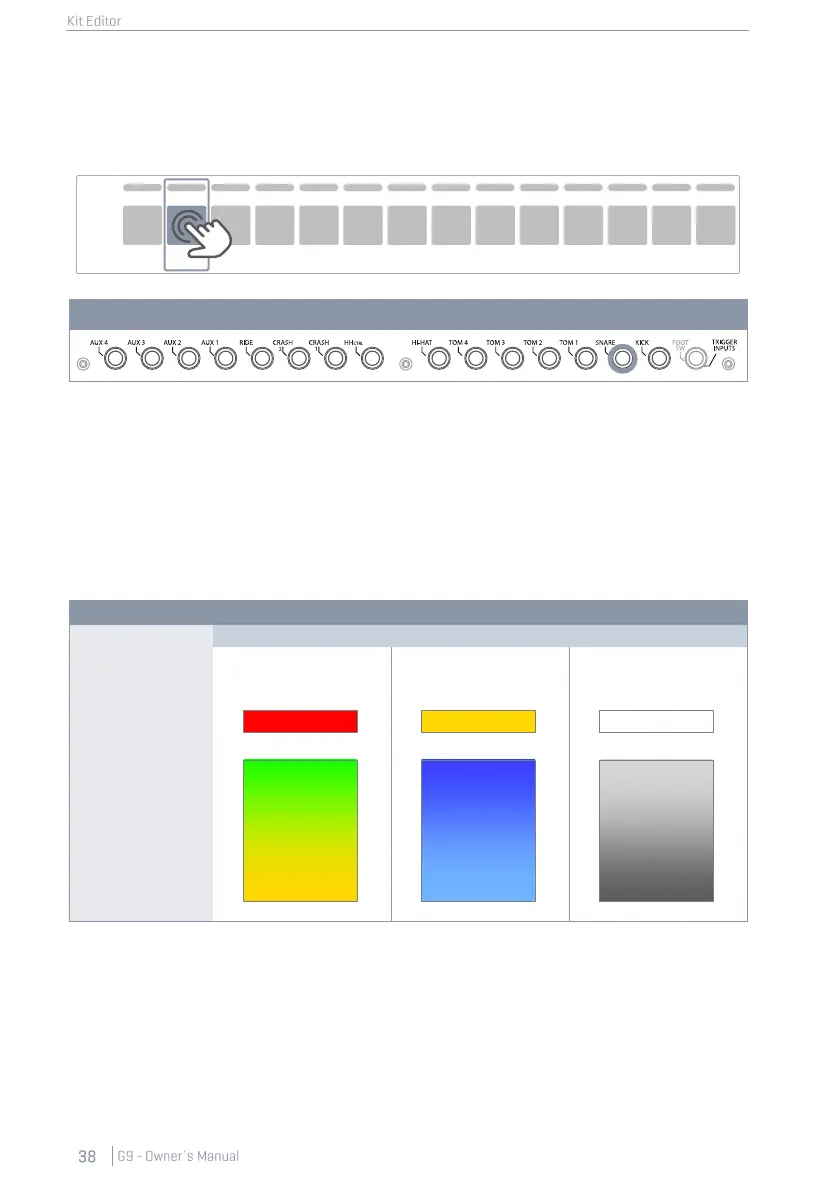
The Pad order from left to right matches the order of Trigger Inputs of the rear panel.
Select a connected pad by tapping the tile above the pad name. A selected pad is highlighted by
a surrounding frame.
The Peak row remembers the highest Velocity value detected while playing and for each pad
separately. It works in the same way as the peak rows available in other modules and returns the
maximum velocity across all pad components. Consequently, you are informed about a pad issue
when spotting the peak color. The deeper analysis, however, must follow in Trigger Settings mode
using the Pad Monitor (module 4).
In the Peak row the velocity scale of 0-127 is translated into color values which depend on the
selected UI Theme. Check your UI Theme first to be able to interpret the colors returned under Peak.
(see General Settings ➔ Module 4 ➔ Device ➔ UI Theme)
The following table shows the relation between velocity value, UI theme and color gradients used:
9.1.1.2 AUTO SELECT
With Auto Select it is possible to select an input channel by playing the connected pad on one of its
components. Turning this feature [on] will add the play-to-select feature to the standard select-by-
tapping function on the screen. It is recommended to use this feature sparingly, since it can cause
confusion when touching other pads accidentally.


 To Next Page