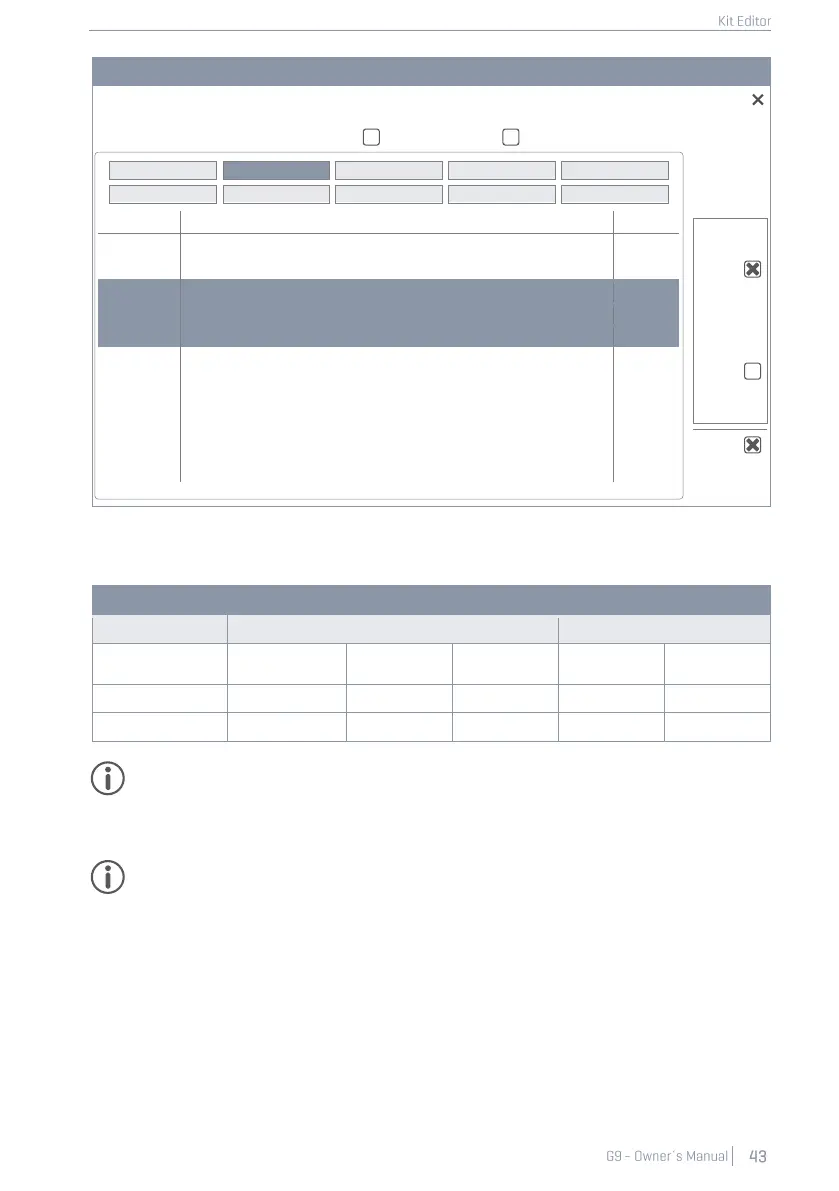
The following table sums up the relationship between Sound Grouping and list entries of the Sound
Browser:
Multi-Layered Samples - Drums
Tip: Access the Sound Browser directly by holding down your finger on a component icon for 1
second. Note that you only modify the component selected when Sound Grouping is un-
checked. With Sound Grouping checked you assign a full set affecting each component,
regardless by which component icon you have accessed the Sound Browser.
Hint: If icons and their names don´t match the pad (cymbal or drum) you want to edit, then
check the trigger settings first. It is likely that the trigger bank assigned to the Input Channel is
not correct. The trigger bank assigned to a pad determines the icons shown in the function set
Instrument Select. Go to Trigger Settings
➔
Module 2
➔
Trigger Selection
➔
Trigger Bank and tap on
the [Trigger Bank] field to assign a matching Trigger Bank for the active Input Channel. As a
result, all component icons under Kit Editor
➔
Module 2
➔
Instrument Select should update ac-
cordingly.
Every assignment made using the Sound Browser changes the parameter values of the active Drum
Kit. To keep these changes, it is necessary to save the Drum Kit preset using the Drum Browser. This is
the topic of the next section.
14” Collectors Maple X-Stick


 To Next Page