9.3.3.4 ASSIGNMENT OF SECOND SOUNDS
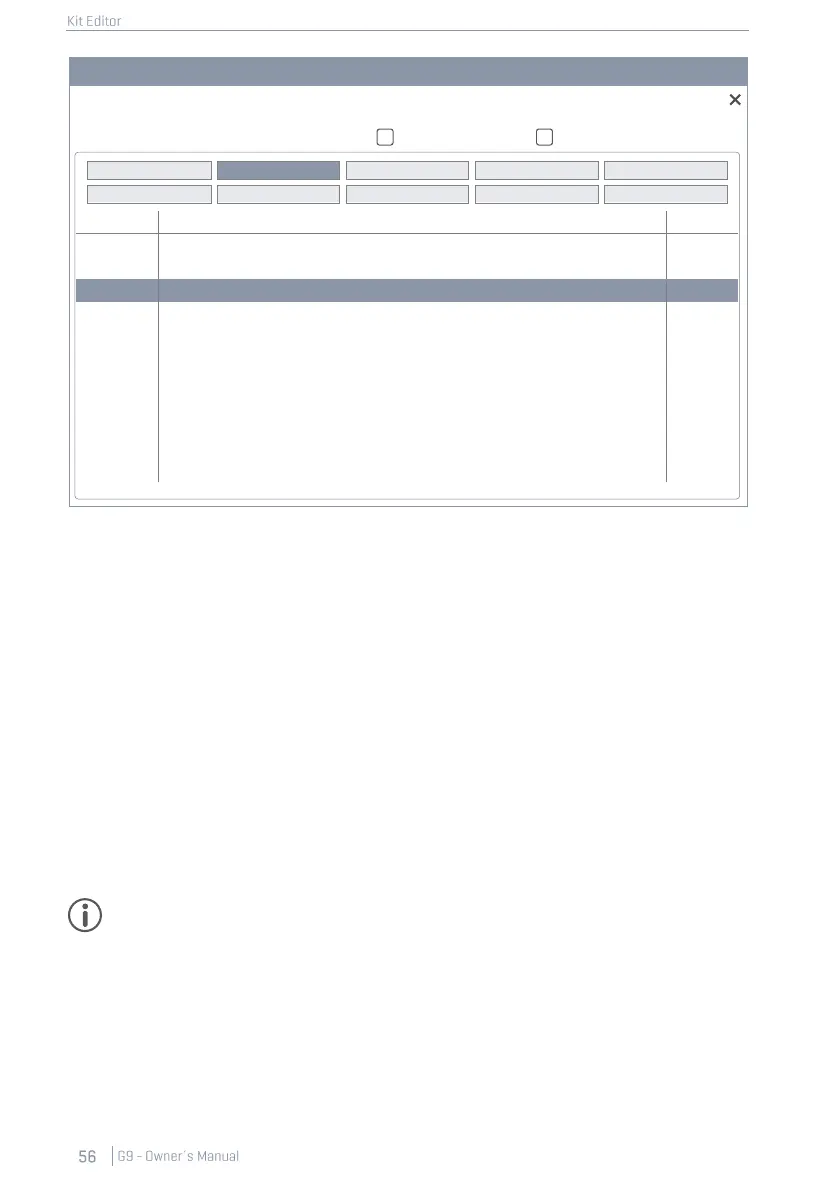
To assign a second sound to the currently active pad component (e.g. Head or Rim), proceed as
follows:
1. Turn [on] Second Sound Select.
2. Choose a sample from the Second Sound Browser by tapping the name field.
3. Adjust the second sound layer volume in relation to the primary component sound by tap-
ping the [Volume Second Sound] dial and move the slider as desired.
4. Evaluate your adjustments by tapping the [Preview] button or playing the according pad
component.
5. (Optional) Tune all second sound samples using the Tuning Coarse and Tuning Fine fea-
tures.
6. Select the feature state when loading the kit (ON or OFF).
7. (Optional) Select another Pad component under Instrument select in module 2 and repeat
steps 1-4.
8. Save the drum kit or create a new kit to memorize your edits.
Tip: Assignment of second sounds will affect the active pad component only. Make sure you
have the correct pad selected (module 1) and the desired component icon is highlighted in
Module 2
➔
Instrument Select. It is recommended to keep Auto Select turned off (module 1) to
avoid changing the pad accidentally.


 To Next Page