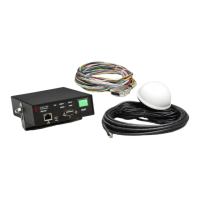
Vehicle Equipment Installation Instructions
23
If a vehicle is used, its radio must be placed in
Transmit mode because vehicle radios will
not transmit unless they hear an intersection
radio. Open the View Inputs Sensing window
and select the Transmit Test tab. Press the
Test Mode button. The vehicle radio will now
transmit even if it does not hear an
intersection radio. The vehicle radio will stay
in this mode until the next power cycle.
Note: If an intersection is used for this test,
activate the vehicle’s disable switch or you
will be placing priority requests to the
intersection controller. Therefore, it is
recommended that another Opticom GPS-
equipped vehicle be used for testing.
Open the Vehicles & Intersections Heard
window under the Real Time Activity section
in ITS Explorer. This window is duplicated in
both the Vehicle and Intersection modules of
ITS Explorer. Verify that you are receiving the
correct following parameters from the vehicle
under test.
Agency ID
Class ID
Vehicle ID
Priority
You should also receive the following
information from the vehicle under test. You
will not be able to verify the values, but you
need to verify that the information is being
transmitted. Examples:
Latitude and Longitude
Heading and Velocity
Fix Type
Position Dilution
Horizontal Dilution
Satellites
Activate the left turn signal, the right turn
signal, the disable switch and verify that the
correct information is being transmitted. This
verifies that the vehicle under test is set up
correctly and is transmitting all required
information.
4. Verify that the vehicle radio/GPS unit is
receiving information properly.
Connect the computer running ITS Explorer to
the vehicle under test and repeat the above
procedure looking for the data being
transmitted from your known good vehicle or
intersection equipment. This verifies that the
vehicle under test is receiving all required
information.



 To Next Page