EasyManua.ls Logo

Go Partner 1680X - Mate Finder Level; Practical Levels; Brute Force Levels; Fixed Depth Search Levels

Default Icon
20 pages
Print Icon
To Next Page IconTo Next Page
To Previous Page IconTo Previous Page
Loading...
the
first
move
in
the
series.
If
the
compu¬
ter
cannot
find
such
a
series
of
moves,
it
sounds
an
error
beep.
Then
you
must
change
levels
and
press
PLAY
to
return
to
normal
play.
Mate
Finder
Level
(B8)
The
mate
finder
level
lets
you
set
up
a
position
(see
“Problem
Setup”)
and
let
the
computer
try
to
checkmate
the
opponent’s
king
within
1
to
4
moves,
regardless
of
the
opponent’s
defense.
To
select
this
level,
press
LEVEL,
press
square
B8,
then
press
LEVEL
again.
If
the
computer
finds
such
a
move,
the
rank/file
board
lights
show
the
move.
The
computer
sounds
an
error
beep
if
any
of
the
following
occur.
No
checkmate
is
possible
The
computer
cannot
find
a
check¬
mate
You
press
the
PLAY
button
while
the
computer
is
searching
for
a
solution
If
an
error
beep
sounds,
you
must
change
levels
to
return
to
normal
play.
Practical
Levels
(Cl
through
C8)
At
the
practical
levels,
the
computer
at¬
tempts
to
capture
the
opponent’s
pieces
and
place
the
opponent’s
king
in
check
as
often
as
possible.
However,
the
com¬
puter
sometimes
overlooks
traps
set
by
an
opponent,
and
sometimes
positions
its
pieces
so
an
opponent
can
easily
attack
them.
To
select
any
of
these
levels,
press
LEVEL,
press
square
C1-C8,
then
press
LEVEL
again.
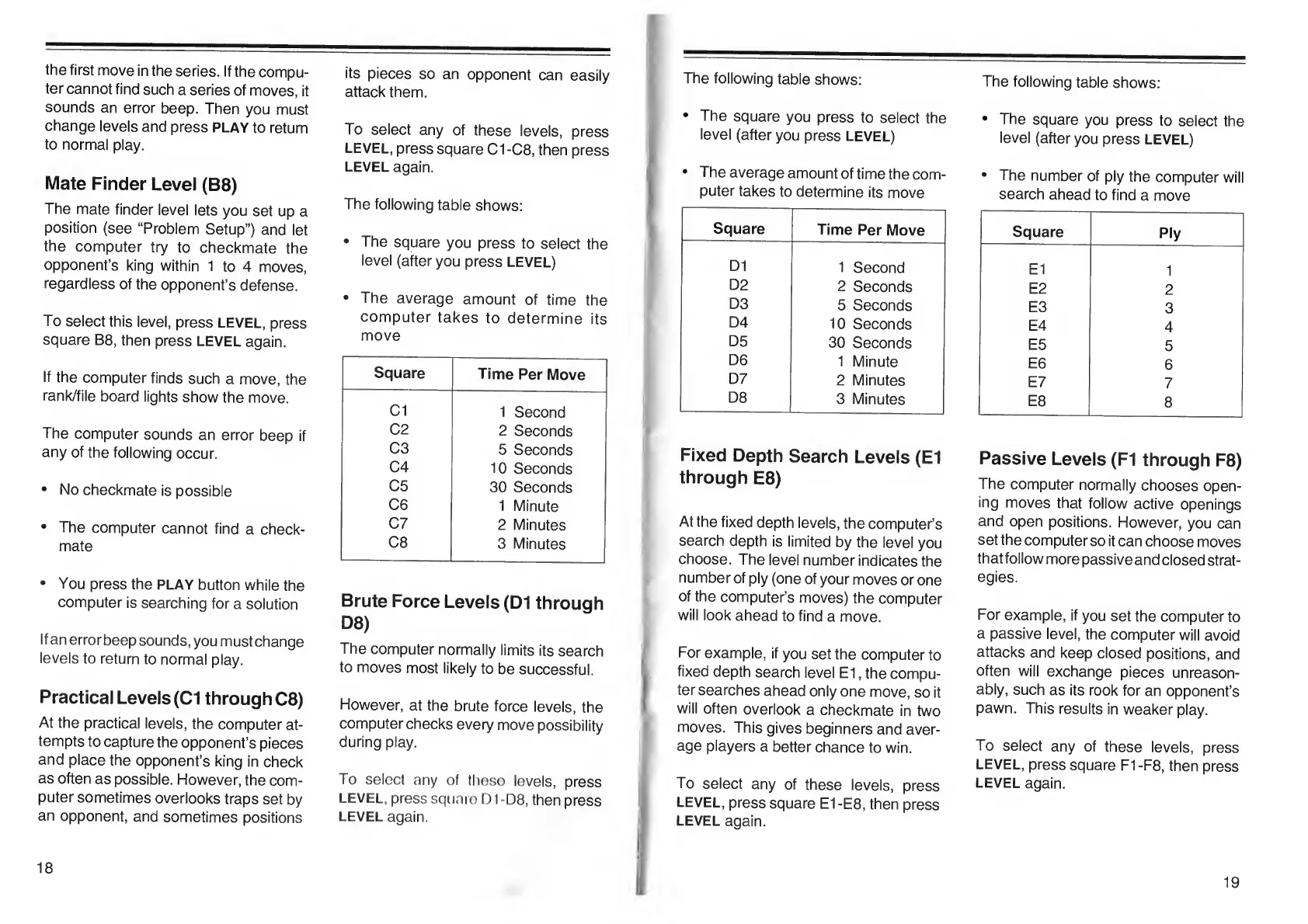
The
following
table
shows:
The
square
you
press
to
select
the
level
(after
you
press
LEVEL)
The
average
amount
of
time
the
computer
takes
to
determine
its
move
Square
Time
Per
Move
Cl
1
Second
C2
2
Seconds
C3
5
Seconds
C4
10
Seconds
C5
30
Seconds
C6
1
Minute
C7
2
Minutes
C8
3
Minutes
Brute
Force
Levels
(D1
through
D8)
The
computer
normally
limits
its
search
to
moves
most
likely
to
be
successful.
However,
at
the
brute
force
levels,
the
computer
checks
every
move
possibility
during
play.
To
select
any
of
these
levels,
press
LEVEL,
press
square
D1-D8,
then
press
LEVEL
again.
The
following
table
shows:
The
square
you
press
to
select
the
level
(after
you
press
LEVEL)
The
average
amount
of
time
the
com¬
puter
takes
to
determine
its
move
Square
Time
Per
Move
D1
1
Second
D2
2
Seconds
D3
5
Seconds
D4
10
Seconds
D5
30
Seconds
D6
1
Minute
D7
2
Minutes
D8
3
Minutes
Fixed
Depth
Search
Levels
(El
through
E8)
At
the
fixed
depth
levels,
the
computer’s
search
depth
is
limited
by
the
level
you
choose.
The
level
number
indicates
the
number
of
ply
(one
of
your
moves
or
one
of
the
computer’s
moves)
the
computer
will
look
ahead
to
find
a
move.
For
example,
if
you
set
the
computer
to
fixed
depth
search
level
El,
the
compu¬
ter
searches
ahead
only
one
move,
so
it
will
often
overlook
a
checkmate
in
two
moves.
This
gives
beginners
and
aver¬
age
players
a
better
chance
to
win.
To
select
any
of
these
levels,
press
LEVEL,
press
square
El
-E8,
then
press
LEVEL
again.
The
following
table
shows:
The
square
you
press
to
select
the
level
(after
you
press
LEVEL)
The
number
of
ply
the
computer
will
search
ahead
to
find
a
move
Square
Ply
El
1
E2
2
E3
3
E4
4
E5
5
E6
6
E7
7
E8
8
Passive
Levels
(FI
through
F8)
The
computer
normally
chooses
open¬
ing
moves
that
follow
active
openings
and
open
positions.
However,
you
can
set
the
computer
so
it
can
choose
moves
that
follow
more
passive
and
closed
strat¬
egies.
For
example,
if
you
set
the
computer
to
a
passive
level,
the
computer
will
avoid
attacks
and
keep
closed
positions,
and
often
will
exchange
pieces
unreason¬
ably,
such
as
its
rook
for
an
opponent’s
pawn.
This
results
in
weaker
play.
To
select
any
of
these
levels,
press
LEVEL,
press
square
F1-F8,
then
press
LEVEL
again.
18
19

Table of Contents