EasyManua.ls Logo

Go Partner 1680X - Aggressive Levels; Normal Play Levels; ENTERING MOVES

Default Icon
20 pages
Print Icon
To Next Page IconTo Next Page
To Previous Page IconTo Previous Page
Loading...
The
following
table
shows:
The
square
you
press
to
select
the
level
(after
you
press
LEVEL)
The
average
amount
of
time
the
com¬
puter
takes
to
determine
its
move
Square
Time
per
Move
FI
1
Second
F2
2
Seconds
F3
5
Seconds
F4
10
Seconds
F5
30
Seconds
F6
1
Minute
F7
2
Minutes
F8
3
Minutes
Aggressive
Levels
(G1
through
G8)
If
you
set
the
computer
to
the
aggres¬
sive
levels,
it
will
avoid
exchanging
pieces
so
it
can
present
more
potential
attacks
to
an
opponent
(to
keep
the
game
complicated).
It
will
also
check
and
attack
an
opponent's
pieces
in
an
aggressive
manner.
This
results
in
stronger
play.
To
select
any
of
these
levels,
press
LEVEL,
press
square
G
1
-
G8,
then
press
LEVEL
again.
The
following
table
shows:
The
square
you
press
to
select
the
level
(after
you
press
LEVEL)
The
average
amount
of
time
the
com¬
puter
takes
to
determine
its
move
Square
Time
per
Move
G1
1
Second
G2
2
Seconds
G3
5
Seconds
G4
10
Seconds
G5
30
Seconds
G6
1
Minute
G7
2
Minutes
G8
3
Minutes
Normal
Play
Levels
(HI
through
H8)
The
8
normal
play
levels
provide
the
most
challenging
and
difficult
play.
These
levels
increase
in
difficulty
from
level
HI
(the
easiest)
to
level
H8
(the
most
diffi¬
cult).
To
select
any
of
these
levels,
press
LEVEL,
press
square
HI
-H8,
then
press
LEVEL
again.
The
following
table
shows:
The
square
you
press
to
select
the
level
(after
you
press
LEVEL)
The
average
amount
of
time
the
com¬
puter
takes
to
determine
its
move
Square
Time
per
Move
.
HI
1
Second
H2
2
Seconds
H3
5
Seconds
H4
10
Seconds
H5
30
Seconds
H6
1
Minute
H7
2
Minutes
H8
3
Minutes
Note:
The
time-per-move
figure
is
the
average
amount
of
time
the
computer
takes
to
make
each
move.
During
the
opening
moves
of
a
game,
the
computer
might
move
more
quickly.
ENTERING
MOVES
Playing
chess
against
the
computer
is
like
playing
with
a
human
opponent-you
make
your
move,
and
the
computer
re¬
sponds
with
its
move.
The
only
differ¬
ence
is
that
you
must
physically
move
both
your
and
the
computer’s
pieces.
To
make
a
move,
press
down
gently
on
the
centerofthe
FROM,
then
theTOsquares.
The
FROM
square
is
the
current
location
of
the
piece
you
plan
to
move;
the
TO
square
is
where
you
are
moving
the
piece
to.
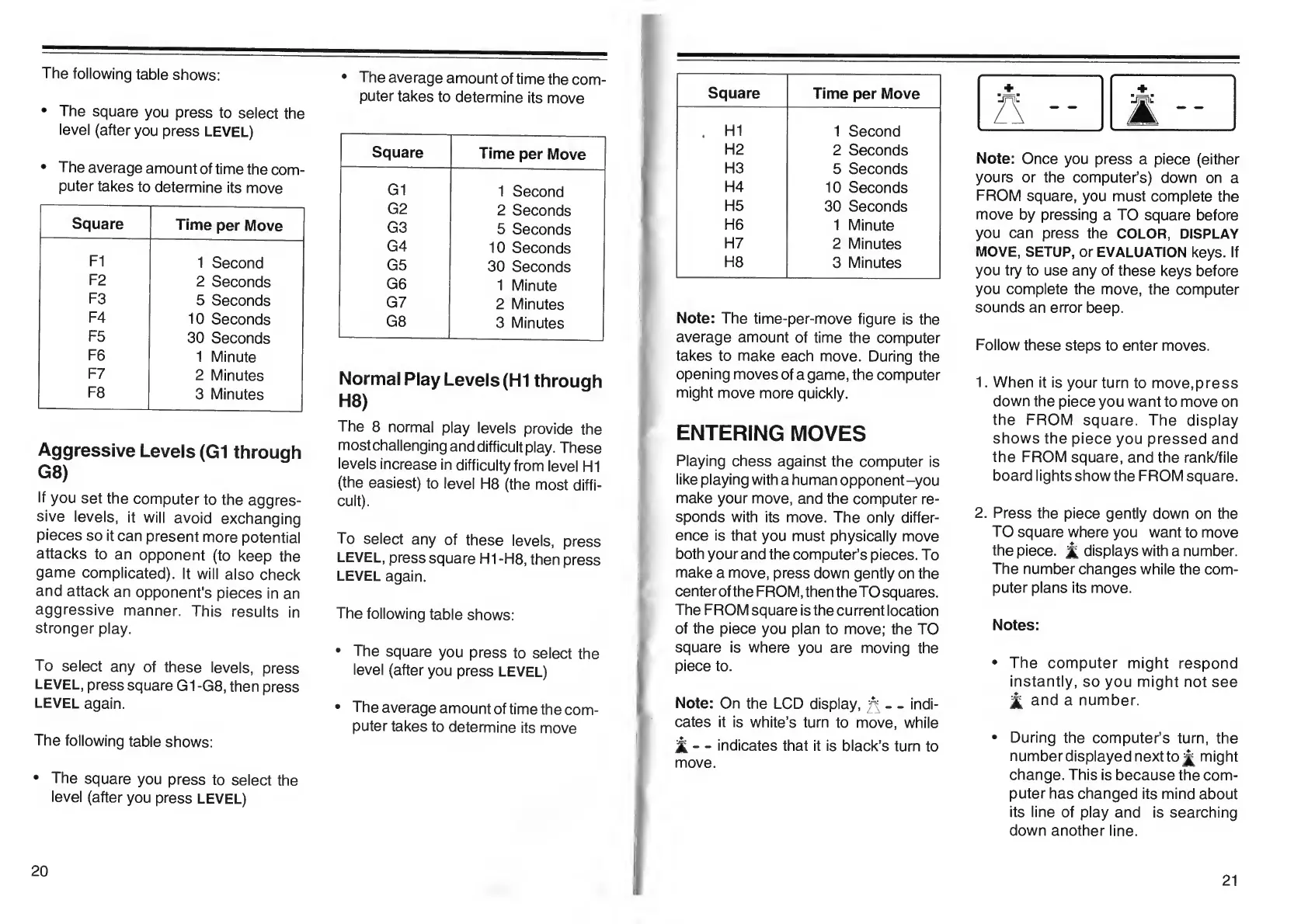
Note:
On
the
LCD
display,
^
-
indi¬
cates
it
is
white’s
turn
to
move,
while
'3i-
-
indicates
that
it
is
black’s
turn
to
move.
+
+
R
--
E
--
Note:
Once
you
press
a
piece
(either
yours
or
the
computer’s)
down
on
a
FROM
square,
you
must
complete
the
move
by
pressing
a
TO
square
before
you
can
press
the
COLOR,
DISPLAY
MOVE,
SETUP,
or
EVALUATION
keys.
If
you
try
to
use
any
of
these
keys
before
you
complete
the
move,
the
computer
sounds
an
error
beep.
Follow
these
steps
to
enter
moves.
1.
When
it
is
your
turn
to
move,press
down
the
piece
you
want
to
move
on
the
FROM
square.
The
display
shows
the
piece
you
pressed
and
the
FROM
square,
and
the
rank/file
board
lights
show
the
FROM
square.
2.
Press
the
piece
gently
down
on
the
TO
square
where
you
want
to
move
the
piece,
£
displays
with
a
number.
The
number
changes
while
the
com¬
puter
plans
its
move.
Notes:
The
computer
might
respond
instantly,
so
you
might
not
see
jt
and
a
number.
During
the
computer’s
turn,
the
number
displayed
next
to
jj^
might
change.
This
is
because
the
com¬
puter
has
changed
its
mind
about
its
line
of
play
and
is
searching
down
another
line.
20
21

Table of Contents