EasyManua.ls Logo

Go Partner 1680X - FORCING THE COMPUTERS MOVE; CHANGING SIDES WITH THE COMPUTER; WATCHING THE COMPUTER PLAY BOTH SIDES; PLAYING BLACK FROM THE BOTTOM OF THE GAME BOARD

Default Icon
20 pages
Print Icon
To Next Page IconTo Next Page
To Previous Page IconTo Previous Page
Loading...
first,
the
display
shows
00(on
a
king
side
castle)
or^
00
0
(on
a
queen
side
castle),
then
the
rank/file
board
lights
show
the
correct
square
for
the
rook.
Press
the
rook
on
the
square
the
compu¬
ter
indicates.
If
it
is
your
move
and
you
have
already
moved
the
king,
press
the
rook
on
the
FROM
square.The
computer
displays
/'—,
indicating
that
you
complete
the
move.
If
it
is
the
computer’s
move,
the
display
and
the
rank/file
board
lights
show
the
TO
square.
Press
the
piece
on
the
TO
square.
FORCING
THE
COMPUTER’S
MOVE
When
it
is
the
computer’s
turn
and
the
display
shows
a
countdown,
you
can
press
PLAY
to
force
the
computer
to
make
an
immediate
move.
Note:
At
the
mate
finder
level,
pressing
PLAY
will
not
cause
the
computer
to
make
a
move.
Instead,
the
computer
will
sound
an
error
beep,
and
the
display
will
show
—,
indicating
that
it
was
inter¬
rupted
before
it
could
find
a
checkmate.
To
continue
the
game,
you
must
change
to
another
level
of
play.
See
“Mate
Finder
Level
(B8).”
CHANGING
SIDES
WITH
THE
COMPUTER
To
change
sides
with
the
computer,
press
PLAY
when
it
is
your
turn
to
move.
The
computer
takes
over
your
pieces
and
makes
a
move.
Then
you
can
enter
moves
for
the
computer’s
side
and
con¬
tinue
to
play
the
same
game.
WATCHING
THE
COMPU¬
TER
PLAY
BOTH
SIDES
To
watch
the
computer
play
against
it¬
self,
press
PLAY
every
time
you
make
the
computer’s
indicated
move.
PLAYING
BLACK
FROM
THE
BOTTOM
OF
THE
GAME
BOARD
Normally
the
computer
plays
the
black
pieces
on
the
top
of
the
game
board
and
you
play
the
white
pieces
on
the
bottom.
If
you
want
to
play
the
black
pieces
from
the
bottom,
follow
these
steps.
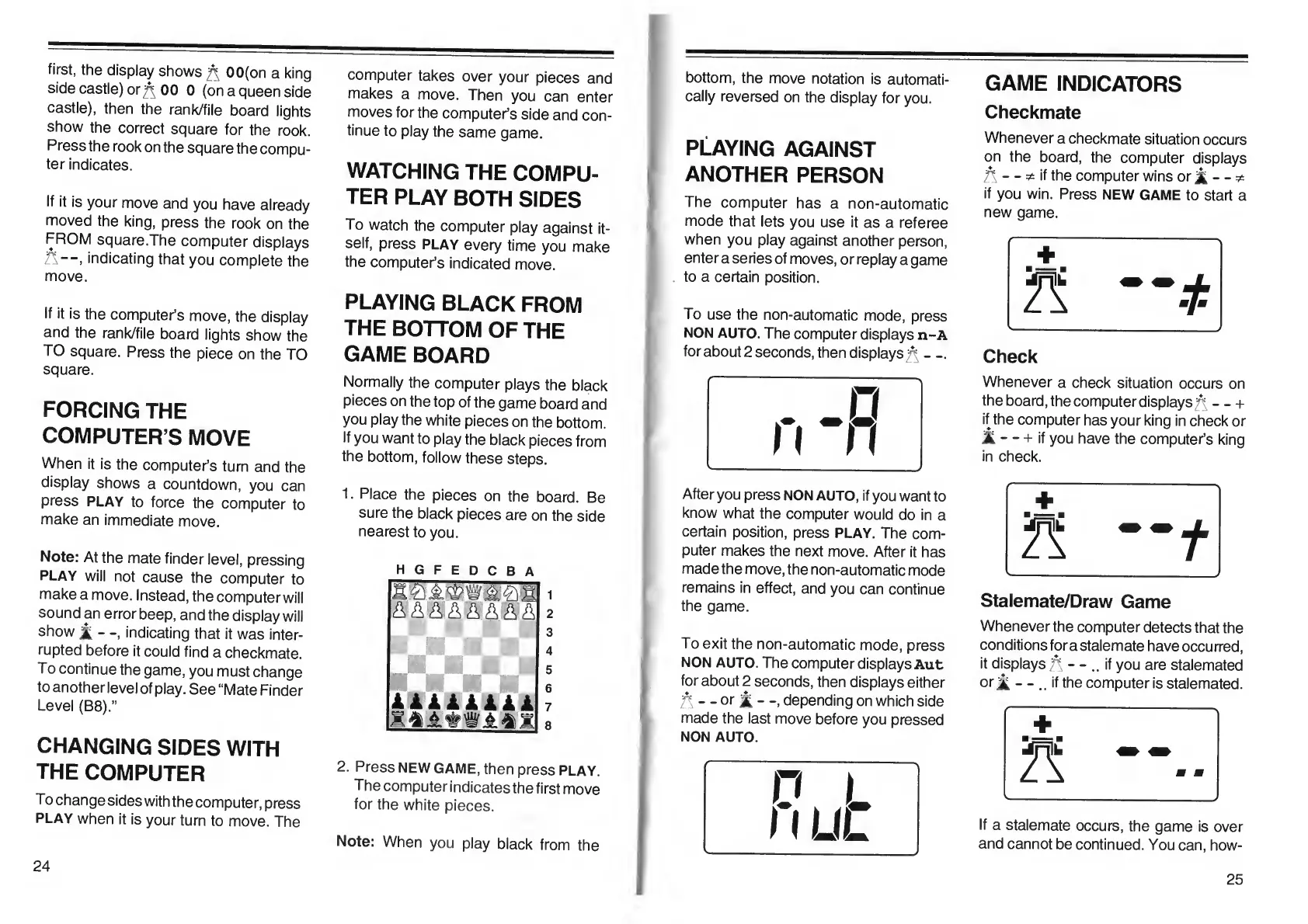
1.
Place
the
pieces
on
the
board.
Be
sure
the
black
pieces
are
on
the
side
nearest
to
you.
HGFEDCBA
1
ISIS
If
"s
i
A
&
2
3
4
5
i
i
i
i
i
i
il
6
7
|i
JS
8
2.
Press
NEW
GAME,
then
press
PLAY.
The
computer
indicates
the
first
move
for
the
white
pieces.
Note:
When
you
play
black
from
the
bottom,
the
move
notation
is
automati¬
cally
reversed
on
the
display
for
you.
playing
against
ANOTHER
PERSON
The
computer
has
a
non-automatic
mode
that
lets
you
use
it
as
a
referee
when
you
play
against
another
person,
enter
a
series
of
moves,
or
replay
a
game
to
a
certain
position.
To
use
the
non-automatic
mode,
press
NON
AUTO.
The
computer
displays
n-A
for
about
2
seconds,
then
displays
_
After
you
press
NON
AUTO,
if
you
want
to
know
what
the
computer
would
do
in
a
certain
position,
press
PLAY.
The
com¬
puter
makes
the
next
move.
After
it
has
made
the
move,
the
non-automatic
mode
remains
in
effect,
and
you
can
continue
the
game.
To
exit
the
non-automatic
mode,
press
NON
AUTO.
The
computer
displays
Aut
for
about
2
seconds,
then
displays
either
'A
-
-
or
A
-
depending
on
which
side
made
the
last
move
before
you
pressed
NON
AUTO.
GAME
INDICATORS
Checkmate
Whenever
a
checkmate
situation
occurs
on
the
board,
the
computer
displays
A
-
-
^
if
the
computer
wins
or
-
-
*
if
you
win.
Press
NEW
GAME
to
start
a
new
game.
+
Check
Whenever
a
check
situation
occurs
on
the
board,
the
computer
displays^
-
-
+
if
the
computer
has
your
king
in
check
or
-
-
+
if
you
have
the
computer’s
king
in
check.
Stalemate/Draw
Game
Whenever
the
computer
detects
that
the
conditions
forastalemate
have
occurred,
it
displays
A
-
-
..
if
you
are
stalemated
or
£
-
if
the
computer
is
stalemated.
If
a
stalemate
occurs,
the
game
is
over
and
cannot
be
continued.
You
can,
how-
24
25

Table of Contents