EasyManua.ls Logo

Go Partner 1680X - COACH FUNCTION; ADVANCED FUNCTIONS; Verifying Piece Positions; Taking Back Moves

Default Icon
20 pages
Print Icon
To Next Page IconTo Next Page
To Previous Page IconTo Previous Page
Loading...
COACH
FUNCTION
The
computer’s
coach
function
helps
you
to
improve
your
playing
skills
and
understanding
of
the
game
by
giving
you
important
additional
help
during
a
game.
If
you
select
the
coach
function:
The
computer
warns
you
when
you
make
a
move
that
is
not
in
its
opening
book
(pre-selected
list
of
moves)
dur¬
ing
the
opening
moves
of
a
game.
If
you
make
such
a
move,
the
computer
displays
oob,
beeps
an
error
tone,
and
will
not
make
a
countermove.
To
continue,
either
press
TAKE
BACK
to
take
back
the
move
and
try
another
move,
or
press
PLAY
to
force
the
computer
to
move
and
continue
the
game.
Note:
If
you
press
PLAY
to
force
a
move
after
the
computer
displayed
oob,
the
computer
will
no
longer
verify
your
moves
against
its
opening
book
or
display
oob
during
the
game.
The
computer
warns
you
when
it
can
attack
one
of
your
pieces
with
one
of
its
lesser
value
pieces
during
a
game
except
at
beginner
levels
(A1
toA8).
If
you
make
such
a
move,
the
computer
indicates
the
location
of
the
piece
with
the
rank/file
board
lights
and
dis¬
plays
the
piece
symbol
and
tHt.
You
can
either
make
the
move
or
press
TAKE
BACK
to
take
back
the
move
and
try
another
move.
To
use
the
computer’s
coach
function,
press
COACH
LEVEL
until
the
file
board
light
next
to
F
(COACH)
lights
for
about
3
seconds
and
the
display
shows
CoA.
You
can
use
the
coach
function
at
any
time
during
a
game.
Note:
After
a
certain
number
of
moves
at
the
beginning
of
a
game,
the
computer
indicates
the
point
where
its
opening
book
ends
by
displaying
oob
and
beep¬
ing
several
times.
To
continue,
simply
make
your
next
move
or
press
PLAY
to
make
the
computer
move.
28
ADVANCED
FUNCTIONS
VERIFYING
PIECE
POSITIONS
If
you
want
to
verify
the
location
of
any
piece
on
the
chess
board,
you
can
use
the
piece
symbol
keys
to
find
the
position
of
all
pieces.
Each
time
you
press
a
piece
symbol
key,
the
computer
displays
the
piece’s
color
and
location,
and
the
rank/
file
board
lights
indicate
the
piece’s
loca¬
tion.
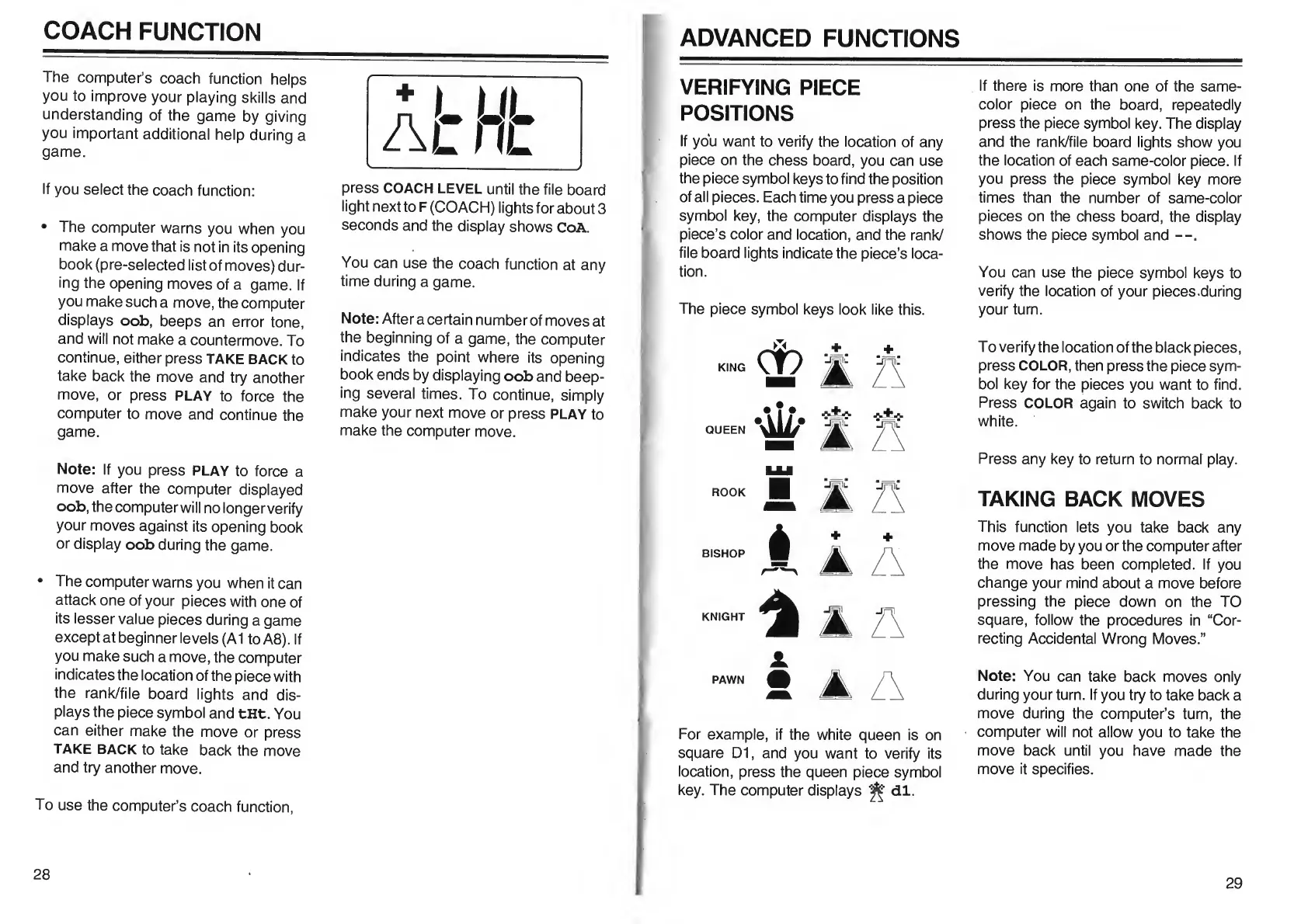
The
piece
symbol
keys
look
like
this.
For
example,
if
the
white
queen
is
on
square
D1,
and
you
want
to
verify
its
location,
press
the
queen
piece
symbol
key.
The
computer
displays
dl.
If
there
is
more
than
one
of
the
same-
color
piece
on
the
board,
repeatedly
press
the
piece
symbol
key.
The
display
and
the
rank/file
board
lights
show
you
the
location
of
each
same-color
piece.
If
you
press
the
piece
symbol
key
more
times
than
the
number
of
same-color
pieces
on
the
chess
board,
the
display
shows
the
piece
symbol
and
—.
You
can
use
the
piece
symbol
keys
to
verify
the
location
of
your
pieces.during
your
turn.
To
verify
the
location
of
the
black
pieces,
press
COLOR,
then
press
the
piece
sym¬
bol
key
for
the
pieces
you
want
to
find.
Press
COLOR
again
to
switch
back
to
white.
Press
any
key
to
return
to
normal
play.
TAKING
BACK
MOVES
This
function
lets
you
take
back
any
move
made
by
you
or
the
computer
after
the
move
has
been
completed.
If
you
change
your
mind
about
a
move
before
pressing
the
piece
down
on
the
TO
square,
follow
the
procedures
in
“Cor¬
recting
Accidental
Wrong
Moves.”
Note:
You
can
take
back
moves
only
during
your
turn.
If
you
try
to
take
back
a
move
during
the
computer’s
turn,
the
computer
will
not
allow
you
to
take
the
move
back
until
you
have
made
the
move
it
specifies.
29

Table of Contents