38
10. Using UPnP to Connect to the Camera
NOTE: If your operating system is Windows 98/ 2000, UPnP is not available.
Step 1: Confirm the UPnP function of camera has been enabled (refer to section 8.16).
Step 2: Follow the steps below to enable UPnP for Windows ME/ XP.
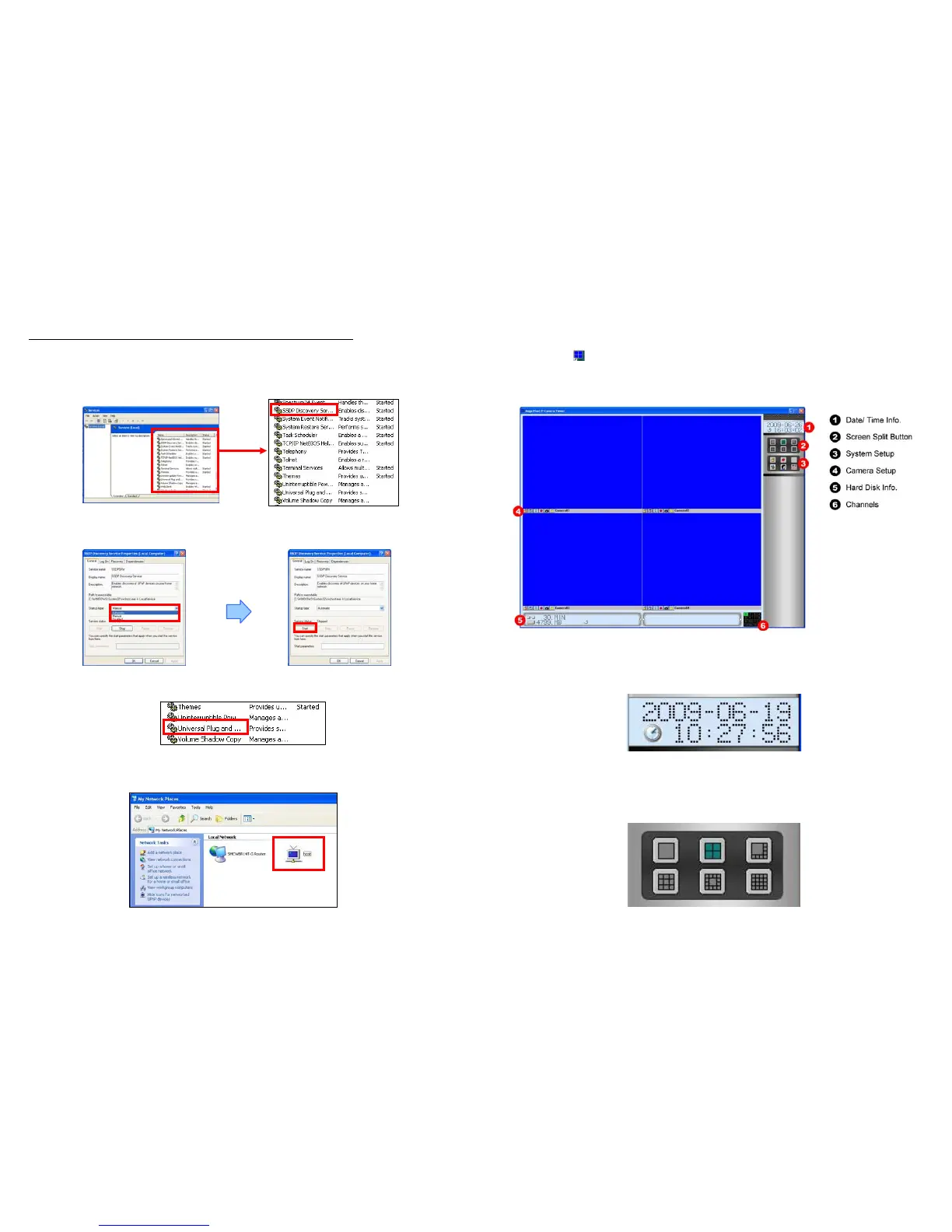
- Click “Start” → “Setting” → “Control Panel” → “Administrative Tools” → “Services”.
- In the “Services” window, double-click the service “SSDP Discovery Service”.
- Select “Automatic” in the “Startup type” item, and click “Start” to start the service. Click “OK” to
quit.
- Repeat the steps above to start the “Universal Plug and Play” service.
Step 3: Open the “My Network Places” on the desktop, click the “host” to connect directly the camera.
(The host is the default UPnP host name)
39
11. Surveillance Software
11.1 Using the Mega Pixel IP Camera Viewer
Double click on ( ) Mega Pixel IP Camera Viewer’s execution file on Windows Desktop or in the Mega
Pixel IP Camera Viewer folder of the Start menu. When the program is executed, the following screen
will appear (refer to section 6.2 Software Installation).
11.1.1 Date/ Time Info.
Display local date and time.
11.1.2 Screen Split Button
Selects screen layout for viewing live video from multiple cameras: 1/ 4/ 8/ 9/ 13/ 16.



 To Next Page