173
GB
INSTALLING THE APP
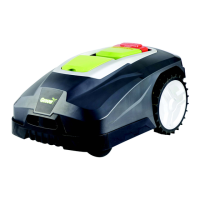
The robot is an IOT (internet of
things) device. To use all the functions
and keep its software updated,
the corresponding app must be
downloaded and the robot connected
to a smartphone via Wi-Fi 2.4 GHz or
Bluetooth 4.0.
Download the app
First, download the free robot app
‘robotic-mower connect’. It can be
used on iPhones (with iOS 11 or higher)
or Android phones (version 4.4.2 or
higher).
You can also scan the QR code below
with your mobile phone. This brings
you to a website (click on the link
displayed on the phone), then click
the ‘Install’ button on the website that
appears. This will take you to the correct
app in either the App Store or Google
Play:
BEFORE CONNECTING TO THE
ROBOT
Make sure you have:
• Your Wi-Fi network name and
password
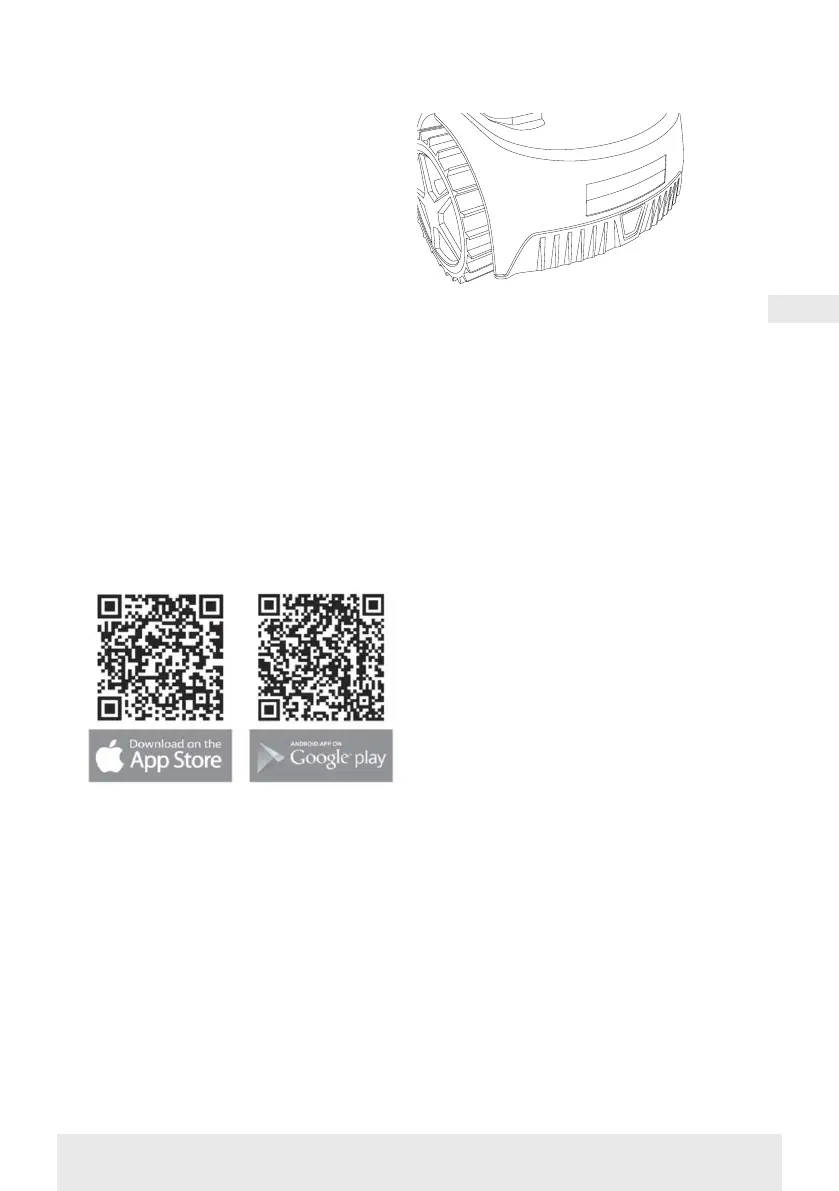
• The robotic lawnmower’s serial
number (SN), which can be found
on the sticker on the back of the
machine. You can also scan the serial
number's QR code with your mobile
phone. The QR code is in the middle
of the label (the one on the far left)
Check your Wi-Fi settings
• The robotic lawnmower only works
with 2.4 GHz.
• Make sure your robot and your phone
are on the same Wi-Fi frequency (2.4
GHz). (Many home networks have
both a 2.4 GHz and 5 GHz frequency)
• Make sure the distance between your
lawnmower, phone and router is as
close as possible during connection
(within 10 m should be OK in most
cases).
SETTING UP THE APP
1. Open the app and click on
‘Register’
2. Enter your email address and
press the ‘Send’ button to receive
a verification code. Then enter the
code (within 30 mins.) and choose
a password, which is entered twice.
Finally, press the ‘Register’ button
Set-up and connection
Set-up can be done in 2 ways. Via QR
code or manually
Connection via QR code
1. To add your robot, click on the
circle with (+) in the middle of the
screen.
2. Then scan the QR code on the
sticker on the back of the robot –
sticker on the far left. (the robot
must be switched on, as well as
Bluetooth and Wi-Fi on your
mobile phone) Allow the app to
access your camera and location.


 To Next Page