174
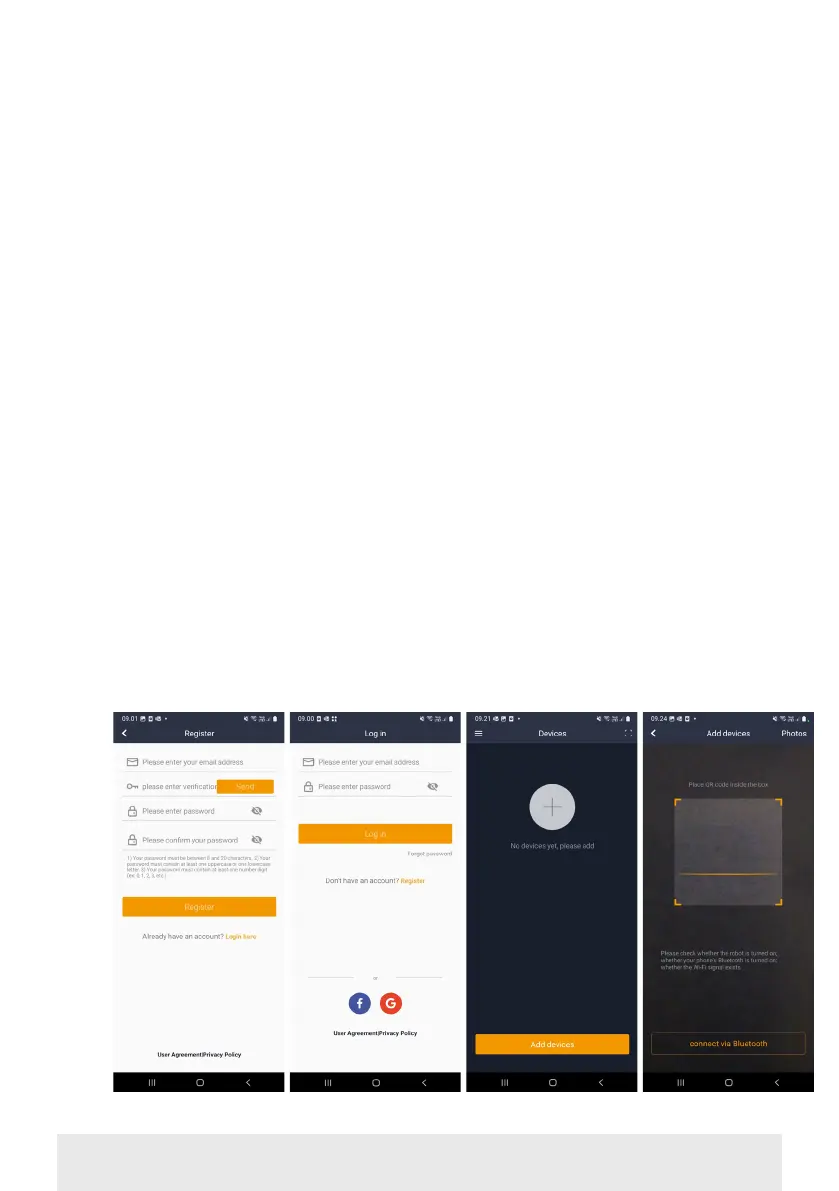
3. The app will now try to connect,
which may take a few minutes.
4. The serial number is now
displayed. Enter the PIN code
for the robot. The code is set to
0000 by default, but if you have
manually selected another PIN
code via the robot's display, you’ll
need to use that one.
5. Select Wi-Fi network (2.4 GHz only)
and enter the network password.
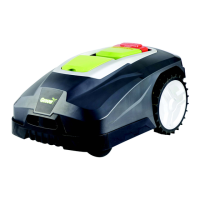
6. The robot has now been added
and will appear in the ‘Devices’
overview. A Wi-Fi icon will also
light up on the robot's display.
7. You can now name the robot
(this can also be changed under
‘Settings’)
More robots can be added if more than
one robot is needed.
Register Create login Add device Scan QR on robot


 To Next Page