175
GB
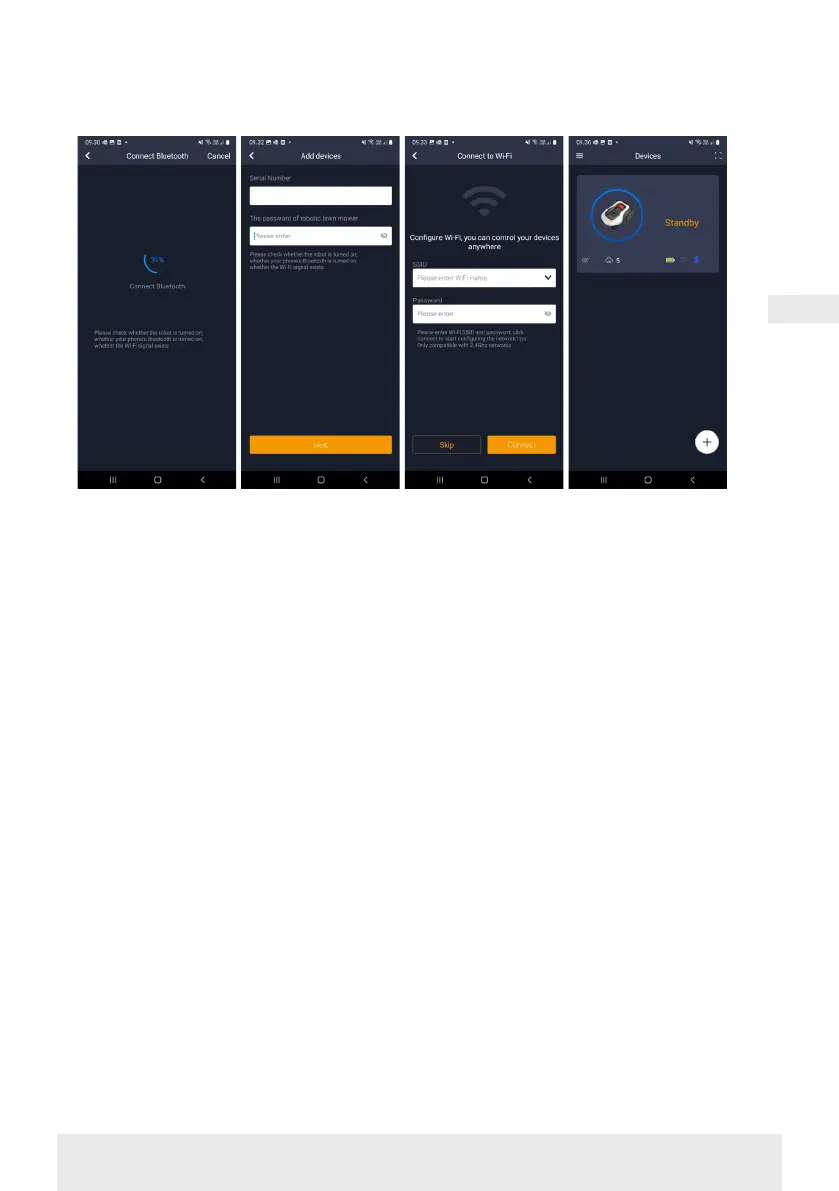
Manual connection (without QR code)
1. Stand next to the robot while it is
switched on.
2. Tap on the circle with (+) in the
middle of the screen.
3. Then press the ‘Manually pairing
Bluetooth devices’ button at the
bottom of the screen
4. A list of Bluetooth devices will ap-
pear. Select ‘Mower_XXXXXX’
5. The serial number is now displayed.
Enter the PIN code for the robot.
The code is set to 0000 by default,
but if you have manually selected
another PIN code via the robot's
display, you’ll need to use that one.
6. Select Wi-Fi network (2.4 GHz only)
and enter the password for the
network.
7. The robot has now been added and
will appear in the ‘Devices’ over-
view. A Wi-Fi icon will also light up
on the robot's display.
8. You can now name the robot (this
can also be changed under ‘Set-
tings’)
Controlling the robot on a secondary
mobile phone
If you want another mobile phone to
be able to control the robot, you can do
this by sharing the device:
1. First, install the robot app on the
other mobile phone.
2. Go to the overview (Devices) of
the mobile phone that the robot is
connected to.
3. Hold your finger on the robot’s
name and swipe left.
4. Click on ‘Share’. A QR code will be
displayed.
5. Select the round circle with (+) on
the other mobile phone and scan
the QR code. The robot will now be
added here as well.
The original phone (owner) can
stop sharing the robot with others
at any time without their approval.
To do this, select ‘Stop sharing’ and
confirm.
Wait for
connection
Enter 0000 in
password
Select network and
enter password
The robot is added
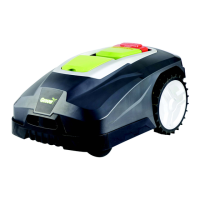
RobotRobot


 To Next Page