176
Robot
NOTE: when the lawnmower moves
to an area of your lawn with poor or
no Wi-Fi signal, instructions sent from
the app are only executed when the
lawnmower returns to an area with
good Wi-Fi signal.
The Bluetooth icon will only light up
when the phone is near the robot and
connected. The robot can be controlled
over Wi-Fi even if you are away from
home, if the coverage is OK.
USING THE APP
Using the app provides extended
functions compared to operating the
robot via its display. The main features
are listed here.
Home
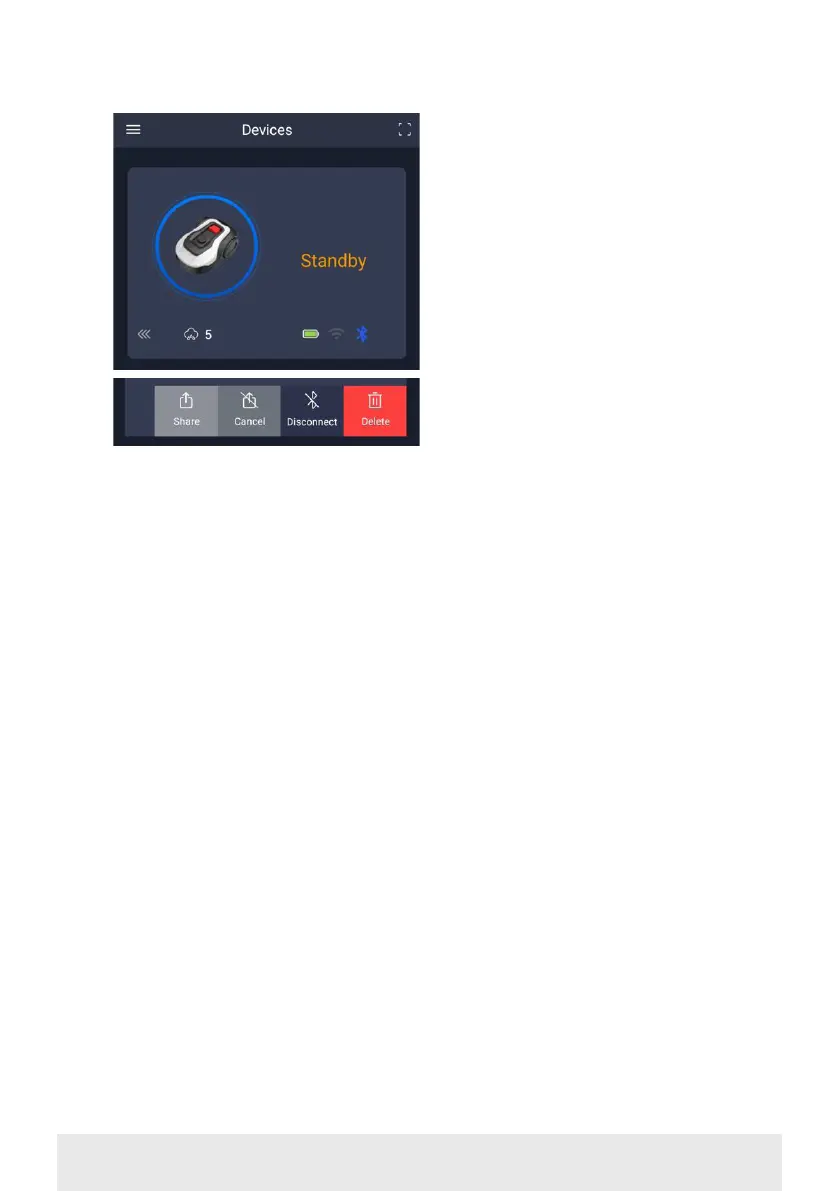
After logging in and tapping on the
robot icon, the home screen will show
the robot’s battery status, whether it
has a Wi-Fi/Bluetooth connection and
whether the robot is in standby or active
mode.
Further down the screen you will see
3 round buttons: RETURN – WORK –
STOP
• If the robot is running and you want it
to go home, first press STOP and then
‘RETURN’.
• To start the robot manually, first press
STOP (so that the WORK button turns
white) and then ‘WORK’.
• You need to press the STOP button
before selecting RETURN or WORK.
Battery mode
Note that the battery level will typically
show 9X% (and not 100%) and that it will
slowly decrease. This is quite normal
and is to protect the battery and prolong
its lifetime (it is not optimal for the
battery to be 100% charged all the time).
The charging station will start charging
the battery when it gets below 90%.
Schedule
18739: 2 schedules per day.
18740: 2 schedules per day / Auto
Schedule. (Cutting frequency is
automatically set.)
Under ‘schedule’ you can see scheduled
cutting times and set when the robot
should run.
• Press ‘Edit’ to change the schedule.
• Tap on the day of the week you want
to set the robot to run.
• Then select the start and end times
and press ‘Confirm’.
• Edge trimming: You can put a blue
tick in the top line ‘edge’ (under ‘Edit’)
if you want the robot to trim the edges
the first time it starts. The robot will
then follow the boundary cable all the
way around and cut along it (note that
the robot will still leave an uncut edge
of grass, as the blade cannot cut all the
way to the edge for safety reasons).
If you start the robot manually via
START + OK on the display, the robot
will not trim the edges.
• To avoid the lawnmower leaving
tracks, it is recommended that you
only select ‘edge’ a few days a week.
• Once a schedule is set (orange) you
can also change the start/end time by
pressing ‘Edit’ and holding your finger


 To Next Page