19
WITHOUT AUTO TARE
2) If the sample size is known and a container is used:
a. Place an empty container on the scale and press
: key.
b. Place the sample in the container.
c. Key in the sample size and then press the
3 Sample or 9 key. The scale will
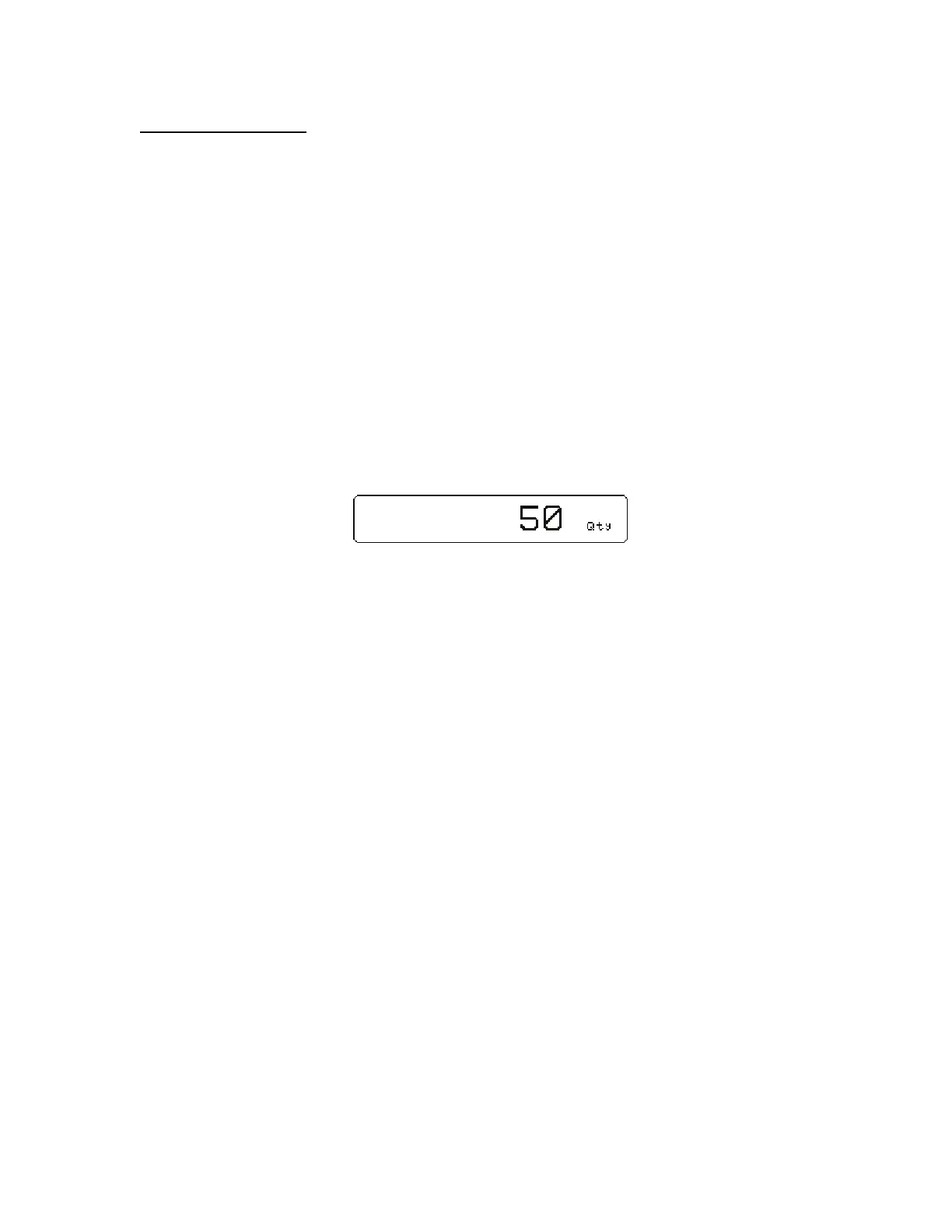
accept the current weights as a sample and will display the quantity.
-or-
2) If the sample size is known and no container is used:
a. Place the sample on the scale.
b. Key in the sample size and then press the
3 Sample or 9 key. The scale will
accept the current weights as a sample and will display the quantity.
Example: D J 3 or 9
Store a New Part Number
Part numbers can be stored in a database and can be recalled later with necessary data such as the average
piece weight and description. Make sure you enter a part number before entering a Bin #, Lot # or APW.
1. Scan in a part number or key in the part number and press the
5 (Rec/New) key. The other
data fields will be cleared.
2. If you want to add a part description, Bin #, Lot # and/or an APW either scan it in or press
6 (Entry).
If the field was scanned it will automatically be populated. Go to step 4.
If none of these fields are desired, go to step 4.
3. Press the key associated with the desired field. Key in the text and press
.
4. Press
4 to store the part number, APW, Lot #, Bin # and description.
Update a Part Number
It is possible to update the data that is stored with a part number.
1. While viewing the part number and data press
4 (Store). The data will be updated in the
database.



 To Next Page