46
Multi-Media Menu Operation
Before operating USB menu, plug in USB device, then press SOURCE button to set the Input
Source to USB. Press / button to select USB in the Source menu, then press Ok button to
enter.
45
Multi-Media Menu Operation
Before operating USB menu, Plug in USB device, then press SOURCE button to set the Input
Source to USB. Press / button to select USB in the Source menu, then press Enter button
to enter.
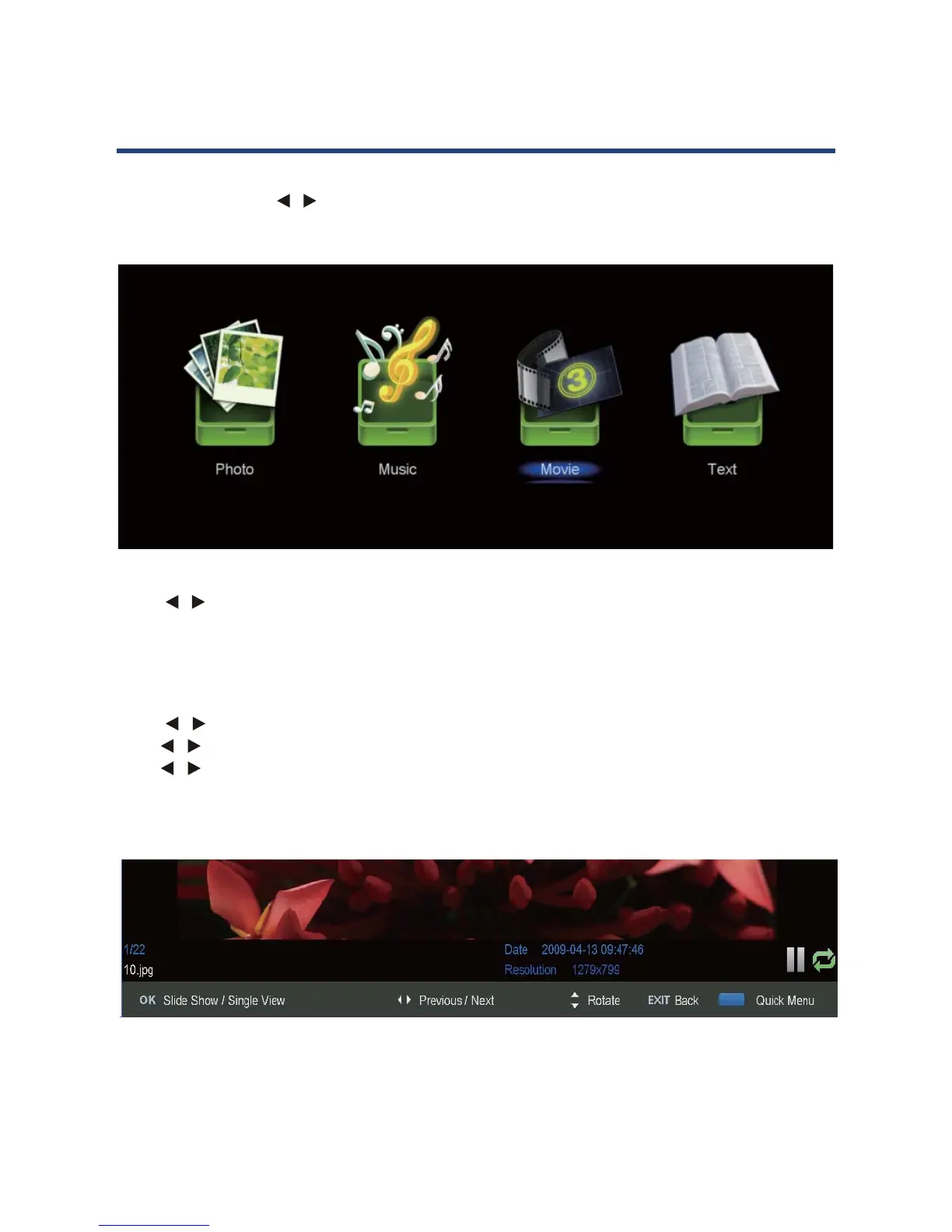
Press / button to select the option you want to adjust in the main USB manu, then press
OK button to enter.
Photo
Press
/ button to select PHOTO in the main menu, then press OK button to enter.
Press / button to select drive disk you want to watch, then press Enter button to enter.
Press / button to select return option to back to the previous menu.
Press / button to select the option you want to adjust in the main USB manu, then press
Ok button to enter.
Photo
Press / button to select PHOTO in the main menu, then press OK button to enter.
Press / button to select drive disk you want to watch, then press OK button to enter.
Press / button to select folder or le you want to watch, then press OK button to conrm.
Press Exit button to go back to the previous menu.
45
Multi-Media Menu Operation
Before operating USB menu, Plug in USB device, then press SOURCE button to set the Input
Source to USB. Press / button to select USB in the Source menu, then press Enter button
to enter.
Press / button to select the option you want to adjust in the main USB manu, then press
OK button to enter.
Photo
Press
/ button to select PHOTO in the main menu, then press OK button to enter.
Press / button to select drive disk you want to watch, then press Enter button to enter.
Press / button to select return option to back to the previous menu.



 To Next Page