6-10 2. Main Menu Screen
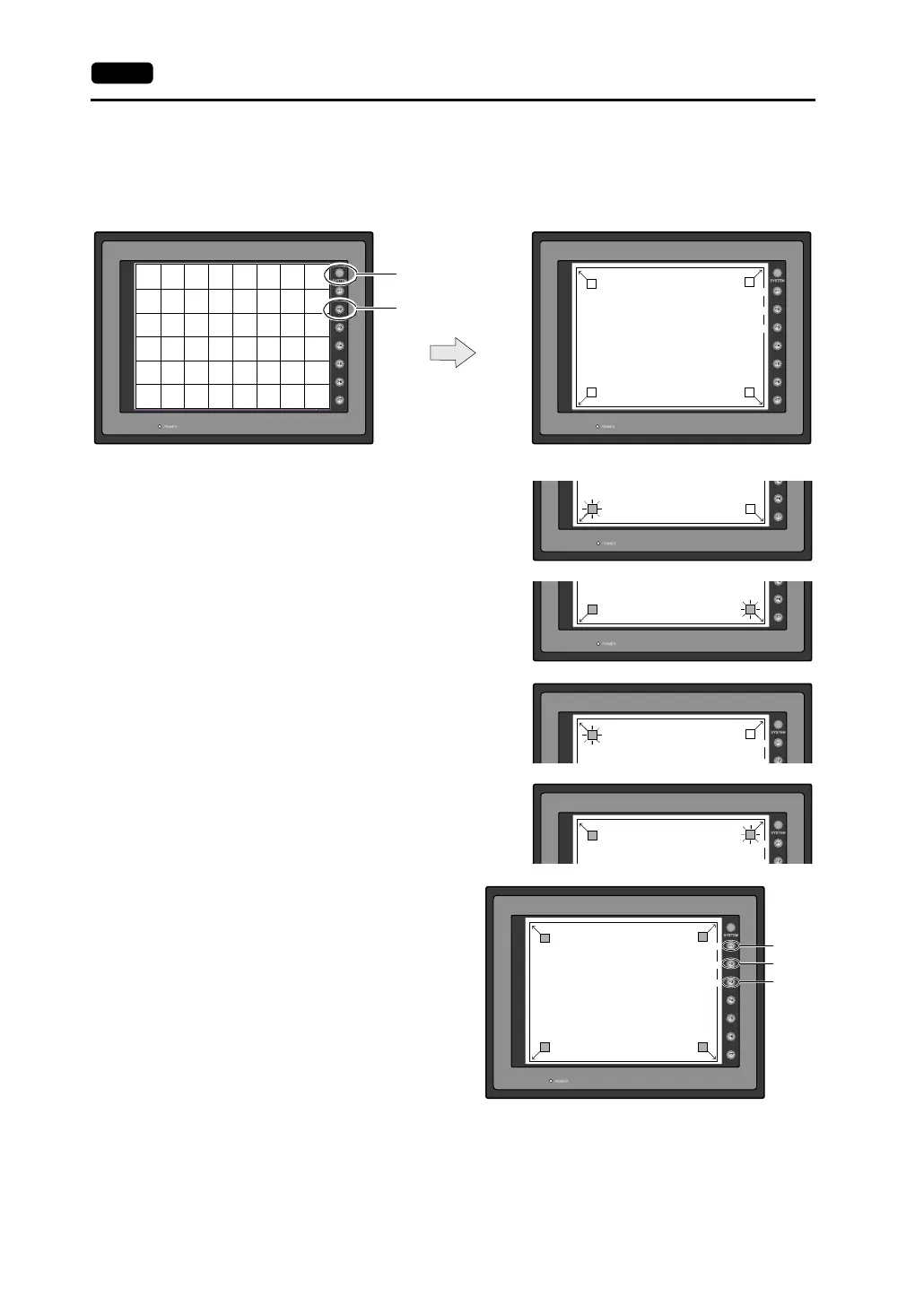
Touch Switch Adjustment
If a position different from the pressed position turns white on the touch switch test screen, follow the
steps described below to adjust the touch switch position.
1. Hold down the [SYSTEM] switch and press the [F2] switch on the touch switch test screen.
2. Press on “1” that is flashing at the corner on the
touch switch adjustment screen. When the finger
is released, a beep sounds and the position is set.
“2” flashes.
3. Press on “2” that is flashing at the corner. When
the finger is released, a beep sounds and the
position is set. “3” flashes.
4. Press on “3” that is flashing at the corner. When
the finger is released, a beep sounds and the
position is set. “4” flashes.
5. Press on “4” that is flashing at the corner. When
the finger is released, a beep sounds and the
position is set.
6. To re-set the positions, press the [F2] switch
and follow step 2 and later.
7. Press the [F1] switch. A long beep sounds
and the positions are determined. The
touch switch test screen is displayed again.
8. To cancel the setting, press the [F3] switch.
The touch switch test screen is displayed
again.
X: Y:
Return
Erase
Touch Switch Adjustment
Touch the flickering corner.
The last position you touched is the setting value.
3
12
4
Fix
Reset
Return
SYSTEM
F2
Touch the flickering corner.
The last position you touched is the setting value.
12
Touch the flickering corner.
The last position you touched is the setting value.
12
Touch Switch Adjustment
3
4
Fix
Touch Switch Adjustment
3
4
Fix
X: 986 Y: 984
Touch Switch Adjustment
Touch the flickering corner.
The last position you touched is the setting value.
3
12
4
Fix
Reset
Return
F1
F2
F3



 To Next Page