6-16 2. Main Menu Screen
2. Check the folder name, free space, and CF card file information. If the correct folder is selected,
move to step 4.
• Folder Name
Indicates the name of the currently selected folder.
The access folder that is set for screen data defaults.
If there is no screen data, “DAT0000” defaults.
• Rest Size
Indicates the free space in the CF card.
• CF Card File Information
Indicates the information of the currently selected folder.
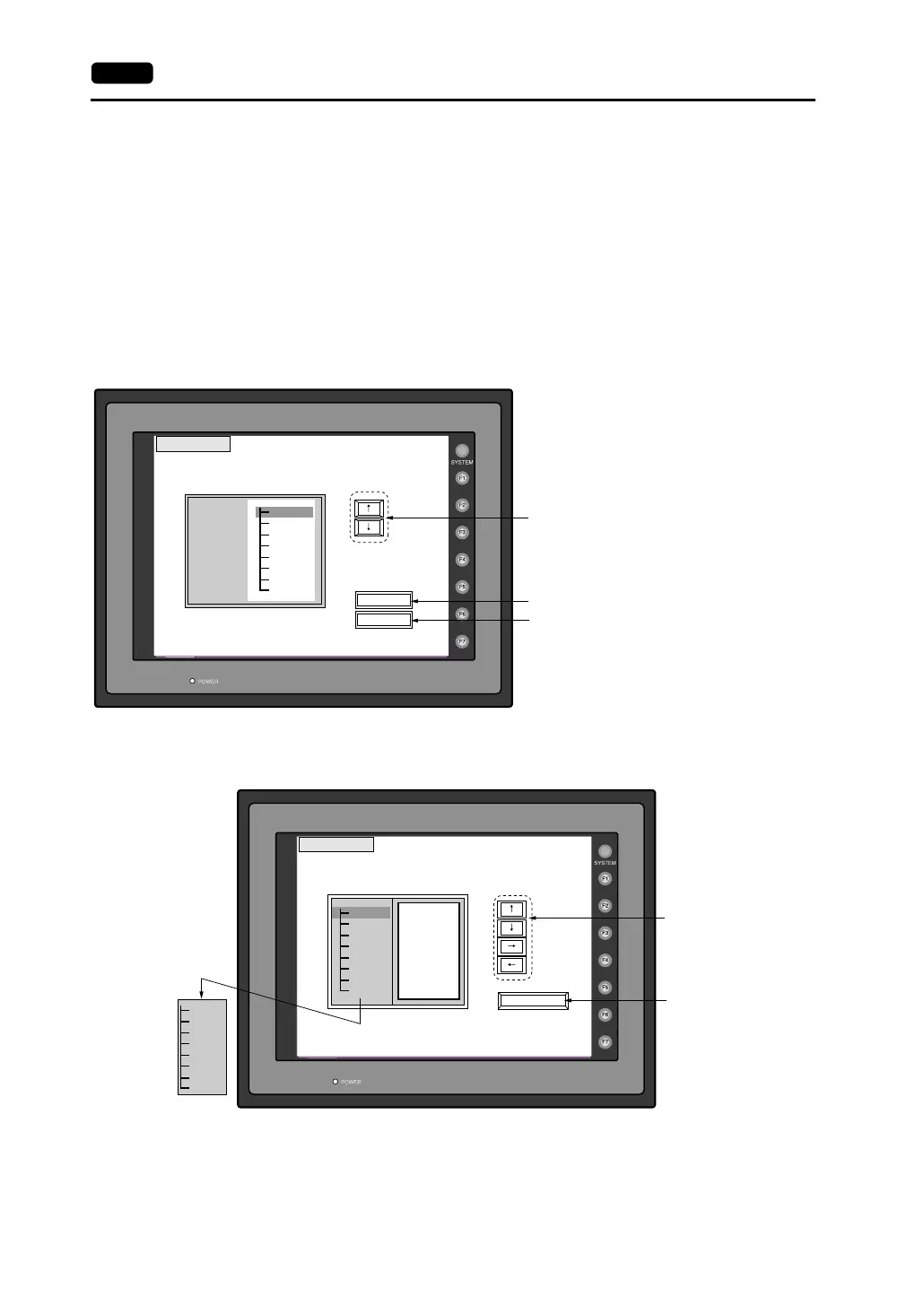
3. To change to another folder, press the [Select Folder] switch.
The “Select Folder” screen is displayed.
• To see the details of the folder, press the [Folder Detail] switch.
The “Folder Detail” screen is displayed.
• [Select the desired folder using the [↑]/[↓] switch, and press the [OK] switch.
The Card Transfer screen is displayed again and the CF card file information of the selected
file is indicated.
Select Folder
Folder Name: AAAAAAAA
OK
Folder Detail
Folder
Selection
AAAAAAAA
BBBBBBBB
CCCCCCCC
Rest Size: 29437KB
Moves the cursor.
Indicates the details of the folder.
Determines the folder selection.
Folder Detail
Folder Name : AAAAAAAA
Folder Selection
DSP0000.BIN
Rest Size: 29437KB
DSP
CARD
SRAM
MEMO
RECIPE
SAMPLE
HDCOPY
BITMAP
JPEG
SNAP
WAV
FONT
WEBSERV
Moves the cursor.
Moves back to the
“Select Folder” screen.
Scrolls with the
[↑]/[↓] switch.


 To Next Page