FOR MORE INFO REFERENCE OIM MANUAL P/N FSG–MNL–00210 13
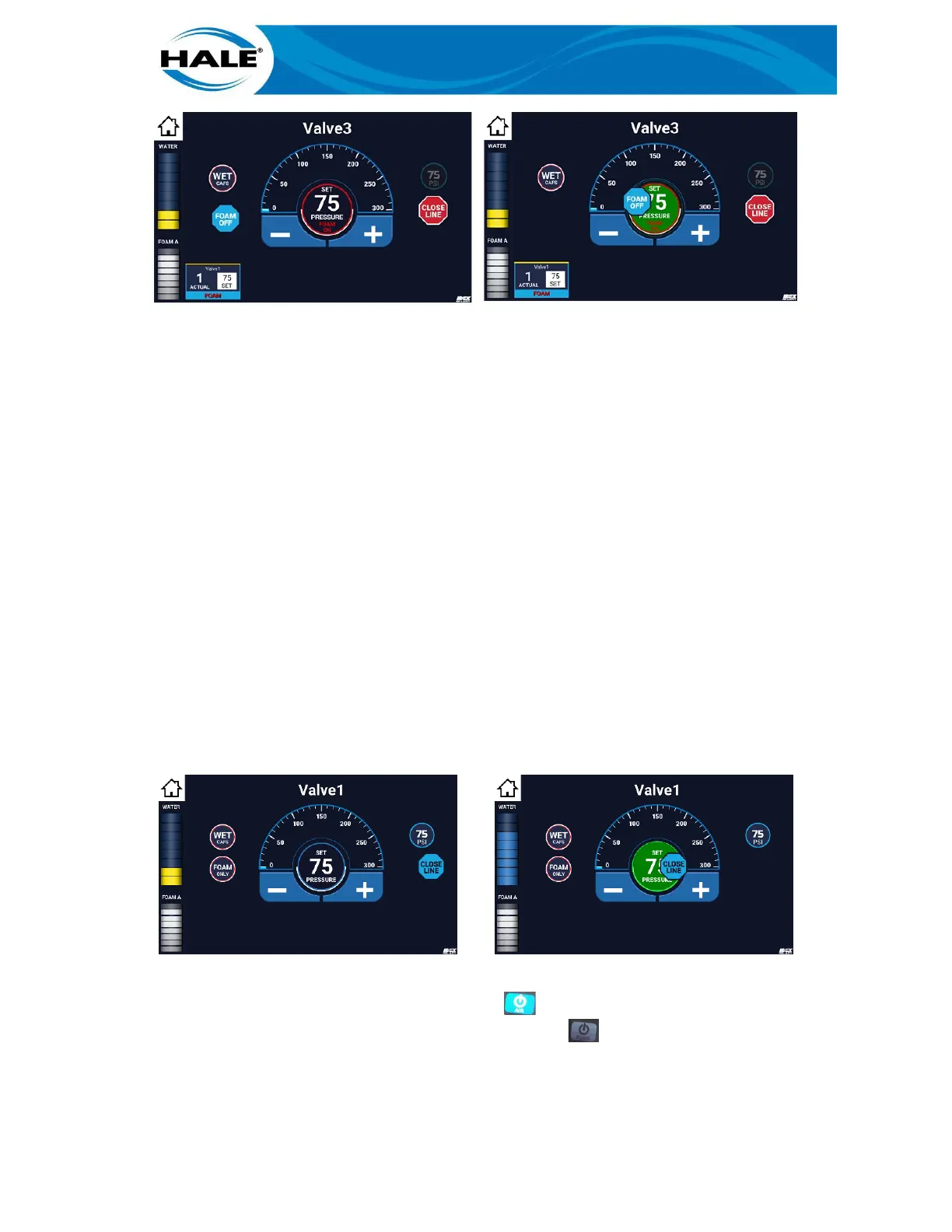
Figure 22. FOAM OFF Bubble Swipe Sequence
3.7 Closing A CAFS Discharge (With SAM)
SAM can control multiple CAFS capable discharges. If ONLY one CAFS discharge is active, and that discharge
is closed, CAFS is also turned off when the discharge is closed. However, if multiple CAFS discharges are ac-
tive, CAFS stays on until the last CAFS discharge is closed.
NOTES
If only one CAFS discharge is open, the CLOSE LINE balloon activates automatically (the same as
a preset would). No confirmation is required.
If one or more CAFS discharges are open, and FOAM rather than CAFS is desired, see Changing A
CAFS Discharge To FOAM ONLY (paragraph 3.5, page 10). Additionally, if water only is desired, see
Turning Off CAFS (paragraph 3.8, page 14).
If a swipe fails, times out, misses the target, or the operator only touches and releases the balloon;
the applicable confirmation popup window appears (see FOAM OFF and CLOSE LINE reference
from above). Touch the YES bubble to complete the action or the NO bubble to make no change.
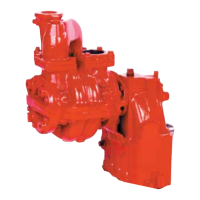
To use the SAM Control Center to close a SmartCAFS discharge, perform the following.
A. On SCC Home screen, touch desired active CAFS discharge. Displays Valve X screen (dis-
charge valve control screen) displays. See left-hand side of Figure 23.
B. On Valve X screen (discharge valve control screen), swipe CLOSE LINE bubble to target (cen-
ter of widget). See Figure 23.
Figure 23. Closing A CAFS Discharge Sequence
On the SmartCAFS display, AIR is turned off when only the icon on the right-hand side of the display is
illuminated (see Figure 20, page 12); if FOAM is also turned off the icon on the left-hand side of the dis-
play is grayed out (see Figure 24).



 To Next Page