FOR MORE INFO REFERENCE OIM MANUAL P/N FSG–MNL–00210 5
C. Touch desired FOAM preset bubble. (All foam available FOAM presets are labeled with the
word FOAM and are located to the left of the widget.) See Figure 5.
D. Drag bubble to target (SET PRESSURE).
E. Release bubble (remove finger from screen).
The SmartFOAM system powers on and activates preset #1. The associated concentration of foam solution
is discharged. See example, Figure 3.
2.5 Close A Foam Discharge (With SAM)
SAM can control multiple FOAM capable discharges. If ONLY one FOAM discharge is active, and that dis-
charge is closed, FOAM is also turned off when the discharge closes. However, if multiple FOAM discharges
are active, FOAM stays on until the last FOAM discharge is closed.
To close a SmartFOAM discharge, perform the following.
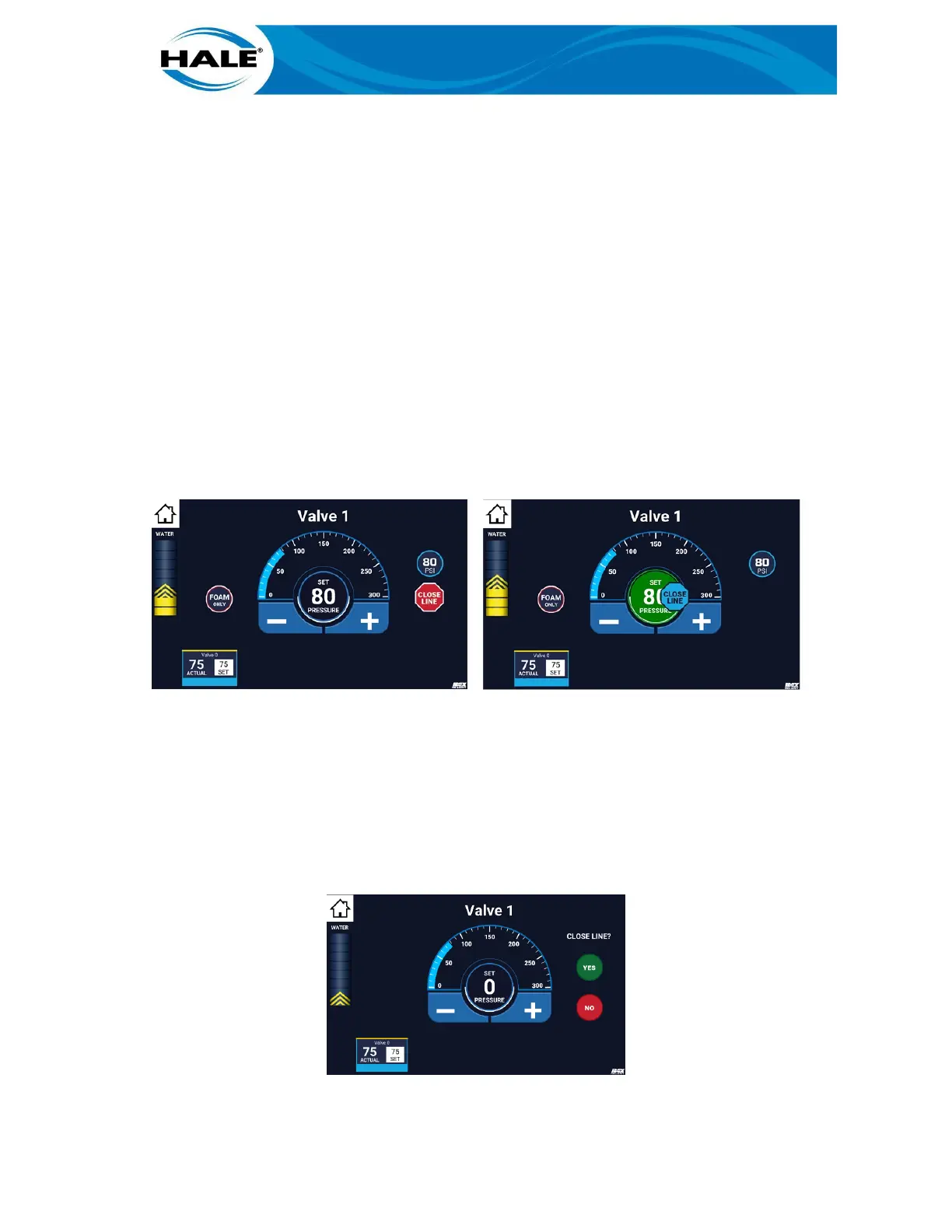
A. On SCC Home screen, touch desired active FOAM discharge. Displays Valve X screen (dis-
charge valve control screen) displays. See left-hand side of Figure 6.
B. On Valve X screen (discharge valve control screen), swipe CLOSE LINE bubble to target (cen-
ter of widget). See right-hand side of Figure 6.
Figure 6. Closing A Foam Discharge Sequence
NOTES
The CLOSE LINE balloon activates automatically (the same as a preset would). No confirmation is
required.
If the swipe fails, times out, misses the target, or the operator only touches and releases the bal-
loon; a confirmation popup window appears (Figure 7). Touch the YES bubble to close the line or
the NO bubble to make no change.
Figure 7. Close Line Popup Confirmation



 To Next Page