MA310 | MA510 | MA710 Owner's Manual | rev1.3 20240612
Pg 35 of 42
©2024 Harman International | Features, Specifications, and Appearance subject to change without notice.
Step 6 - Calculate
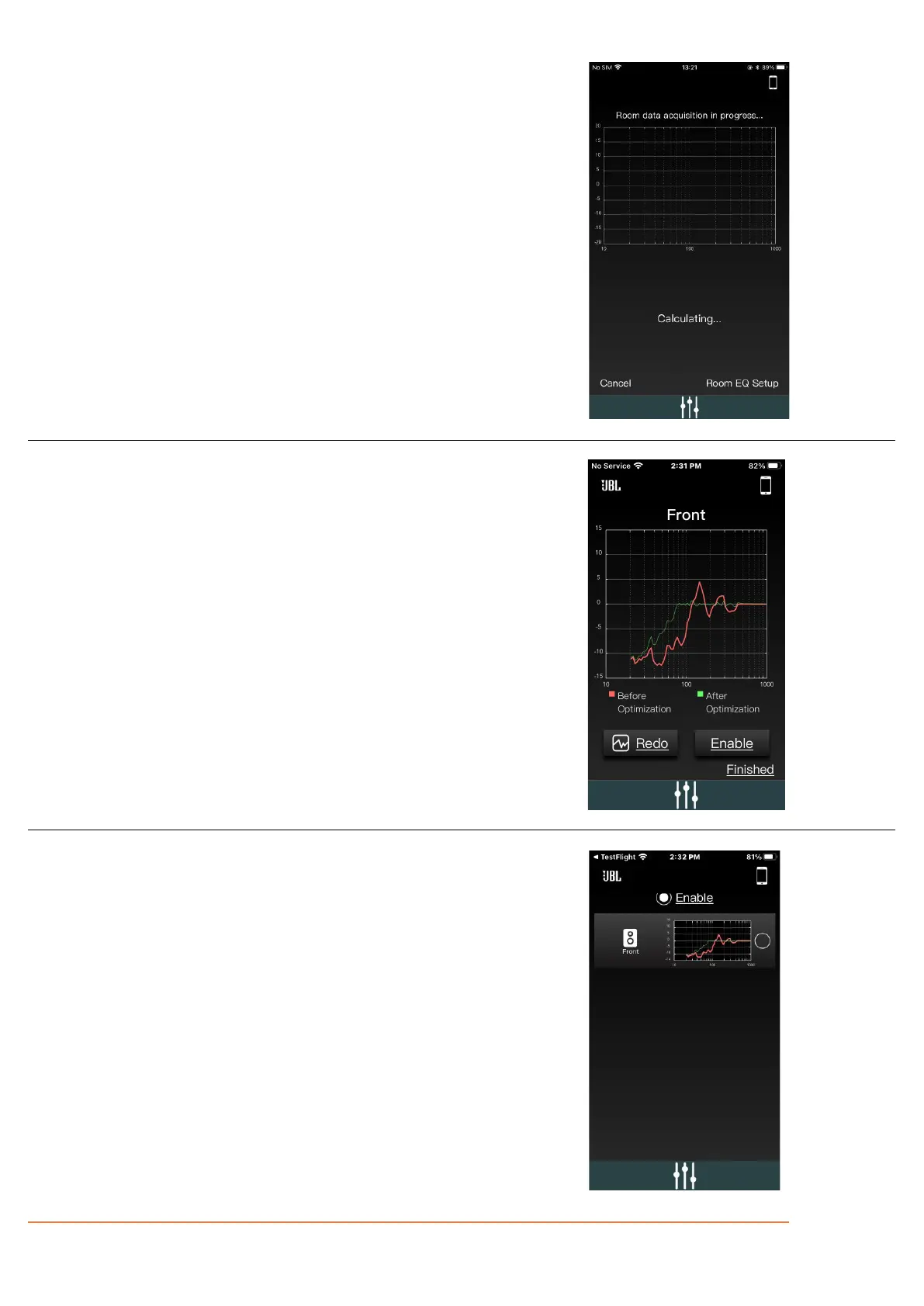
The app will need 10 seconds to generate the curve. The graph will illustrate
a curve that is moving, indicating that the graph is being generated.
Once the curve has been generated, a red EQ curve of the room is shown.
Press 'Calibrate' to continue.
By pressing 'Calibrate' a green optimized curve appears which shows the
improved low frequency response of the speakers.
The red curve represents before optimization, and the green is the optimized.
By pressing 'Enable' the green curve is activated, and the audio experience is
improved.
By pressing 'Disable' the green curve is deactivated.
By pushing 'Redo' you will be sent back to the INSTRUCTIONS to restart the
measurement for that speaker group.
Click “Finished” to save your progress and go back to the Home screen.
After the calibration, you can enable/disable the Room EQ while playing
music from the Home screen.
If you would like to redo the calibration, click on the speaker group once
more, and select Redo.
This process can be completed for each speaker group for the current layout.



 To Next Page