Pg 2 of 14
©2024 Harman International | Features, Specifications, and Appearance subject to change without notice.
Getting Started
HOW DOES EZ SET EQ ROOM CORRECTION WORK?
Using a microphone to analyze the audio system and room, EZ Set EQ builds an acoustic model of the listening environment.
The built-in microphone of an iOS device can be used for the calibration. For Android users, JBL recommends using a third-
party microphone for the best results since every Android device has different a microphone/frequency response.
Recommended calibrated microphone for Android users: Dayton Audio iMM-6C USB-C
EZ Set EQ primarily addresses room interactions in the low frequency bands, that way it has minimal effect on overall
loudspeaker voicing. The low frequency response can be adjusted according to the loudspeaker’s natural low frequency
extension to avoid boosting lower than the speaker can handle, and by the size of the room.
EZ Set EQ does not affect delay or level adjustment; so, we recommend making the necessary adjustments manually prior to
using the room EQ app.
Connectivity between the mobile device and the AVR:
BLUETOOTH OPERATION
Connecting your phone or tablet:
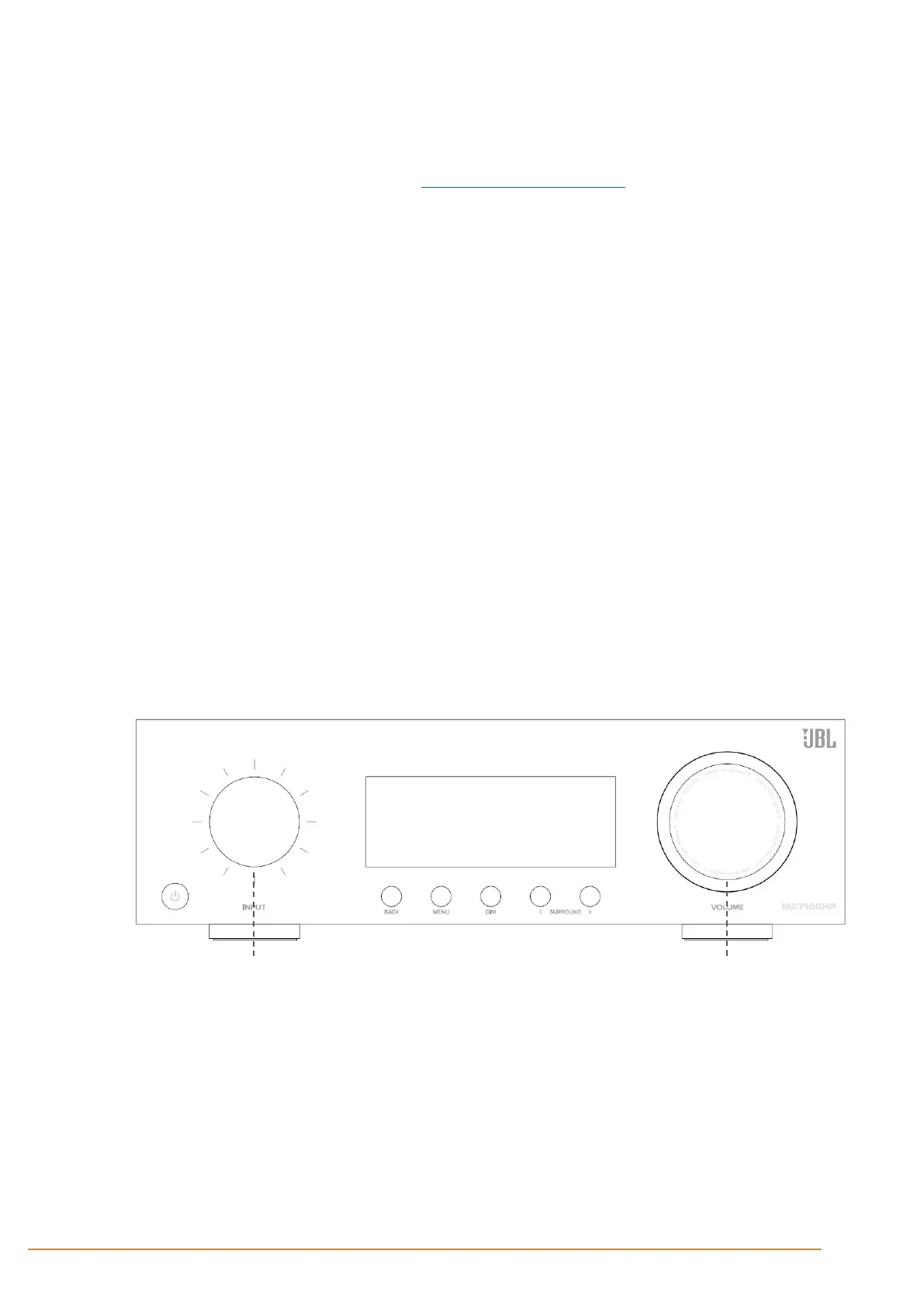
• Select the Bluetooth input on the AVR for Bluetooth pairing of a source device. Push and Hold the Input knob to
initiate Pairing Mode.
• To pair your Bluetooth source device, open the Bluetooth settings on your source device and scan for
MA310/MA510/MA710 ###### from the list. Each product has a unique ID.
2. Push to Select “Bluetooth”
3. Push and Hold to activate Pairing Mode
4. Open the Bluetooth settings on your phone/tablet. Scan
for MA310/MA510/MA710 ###### and select from the
list. Each product has a unique ID.
Push to Mute/Unmute
• The AVR can recall 7 device pairings. If 7 are in memory already, the oldest will be replaced.
• Because portable devices often have a volume slider. Upon pairing, there is a default volume setting in the amplifier to
prevent excessive volume output being selected accidentally. The default is 20.



 To Next Page