14
Importing Audio
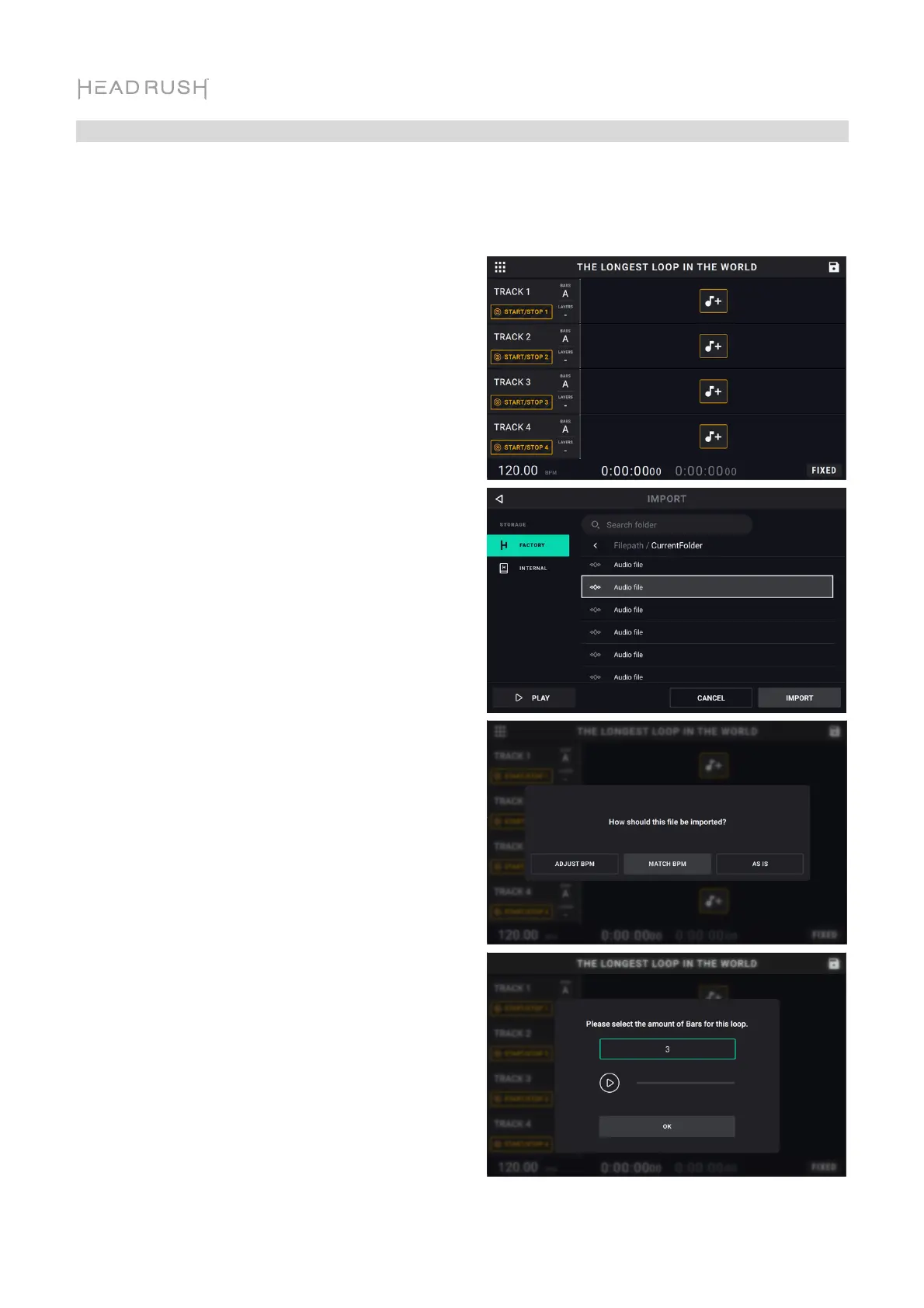
In addition to creating loops using input sources, you can also import a .WAV or .MP3 audio file
(such as a recorded drum beat) directly into an empty looper track.
To import an audio file:
1. While viewing the Timeline Page, tap the
Import Audio icon on any empty track.
2. Select a source by tapping one of the icons
in the left column of the browser:
• Factory: This is a collection of over 300
exclusive drum and percussion loops
provided by HeadRush.
• Internal: This is the internal storage of
HeadRush Looperboard.
• USB 1/USB 2/SD: These sources will
appear if you have external storage
connected to the respective ports on the
rear panel of HeadRush Looperboard.
3. Use the touchscreen to navigate through
folders, as necessary. You can search for an
audio file in a folder by tapping in the search
field in the top center of the touchscreen,
next to the magnifying glass. Tap the X icon
to clear your search.
4. Select a file, and then tap the Play button if
you would like to preview the audio file, or
tap the Import button to load the audio file
into the looper track.
5. After tapping the Import button, a dialog will
appear with up to 3 options:
• ADJUST BPM: This will change your
loop’s tempo to match the automatically
detected tempo of the imported audio
file.
• MATCH BPM: This will change the
imported audio file to match the current
tempo of your loop.
• AS IS: This will import the audio file
without changing the tempo of the audio
file, or the tempo of your loop.
6. You may also need to indicate the number of
bars of your imported file. You can tap the
Play icon to preview the file for reference, if
needed.


 To Next Page