25
Storage
As you create and save loops, your HeadRush Looperboard's internal storage may become full. To
prevent this, you can connect external USB or SD storage as needed. This gives you virtually
unlimited storage of loops!
To enter the Storage page, tap the Navigation Menu icon in the top-left corner, and then tap the
Storage icon.
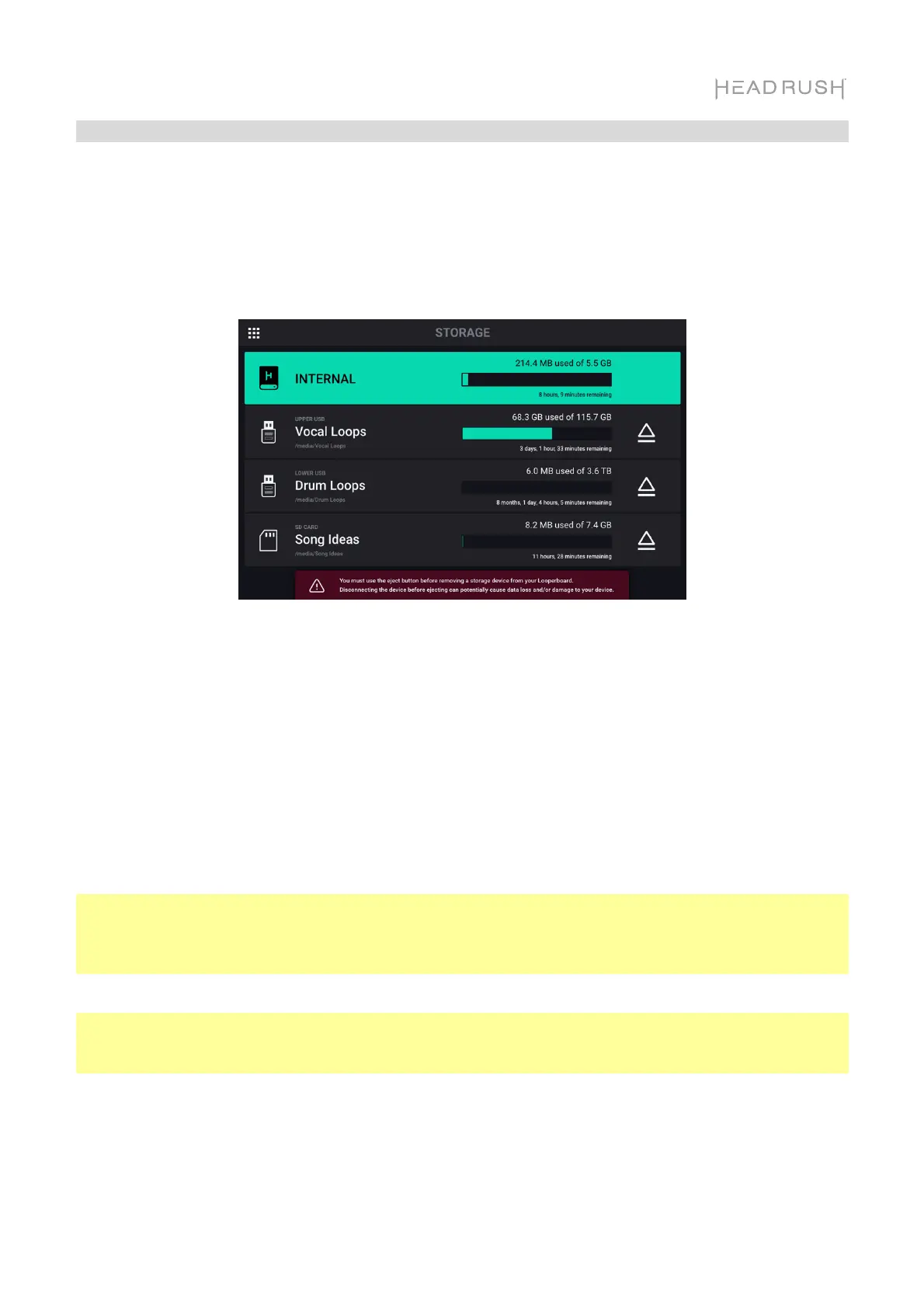
On the storage page, you will see meters that show the available storage space as well as the
remaining available looping time for HeadRush Looperboard’s internal storage, as well as any
connected USB/SD external storage devices.
To select a new storage device to use for looping, tap the name of the device. Once the device
has been selected, all new loops created will be stored using this device.
After making your selection, you can exit the Storage page by tapping the Navigation Menu icon in
the top-left corner of the touchscreen.
Tip: If you save a loop to an external storage device before changing to the external storage device
on the storage page, you will still be working with the loop in its initial location. If you want to
continue to work on the external storage device, you will need to load the loop from its new storage
device.
Important: To avoid file loss or damage to your media, only disconnect external USB and SD
storage devices from HeadRush Looperboard while it is powered off. Alternatively, tap the device’s
eject icon on the storage page.


 To Next Page