17
Footswitch Assignment
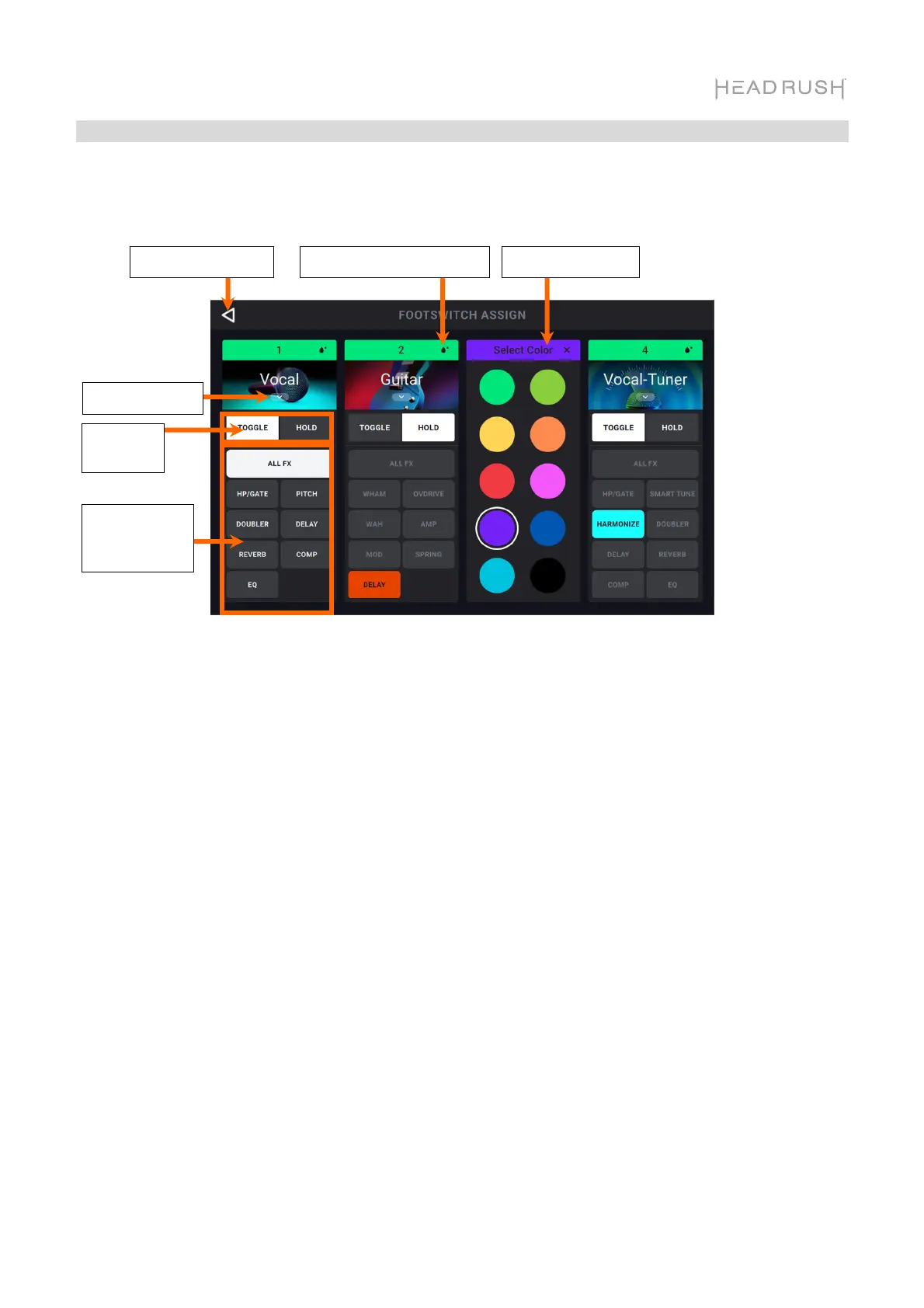
On the Footswitch Assign page, you can modify the functions of HeadRush Looperboard's
footswitches in an FX Rack.
To select the FX Rack controlled by the footswitch, tap the icon that shows the name of the FX
Rack (e.g., Vocal, Guitar, Lo-Fi), and then select the new FX Rack to control. To hide the selections,
tap the block with the name of the FX Rack again.
To change the footswitch's LED color, tap the Show LED Color icon on the top right corner of
the FX rack to view the selectable colors. Tap to select the color, and then tap the X icon to hide
the colors.
To change the trigger behavior of the footswitch, tap the block that says either Toggle or Hold
(momentary). The text shown will be the behavior of that footswitch.
To assign a footswitch to enable/bypass all active FX within an FX Rack, tap to select the ALL
FX block for the footswitch.
To assign a footswitch to enable/pass individual FX within an FX Rack, tap to select the desired
individual FX blocks for the footswitch.
Trigger
Behavior
Select FX Rack
ssign All or
Individual FX
to Footswitch
Return to FX Page
Show LED Color Settings Select LED Color


 To Next Page