19
Managing Loops
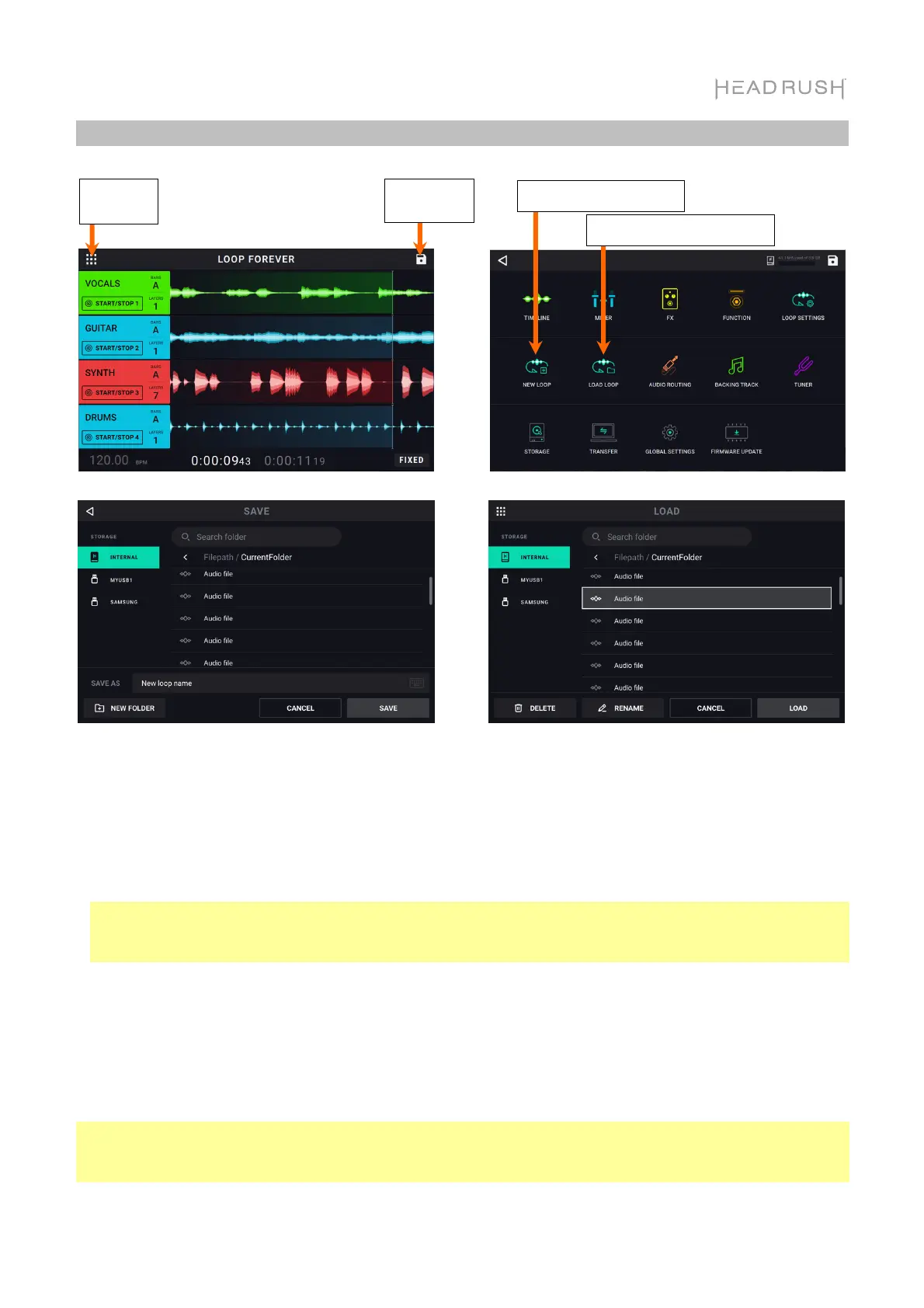
To create a new loop (and discard unsaved changes), tap the Navigation Menu icon, and then
tap New Loop icon.
To save the current loop, tap the Save icon in the top right corner of the Timeline, Mixer, or
Navigation Menu pages. Tap Save (to save over the existing file) or Save New Loop (to save the
loop as a new file), or tap Cancel to return to the previous screen. A save browser will then appear
for you to select your desired target storage device and folder for saving.
Note: When saving to a storage device using the exFAT or FAT32 file system, the maximum file
size for saving .WAV files is 4GB (about 6 hours and 11 minutes of audio). If you are saving to a
storage device using the FAT16 file system, then the limit for saving .WAV files is 2GB.
To load a previously saved loop, tap the Navigation Menu icon, and then tap the Load Loop
icon. The Load Loop browser will then appear, where you can locate a loop and then tap the Load
button to load it.
You can also Delete or Rename a previously saved loop in the load loop browser by tapping the
loop name, and then tapping Delete or Rename buttons accordingly.
Tip: You can search for a Loop in a folder in the Load or Save Loop browsers by tapping in the
search field in the top center of the touchscreen, next to the magnifying glass. Tap the X icon to
clear your search.
Tap to save
our loo
Navigation
Menu
Tap to create a new loop
Tap to load an existing loop


 To Next Page