16
Editing FX
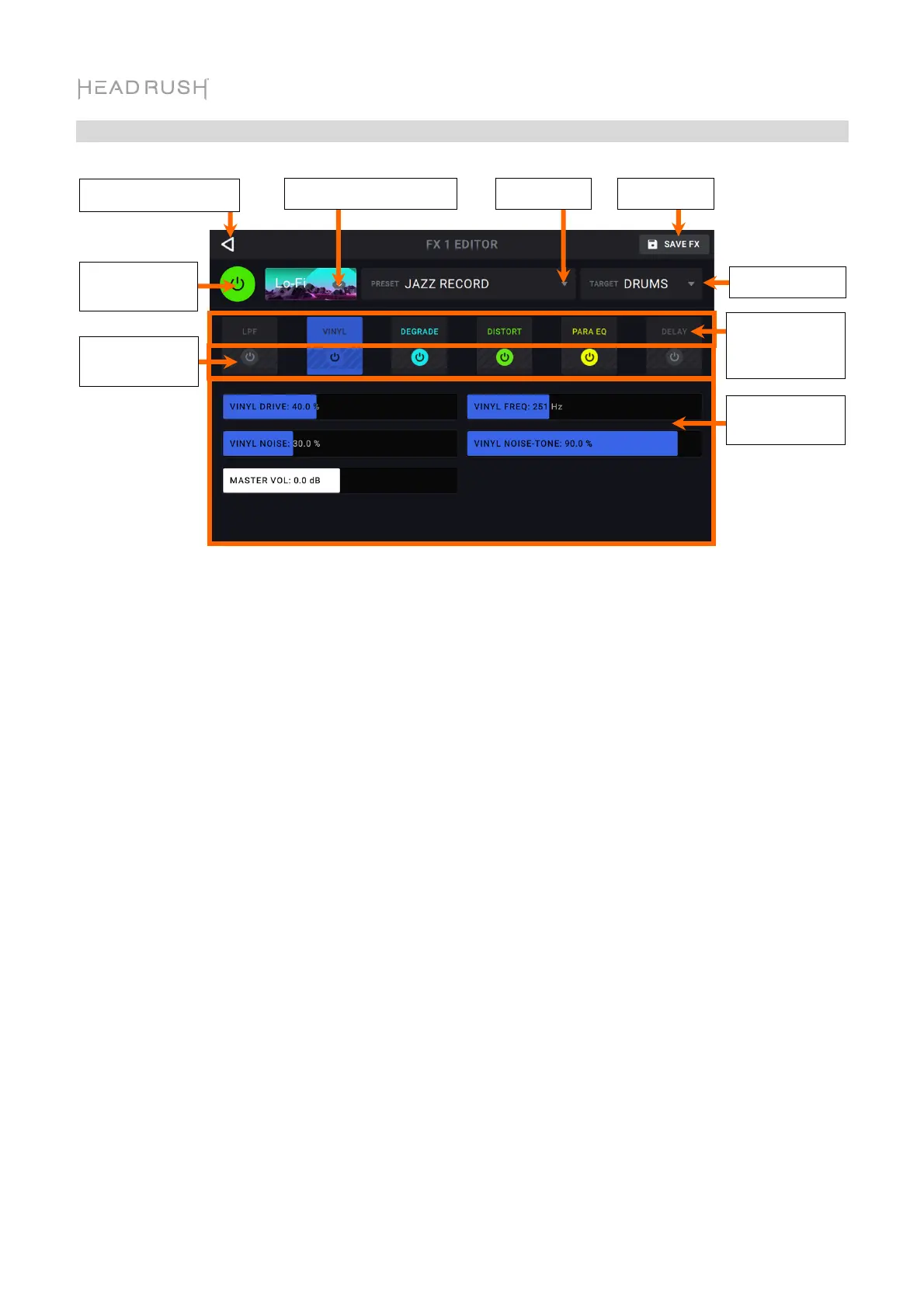
To enable or bypass the full FX Rack, tap the Enable/Bypass button in the top-left corner of the
touchscreen, underneath the back arrow.
To change the FX Rack type, tap the FX Rack drop-down menu, and then tap the FX Rack type
you would like to load.
To load a factory or previously saved FX Rack preset, tap the Preset drop-down menu, and then
tap the preset you would like to load.
To save your settings as an FX Rack preset, tap the save icon in the top right corner of the
touchscreen.
To set the target audio for the FX Rack, tap the target dropdown menu and then select Inputs 1–
4 or Tracks 1–4. If you have previously named your loop’s tracks, the new names will appear
instead of Tracks 1-4.
To enable or bypass individual effects within the FX rack, tap the Enable/Bypass buttons
located under each individual effect’s name.
To view and adjust an individual effect parameter within the FX rack, tap the individual FX rack’s
name, and then tap and drag a parameter slider in the lower section. You can also tap the
parameter slider and then turn the encoder for fine adjustment.
Load Preset
Enable/Bypass
FX Rack
Return to FX Page
Save Preset Change FX Rack Type
Enable/Bypass
Individual FX
Individual FX
Parameters
ccess
Individual FX
Parameters
Change Target


 To Next Page