The set back temperature is used when a holiday, away or set back function is active.
The set back temperature range is 07-17°C and is set to 12°C as default.
The set back temperature function enables you to set this for individual or all
thermostats.
The max oor limit is used on thermostats with a oor limiting sensor and is used to
protect the oor surface from overheating.
The oor limit range is 20-45°C and is set to 28°C as default.
The oor limit temperature function enables you to set this for individual or all
thermostats with oor limiting function.
The system reset function will delete all thermostats and history information in your
system.
After a system reset, you will need to perform a new network scan to add thermostats
to your system.
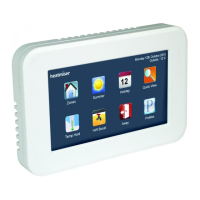
The Touchpad rmware can be updated as and when new features are introduced.
Check the latest version by visiting the Support Section on www.heatmiser.com
To perform the update the Touchpad has to remain powered up.
Connect the Touchpad to a laptop using the USB cable provided.
Extract the TFT.BIN le from the download ZIP le.
Copy and paste the TFT.BIN le onto the Touchpad drive on the PC.
You now need to follow these steps.
• Press Options TAB.
• Press the Settings icon ........................................................................................
• Press the System icon ..........................................................................................
• Press the Firmware Update icon ......................................................................
• Press the Done key ...............................................................................................
The TFT will now update and the display will reset.
To conrm the update was successful, check the version number in the Systems Info Tab.
System
Set Back Temp
System
Max Floor Limit
System
System Reset
System
Firmware Update


 To Next Page