10
Hard Disk Drive Formatting
Install the Hard Disk Drive first, then right click on the main interface and go to System
setup > General setup > HDD setup to check its status. If it’s not Formatted, check the
box to select the right Hard Disk Drive, then click Format.
Video Recording
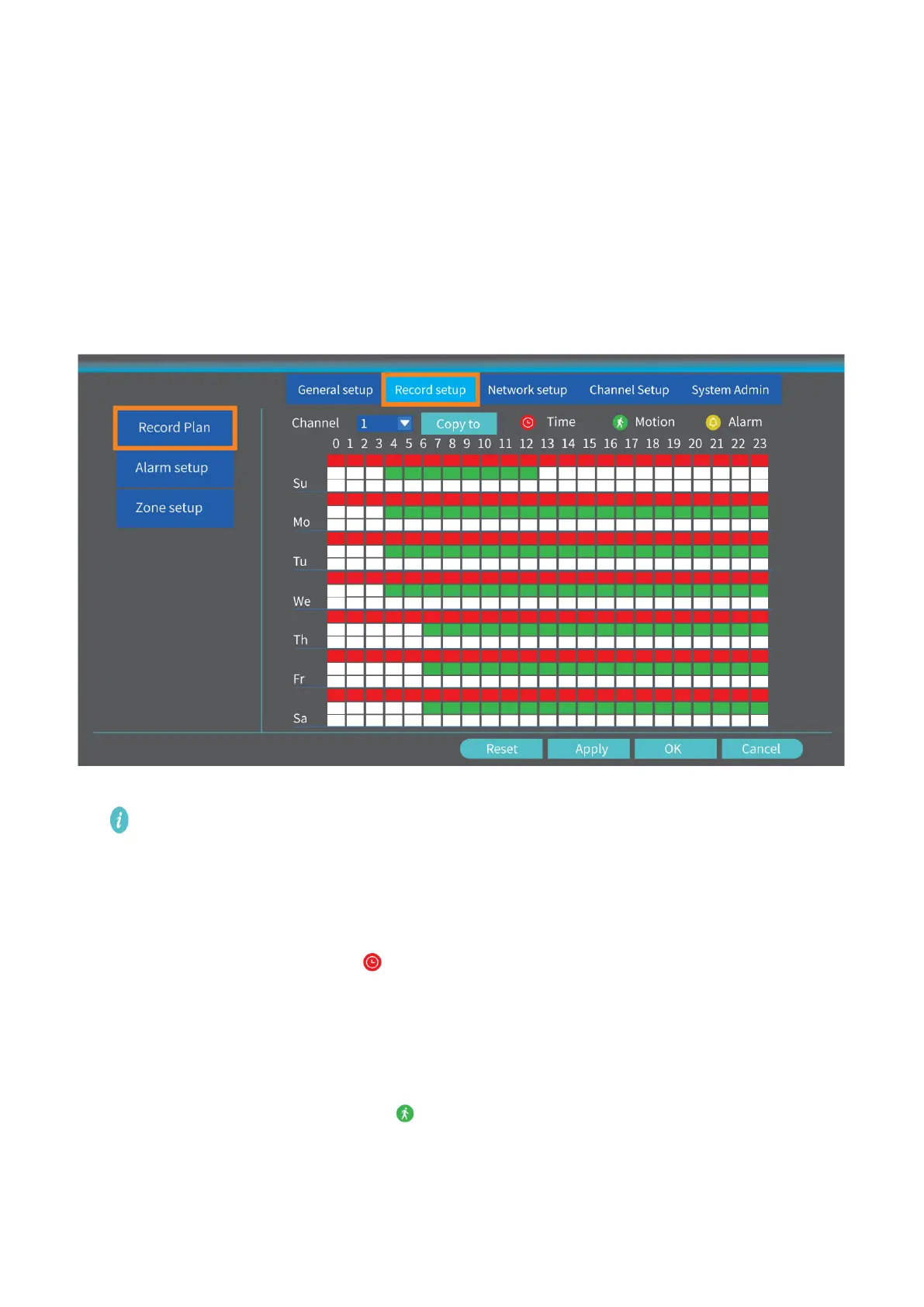
Right click on the main interface, then select System setup > Record setup > Record Plan
to set the recording mode. The default recording mode of the NVR is 24/7 all time
recording.
Tip:
You can click Reset to erase all the recording settings, then set the recording plan for
each mode as needed.
Record videos according to schedules
After reset, select Channel click Time to start setting schedules. Left click and hold to
select the day and hour you plan for recording. The area selected will turn Red and click
Apply to save the setting. The system will start recording at a specific time on a
daily/weekly schedule.
Record videos when motion detected
After reset, select Channel and click Motion to start setting recording schedules for
motion detection. Left click and hold to select the day and hour you plan for recording.


 To Next Page