Chapter 4 Boot and Configuration | Hillstone
Hillstone SG-6000 E-Series Hardware Reference Guide
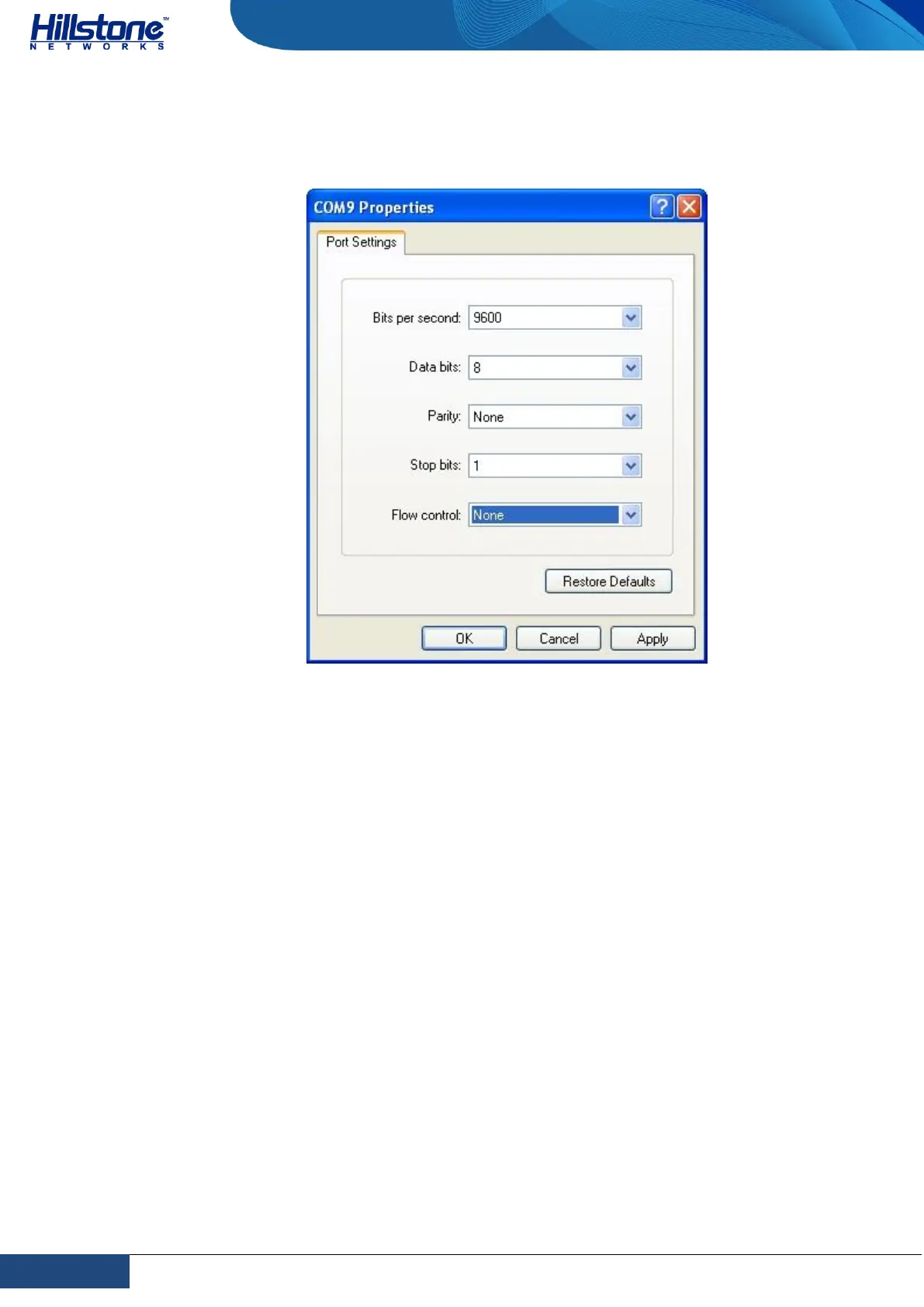
terminal session to 9600bps, 8 data bits, 1 stop bit, none parity, and none
flow control, as shown in Figure 4-2:
Figure 4-2: Setting Parameters for the Terminal Session
3. Switch on the power supply, and the device performs self-test and initializes
the configuration automatically. If the booting succeeds, the system will
display the command line prompt “login”. Enter the default administrator
name and password “hillstone” at the “login” and “password” prompts, press
“Enter”. And now you are successfully logged in and accessing the CLI.
4. Enter commands to configure or view running status. Enter a question mark
“?” to get help on commands whenever you want.
WebUI
The ethernet0/0 (e0/0) port has a default IP address of 192.168.1.1/24, and all the
management functions of this port are enabled by default. Administrators can
access the WebUI through e0/0.
To log in the device’s WebUI, take the following steps:
1. Set up the IP address of the management PC on the same subnet as
192.168.1.1/24. Connect the management PC to the e0/0 port through an
Ethernet cable.
2. Launch a Web browser of the management PC, enter the URL
http://192.168.1.1 in the address bar, and then press Enter.



 To Next Page