●Basic operation 3-24
Date/time setup
2015.07.0712:45
Com=0
Current time
Calendar time control
Calendar time
Clock system
24-hour clock
clock stop
OK
07
2015
(year)
07
(month) (day)
12 45 45
(hour) (minute) (second)
07
2015
(year)
07
(month) (day)
12 45 45
(hour) (minute) (second)
12-hour clock
●
Press OK to apply the date/time setup.
●
The current time affects the clock display only
when changes are made.
●
Calendar character will be printed based on "calendar time"
Cancel
same as current time
OK
Cancel
[Ready
]
M
Manual
HOME
Shutdown
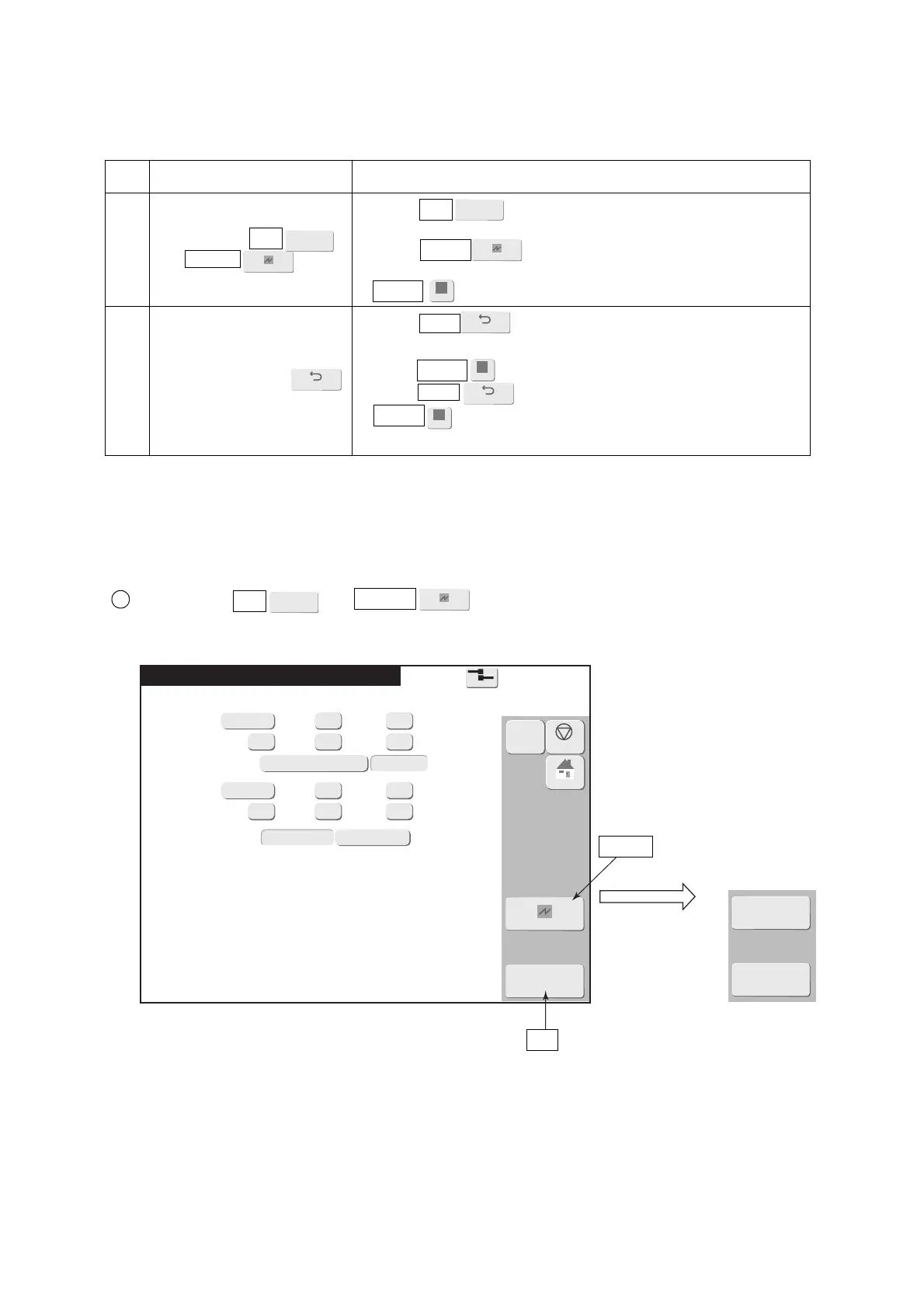
No. Classification Contents
1
Screens with OK
and Cancel
● When OK is pressed, the set contents are accepted
and the display returns to the previous screen.
● When Cancel is pressed, the set contents are canceled
and the display returns to the previous screen.
● Apply is not displayed.
2 Screens with Back
● When Back is pressed, the display returns to the
previous screen.
● When Apply is pressed, the set contents are accepted.
● When Back was pressed in the state in which
Apply is not pressed, a confirmation window is displayed
and action is requested.
(2) Screen examples
Screen with OK and Cancel
[Example of Date/time setup screen]
3.3.4 Operations (OK, Back, Apply) which exit from a screen
(1) Overview
●There are 2 types of setup screens.
● When “Apply” was performed during editing of the current message and at the User environment
setup screen, the set contents are reflected in printing.
● For the setup of whether or not to show some buttons as icon, refer to "6.3 setup the touch screen."
1
Apply
OK
Cancel
Cancel
OK
When set without
icons at the Touch
screen setup screen.


 To Next Page