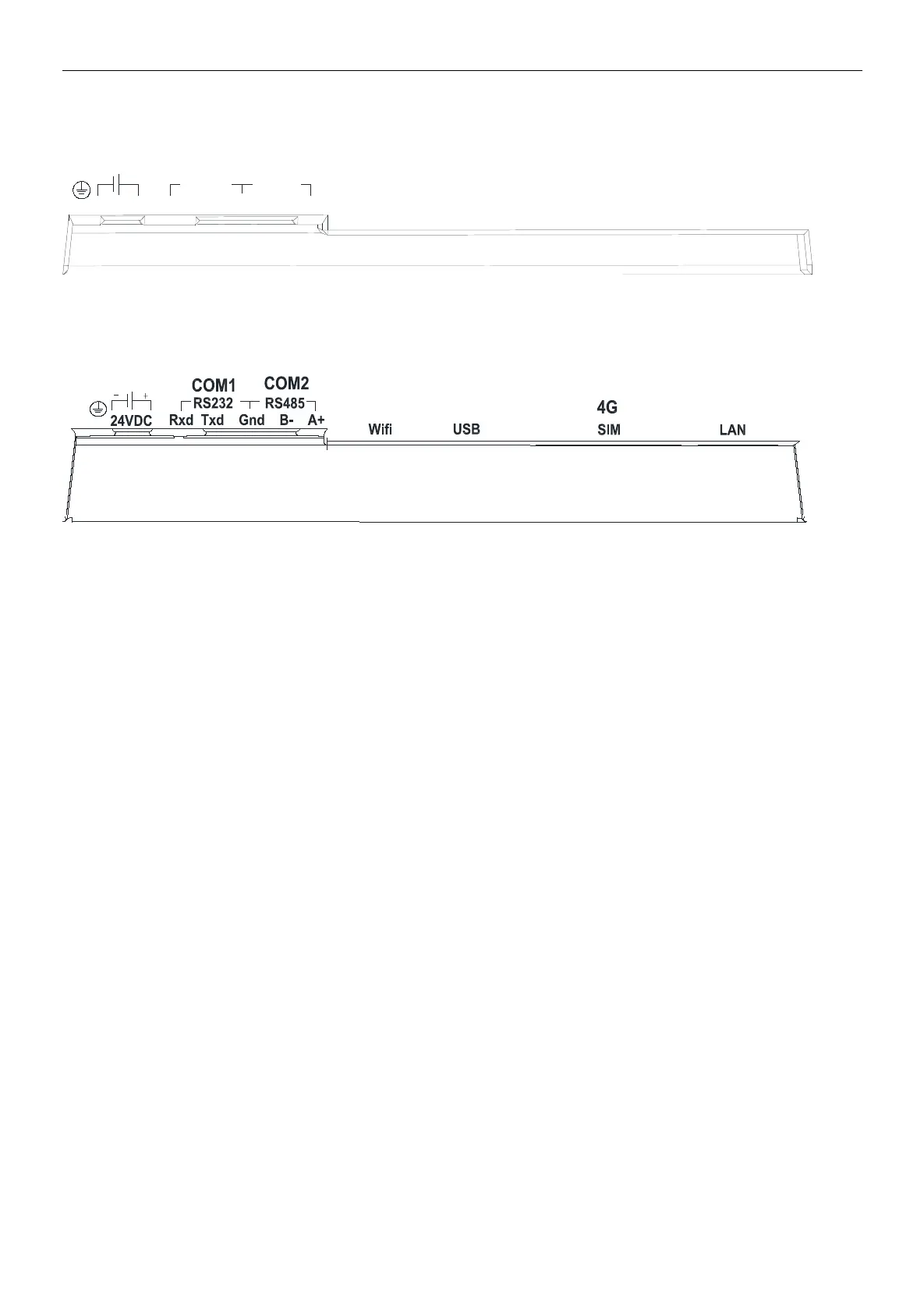
HT3000-7E/HT3000-10E/HT3000-H7E
COM1
RS232
RS485
Rxd Txd Gnd B- A+
USB
4G
SIM
LAN
24VDC
-
+
COM2
HT3000-7EW/HT3000-10EW/HT3000-H7EW
Software Instructions
1. HMI connection settings
HT3000 communicates with the PLC through the RS232 serial port, RS485 serial port or Ethernet port. During the hardware
wiring process, the HT3000-10 communicates with the PLC through the RS232 serial port and connects to the static Ethernet
network.
a. Notes and hardware installation steps
Notes
①The installation direction must be in accordance with the provisions of this manual, strictly in accordance with the direction of
the terminal wiring, otherwise it will cause product failure or burnout.
②The HMI and other components which are at the bottom must maintain sufficient space to avoid equipment damage caused
by poor heat dissipation
Hardware installation steps
Install the HMI into the cut-out panel and lock the four buckles on the side with the mounting panel.
b. Hardware wiring
Devices connection with power
HMI and PLC both connect with power.
Devices connection
HMI's COM-RS232 interface is connected to the PLC's RS232 interface;
c. Network connection
Step 1: Long press the upper right corner of the HMI device to enter the background settings interface.
Step: 2: Click [Network] to enter the Ethernet settings interface;
Step 3: Open [Switch] for network;
Step 4: You can select [Static IP] or [DHCP] as needed. When the network type selects [Static IP], you need to set the network


 To Next Page