28
4.2 Wi-Fi connection
1. In the recording screen, tap icon to stop recoding and enter
menu.
1. Tap Wi-Fi Switch icon to turn it on.
2. Tap
<
icon to return to preview screen.
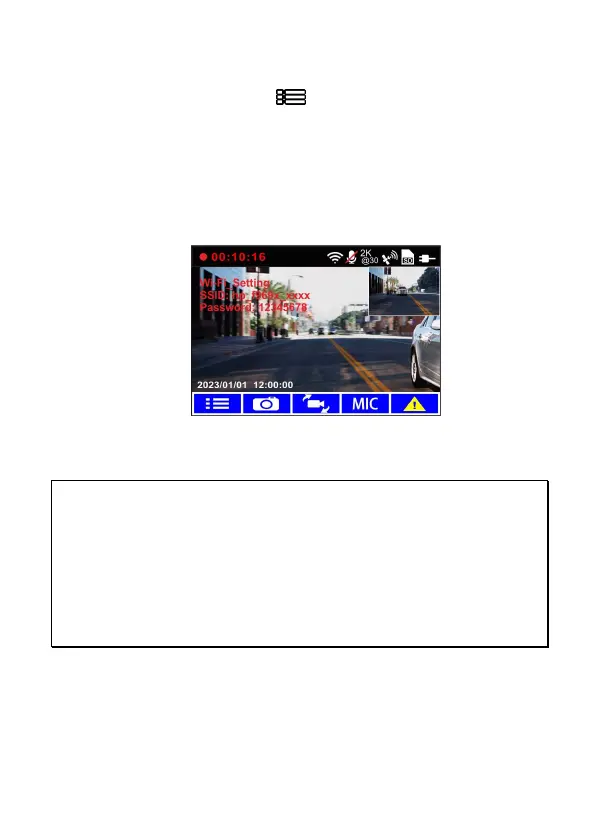
3. Using the Wi-Fi function of your smart phone, search for the
camcorder ID “hp_f969x_xxxx” from the list (last 4 numbers are
system random numbers). Enter default password 12345678.
4. The Wi-Fi icon will turn color to green, and your connection has
been successfully established.
Note:
1. The smart phone shall be within a maximum of a 5m distance from the camcorder without any
buildings in between.
2. When the Wi-Fi function of the camcorder is ON but not yet connected with your smart phone, or
the connection is disconnected, the Wi-Fi icon on camcorder’s screen will be white.
3. After connecting the smart phone with the camcorder, and activate app feature “Network
Streaming”, all the button operation of the camcorder will be disable; all the operations shall be
carried out via the Go Moto Plus App.
4. The language of the Go Moto Plus app will be consistent with your smart phone, beyond the
language options, the app will be activated with default language.
5. Supports OS: Android 9.0 or higher, iOS 13 or higher, Harmony 2 or higher.


 To Next Page