EasyManua.ls Logo

HP StoreEver MSL4048 - User Manual

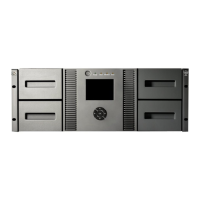
HP StoreEver MSL4048
220 pages
Print Icon
To Next Page IconTo Next Page
Loading...
HPE StoreEver MSL2024, MSL4048,
MSL8048, and MSL8096 Tape
Libraries
User and Service Guide
Abstract
This guide provides information on installing, configuring, upgrading, and troubleshooting the tape library. This guide is intended
for system administrators and other users who need physical and functional knowledge of the tape library.
Part Number: AK378-96087
Published: December 2015
Edition: 8

Table of Contents

Other manuals for HP StoreEver MSL4048

Questions and Answers

  • T
    tylerjohnsonSep 12, 2025
    What does yellow power supply LED mean on HP StoreEver MSL4048 Storage (MSL4048, MSL8048, and MSL8096)?
    • M
      Megan BairdSep 12, 2025
      If the yellow power supply LED is lit on your HP Storage device (MSL4048, MSL8048, and MSL8096), it indicates that the power supply fan is not rotating at an acceptable speed. Check the power supply fan for obstructions and, if necessary, replace the power supply.
  • B
    Brittany JordanSep 12, 2025
    What does blue power supply LED mean on HP Storage (MSL4048, MSL8048, and MSL8096)?
    • B
      Brian NicholsSep 13, 2025
      If the blue power supply LED is lit and the green power supply LED is off on your HP Storage device (MSL4048, MSL8048, and MSL8096), the blue LED indicates that the power supply is plugged into a good outlet, but the green LED being off means the power supply isn't producing good power. In this case, replace the power supply.
  • M
    Mary GarciaSep 15, 2025
    Why cleaning or data cartridge incompatible with drive in HP Storage?
    • K
      Kristen YuSep 15, 2025
      Make sure you are using data and cleaning cartridges that are compatible with the drive and model of your HP Storage device and that you are using the correct cartridge type for the operation. The device automatically unloads incompatible cartridges, the Attention LED flashes, and an exclamation point (!) displays in the inventory display for the indicated slot number. Export the media to clear the state.

Summary

1 Features

2 Installing the tape library

Planning the FC configuration

Guidance on planning Fibre Channel connectivity, including supported speeds and direct connection requirements.

Planning the SAS configuration

Information on planning SAS connectivity, including HBA requirements and cable considerations.

Installing the library in a rack

Detailed steps for mounting the tape library into a rack using the provided rails and hardware.

Installing tape drives

Guidance on installing new tape drives into the library or adding additional drives.

Powering on the library

Steps to safely power on the tape library and verify initialization sequence.

Configuring the tape library

Initial configuration steps for the tape library, including setting passwords and network parameters.

3 Tape cartridges and magazines

4 Operating the tape library

Using the RMI

Guide to using the Remote Management Interface (RMI) for monitoring and controlling the tape library via a web browser.

Changing the administrator password

How to change the administrator password for accessing OCP and RMI functions securely.

Saving and restoring the device configuration and restoring factory defaults

How to save configuration settings, restore defaults, and manage device backups.

Determining and updating firmware

How to check current firmware versions and upload new firmware for the library and drives.

Cleaning the tape drive

Instructions for cleaning the tape drive using a cleaning cartridge when the Clean LED is illuminated.

Using the MSL2024 OCP

Entering the administrator password

How to enter the administrator password to access restricted OCP functions.

Configuration

Accessing the configuration menu to adjust library settings like logical libraries, passwords, and network parameters.

Restoring factory defaults (Configuration > Restore Defaults)

Resetting library configurations to factory defaults, retaining RMI-specific settings.

Saving and restoring the library configuration (Configuration> Save;Restore Configuration)

Saving library configuration to USB and restoring it, useful for chassis replacement.

Cleaning a tape drive (Operations> Clean Drive)

Step-by-step instructions for cleaning a tape drive using the OCP interface.

Support

Accessing support functions like drive power control, demonstrations, tests, and firmware updates.

Upgrading firmware (Support > Library FW Upgrade, Support> Drive FW Upgrade)

Procedures for upgrading library and tape drive firmware using USB flash drives or firmware tapes.

Using the MSL4048, MSL8048, and MSL8096 OCP

Using the OCP

How to navigate and use the Operator Control Panel (OCP) for library status and control.

Administrator password

Information about the administrator password, its importance for accessing functions, and default state.

Configuration menu

Accessing the Configuration menu to adjust library settings like logical libraries, drives, and network parameters.

Setting and changing the administrator password (Configuration> Set Admin Password)

Procedures for setting or changing the administrator password for security.

Restore defaults (Configuration > Restore Defaults)

Resetting library configurations to factory defaults, retaining RMI-specific settings.

Operations menu

Accessing library operations like opening mailslots, unlocking magazines, and moving media.

Cleaning the tape drive (Support > Clean Drive)

Instructions for cleaning the tape drive using the OCP interface.

Updating library and drive firmware (Support > FW Upgrade)

Steps for upgrading library and drive firmware via USB or firmware tape.

5 Troubleshooting

Detection problems after installing a SAS drive

Diagnosing issues related to SAS cable connections, software configuration, or OS setup.

Detection problems after installing a parallel SCSI drive

Troubleshooting issues with parallel SCSI bus configuration, software errors, or OS setup.

Service and repair

Procedures for servicing the library, including manually releasing magazines and basic repair steps.

Error codes

Information on how to find and interpret error codes displayed on the OCP, RMI, or in L&TT reports.

6 Upgrading and servicing the tape library

Installing a new tape drive

Step-by-step instructions for installing a new tape drive into the library.

Removing and replacing a tape drive

Procedures for safely removing and replacing an existing tape drive.

Replacing the library controller (MSL4048, MSL8048, and MSL8096)

Instructions for replacing the library controller module, requiring library power off.

7 Support and other resources

A Specifications

Default and restore defaults settings

Information on default settings, saving configurations, and restoring factory defaults.

HP StoreEver MSL4048 Specifications

General IconGeneral
Number of Cartridges48
InterfaceFibre Channel, SAS
Power Supply100-240 V AC, 50-60 Hz
Non-operating Temperature-30° to 60°C (-22° to 140°F)
Number of Tape Drives1 to 4
Library Capacity48 slots
EncryptionAES 256-bit
Drive TypeLTO-8, LTO-7, LTO-6
Max Compressed CapacityUp to 720 TB
Supported MediaLTO Ultrium 8, 7, 6
Operating Temperature10° to 35°C (50° to 95°F)
Operating Humidity20 to 80% relative humidity, non-condensing

Related product manuals