37
4.2 Wi-Fi connecting
1. Press the Power button to switch on the camcorder.
2. Enter Menu and go to Wi-Fi option; choose “ON” to activate the wireless
network.
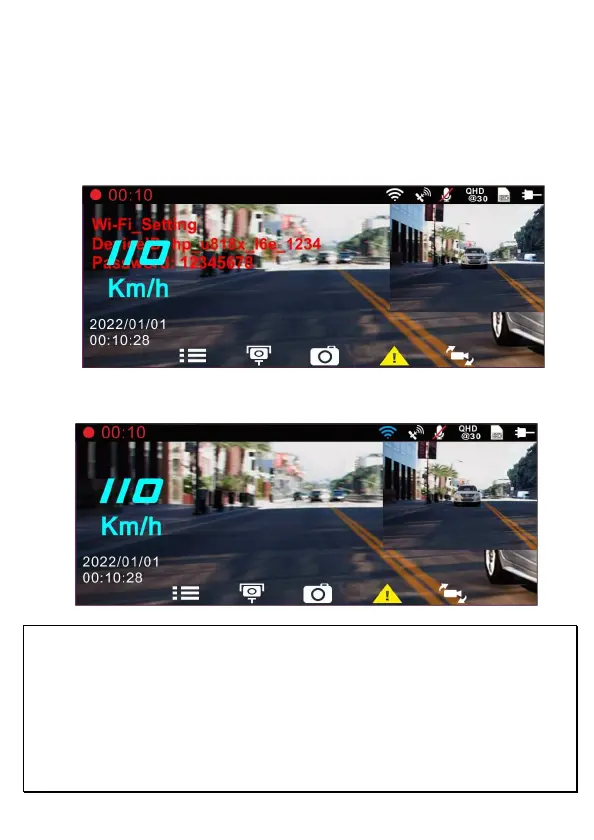
3. The camcorder’s screen will display Wi-Fi Device ID and Password. Using the
Wi-Fi function of your mobile device, search for the camcorder ID
“hp_u818x_I6e_1234” from the list (last 4 numbers are system random
numbers). Enter default password 12345678.
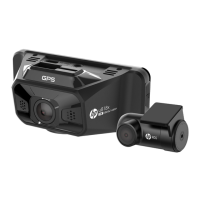
4. There is a Wi-Fi icon on the camcorder’s screen. Once the icon is blue, your
connection has been successfully established.
Note:
1. The mobile device shall be within a maximum of a 5m distance from the camcorder without any buildings in
between.
2. When the Wi-Fi function of the camcorder is ON but not yet connecting with your mobile device, or the
connection is disconnected, the Wi-Fi icon on camcorder’s screen will be white, and you will need to re-activate
the Wi-Fi and re-pair with your mobile device.
3. After connecting the mobile device with the camcorder, and activate app feature “Camera Preview”, all the
button operation of the camcorder will be disable; all the operations shall be carried out via the Go Dashcam !
App.
4. The language of the Go Dashcam ! App will be consistent with your mobile device, beyond the language
options, the App will be activated with default language.



 To Next Page