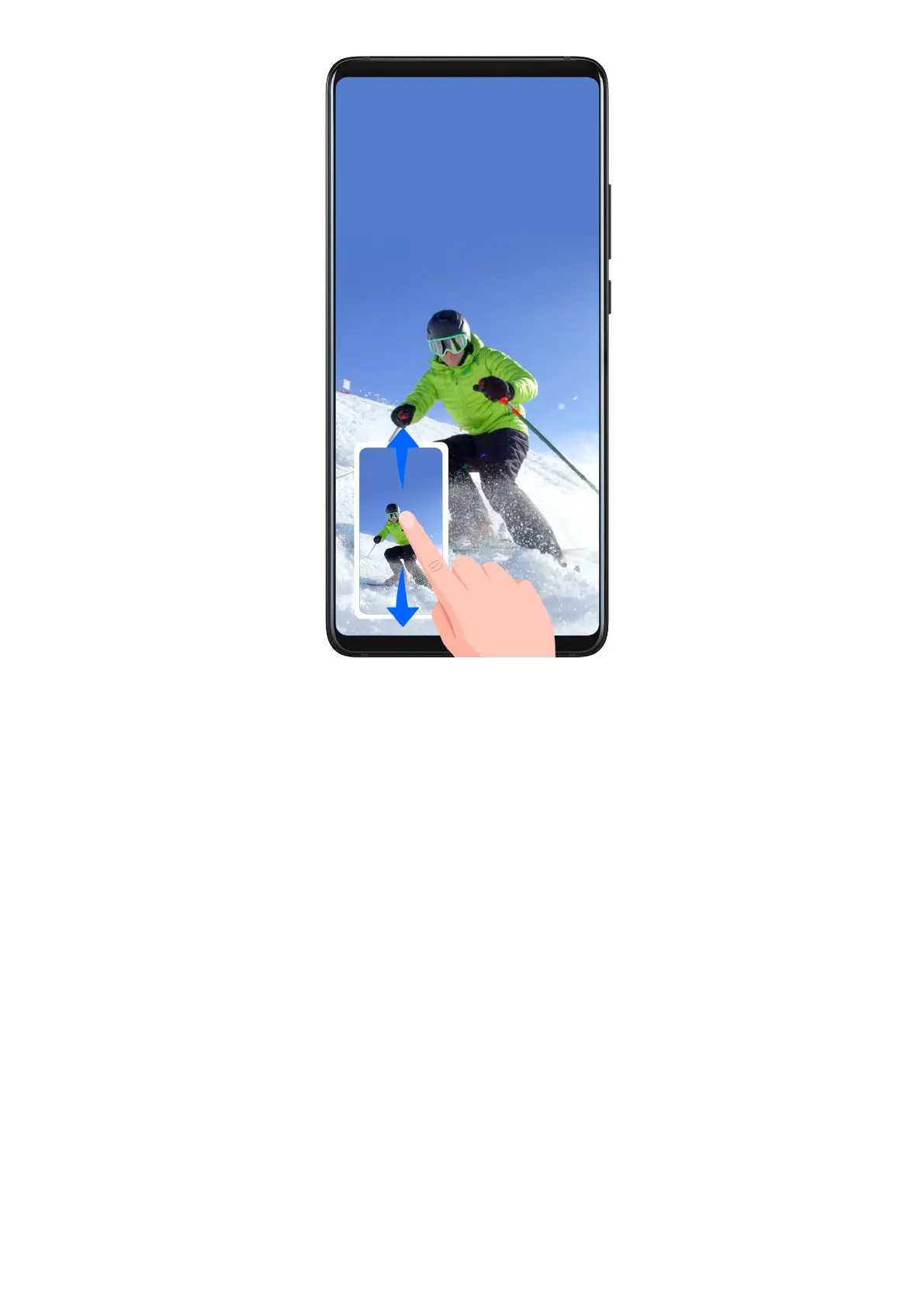
After you take a screenshot, a thumbnail will display in the lower left corner of the screen.
Then you can:
• Swipe down on the thumbnail to take a scrolling screenshot.
• Swipe up on the thumbnail to select a sharing mode and share the screenshot with your
friends.
• Touch the thumbnail to edit or delete it.
Screenshots are saved to Gallery by default.
Use Your Knuckle to Take a Scrolling Screenshot
Essentials
18


 To Next Page