If the microphone is disabled (i.e. if it is displayed as ), you will only be able to record
system sounds (such as gameplay sounds). If you want the screen to be recorded in
silence, mute your phone before starting the screen recording.
View and Clear Notications
View and Clear Notications
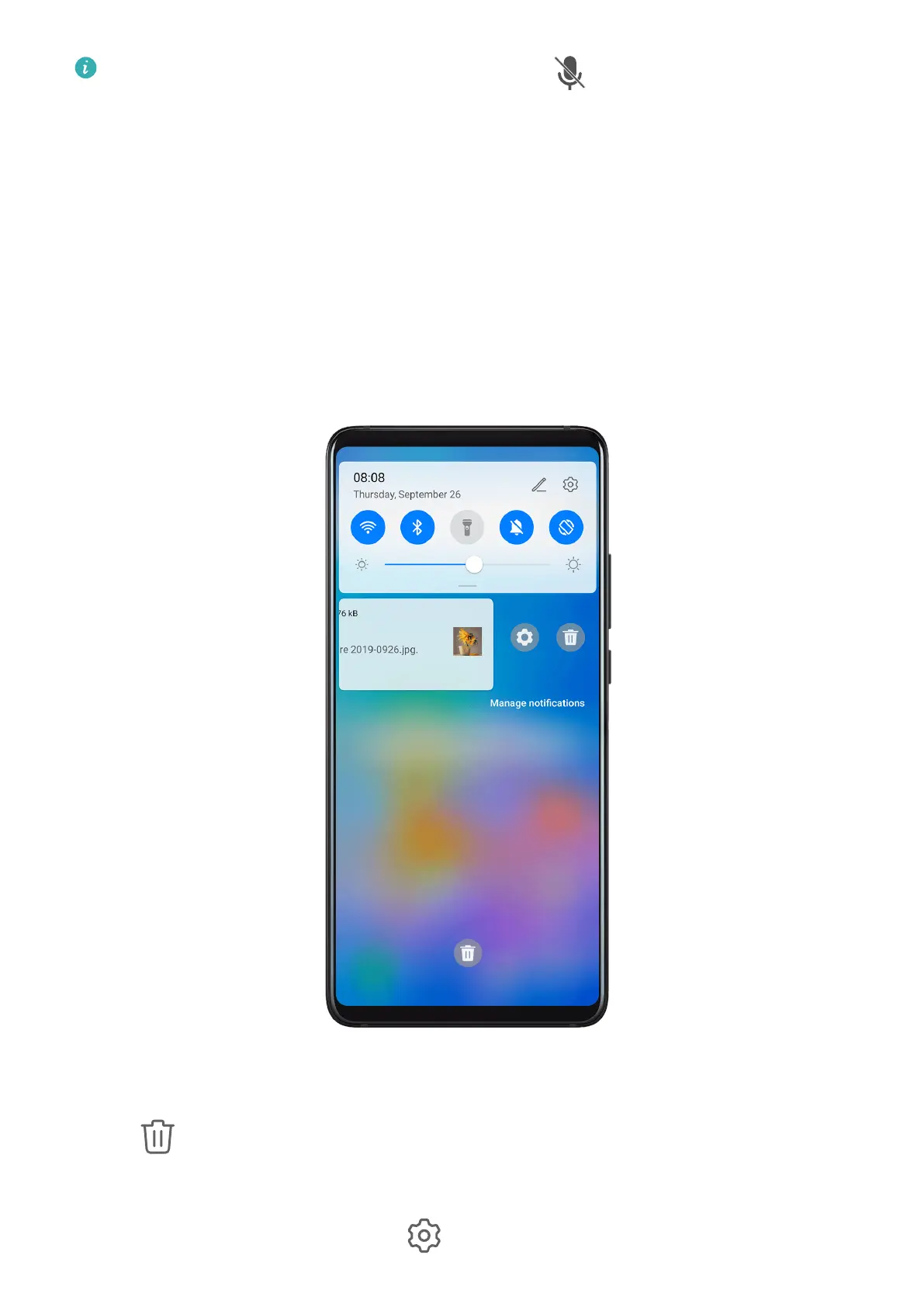
View Notications
When there is a notication reminder, you can turn on the screen and swipe down from the
status bar to open the notication panel and view the notication.
Clear Notications
• Swipe right on a notication reminder to clear the notication.
• Touch at the bottom of the notication panel to clear all notications.
Block or Delay Notications
Swipe left on a notication, then touch to block or delay notications from that source.
Essentials
22


 To Next Page