The Huawei Share OneHop feature is currently supported on Intel laptops only.
Share Files
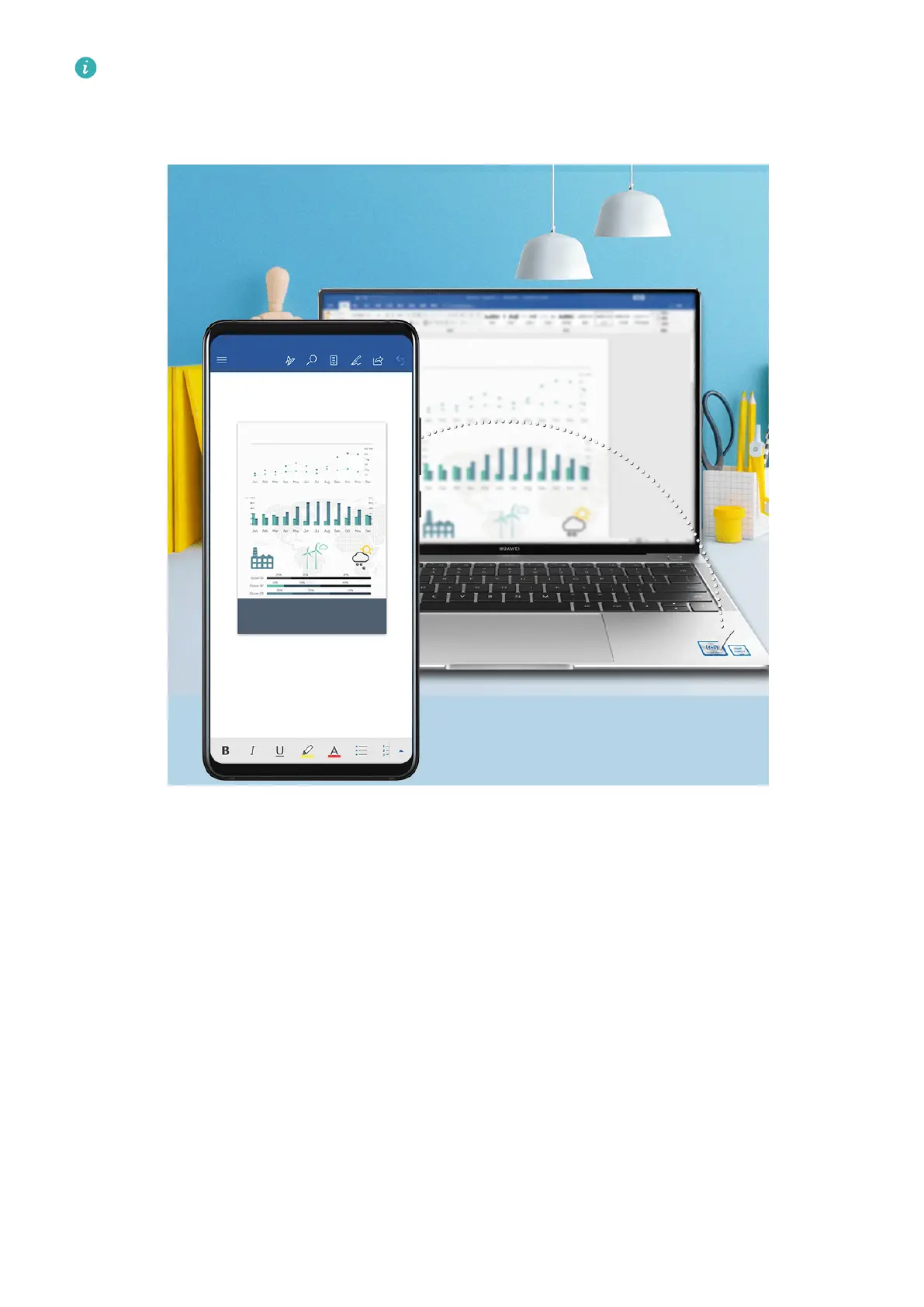
• From phone to laptop
1 Use Microsoft
Oce to open a le you want to share on your phone.
2 Hold the NFC area of your phone against the Huawei Share icon (or Magic-link icon) on
your laptop until your phone vibrates or plays a notication sound.
• From laptop to phone
1 Open a le you want to share using Microsoft Oce on your laptop.
2 Exit Microsoft Oce or return to the home screen on your phone, then tap your phone
against the laptop (as instructed above). You can then transfer the le open in Microsoft
Oce on your laptop to your phone.
Copy Clipboard Text
1 Open PC Manager on the laptop, select My Phone, click Enable, then follow the onscreen
instructions to allow the laptop to access data on your phone.
2 You can then copy and paste text on the clipboard to your phone or laptop.
Smart Features
42


 To Next Page