indicate the NO RECENT CONTACT! message.
No Internet Connection
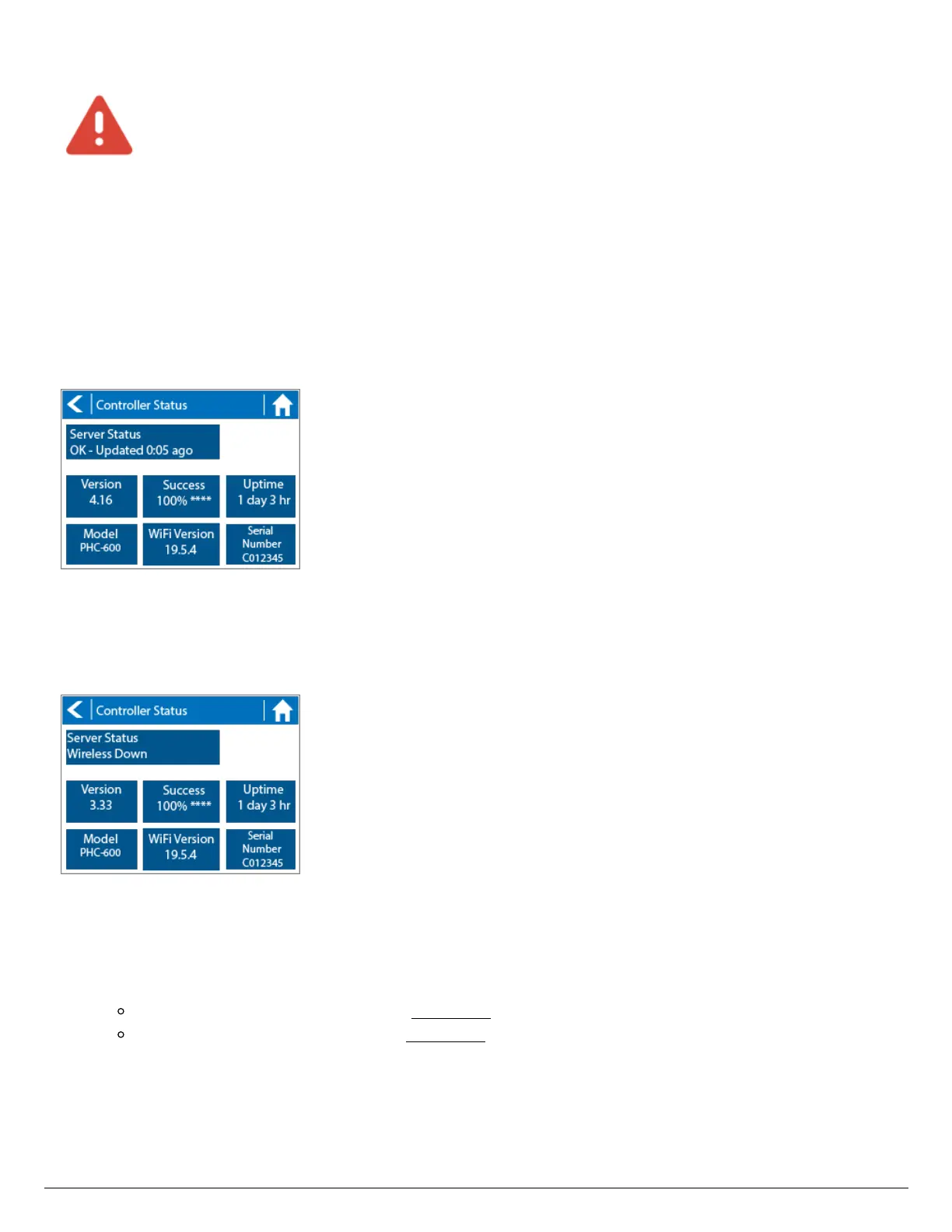
From the Home screen at the controller, navigate to Server Status by pressing Status >
Controller Status. A successful connection to the Hydrawise servers is indicated by the
Last Sync under 1 minute or OK-Updated "X:XX" Ago as the Server Status. The
controller is connected to Hydrawise and last got a configuration update "X:XX" seconds
ago. This is the normal state.
An unsuccessful connection to the router is indicated by Wireless Down, No Internet, or
Last Sync 1 minute or greater as the Server Status. The controller is NOT connected to
the router.
1. Check that your wireless router and controller is powered on.
2. Verify serial numbers in software match the number in the controller status screen.
Serial number location in controller Click here [13]
Serial number location in software Click here [14]
3. Signal Strength check - Settings > Wireless > Wireless Name > Select Network >
Read strength (High recommended for best functionality).
4. Reboot Controller - Settings > Config > Reboot Controller > Check Server Status
5. Factory Default - Settings > Config > Factory Default > Erase Config > Connection
Wizard >Check Server Status





 To Next Page