6. Reset Modem/Router - Unplug for 15-20 seconds. Next, plug back in and wait 2-3
minutes. Repeat these steps two more times. Check Server Status. This will refresh
the connection to an extender if you have one installed.
7. Reset Extender (if have one) - Reset extender as well to refresh the IP settings.
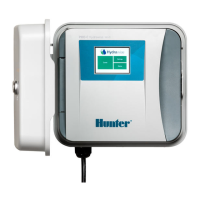
8. Check Network Settings - The following Wi-Fi requirements apply to your Hunter
Hydrawise-ready controller.
Wi-Fi Checklist:
Network Types
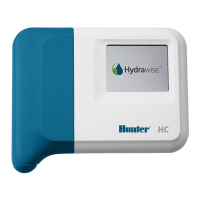
Hunter HC controller is 802.11 B/G
Hunter WAND controller is 802.11 B/G/N
Hunter Pro-HC controller is 802.11 B/G/N
Hunter HPC controller is 802.11 B/G/N
Hunter HCC controller is 802.11 B/G/N
Bandwidth
2.4 GHz only.
Not compatible with 5 GHz
Router Channel Set between 1-11
Security Type WPA or WPA2
Guest Networks/Networks with portal page
login
Not compatible
Mac Address (If Needed)
HC - Enter 001e followed by serial
number (e.g., 001e05fb90ce)
HCC/HPC/PRO-HC/WAND - Enter f8f0
followed by serial
number (e.g., f8f005fb90ce)
Outbound Ports
Secure MQTT (TCP Port 8883)
HTTPS (TCP Port 443)
NTP (UDP Port 123)
DNS (TCP and DNS Port 53)
Inbound Ports None
Testing with Hot-spot - Depending on your smartphone, please use either guide below:




 To Next Page