Part 2 - IDIS Web
45
9
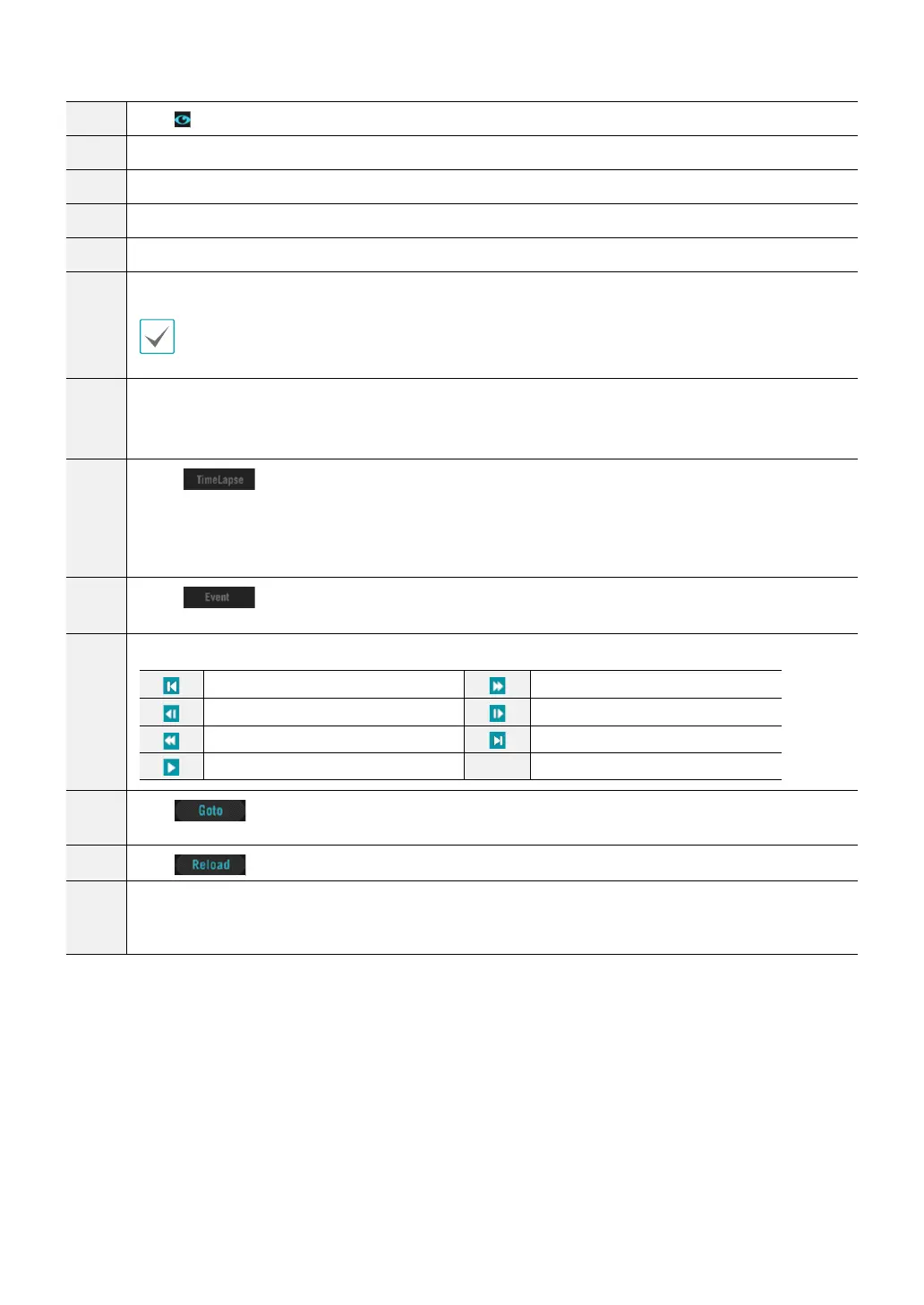
Click
to switch over to Web Live mode.
0
Shows login information.
!
Indicates the camera's number.
@
Zoom in or out on the video.
#
Adjust image brightness.
$
Apply image lters (Sharpen, Blur, Equalizer, Interpolation, and Revert) to the images.
Image calibration is applied only during the paused state.
%
Use the calendar to search for video recordings by specic dates.
Dates containing video recordings are highlighted in light blue. Selecting a date containing video
recording data loads the earliest recording from that date. Selected date is highlighted in orange.
^
Select
to enable time lapse search mode and search/playback video recordings in
chronological order. In time lapse search mode, video recordings can be searched by selecting specic
dates on the calendar. Time information of video recordings found on the selected dates is shown on
the time table at the bottom of the screen. Select a point in time to display video from that moment. If
multiple recordings are available for the selected point in time, you can select the desired segment.
&
Select
to enable event search mode and search for events matching user-designated
parameters.
*
Use the playback controls to play back video.
Go to First
Fast Forward
Play by Frame (backwards)
Play by Frame (forwards)
Rewind
Go to Last
Play/Pause
(
Click
to designate recent recordings you wish to search and then jump to a specic point in
the recording.
)
Click
to reload recent video recordings from remote locales.
a
Indicates the camera's recording data on a time bar. If the camera's system clock has been changed to a
point in the past and more than one recording exists at the same point in time as a result, you will be able
to choose which segment to search from the segment menu on the upper right portion of the time table.


 To Next Page