71
5
iii
5.1 Settings Using Switches on the Camera
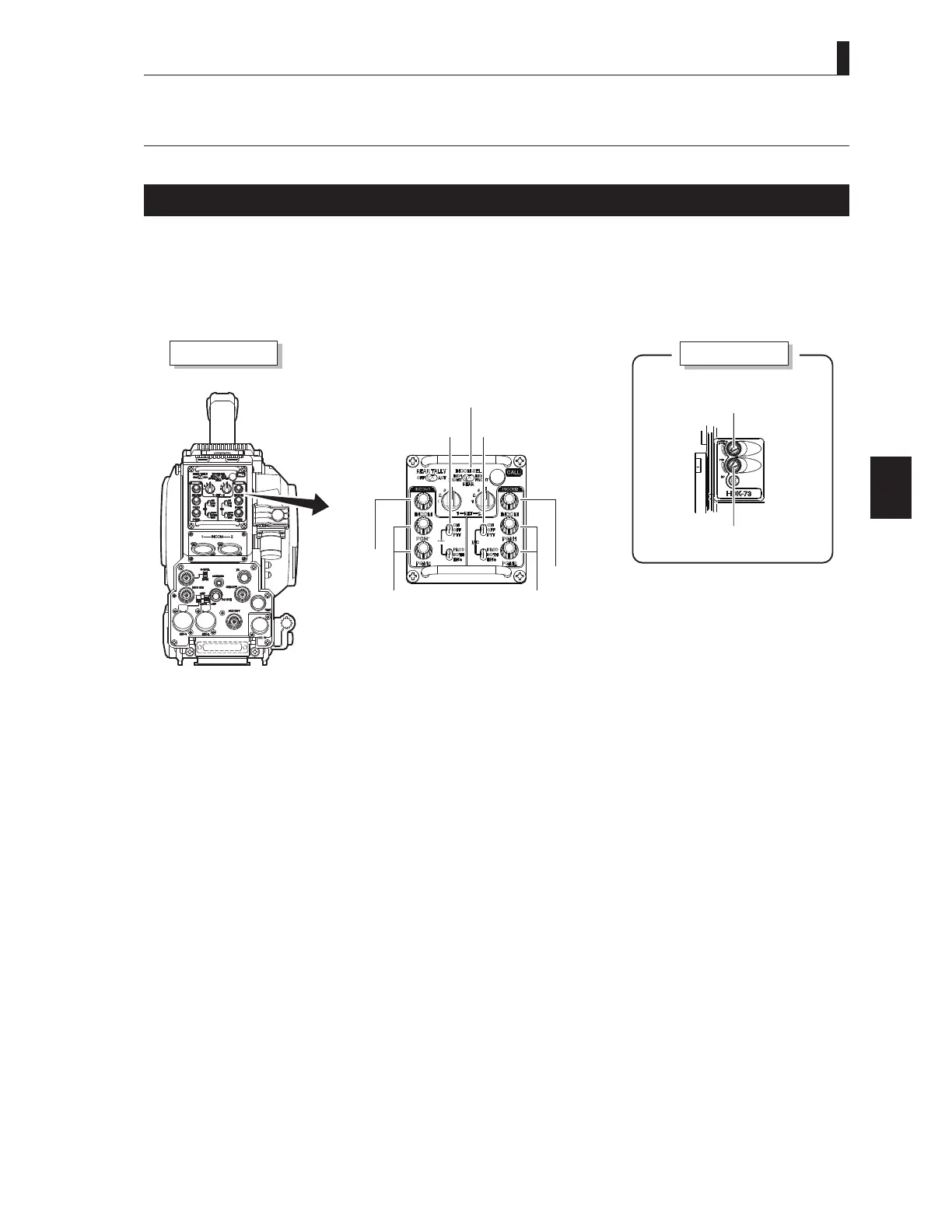
Adjusting Headset Volume
This chapter explains how to control the headset volume.
CAUTION:
'RQRWVHWWKH,17(5&20FRQWURONQRE,17(5&20FRQWURONQRE,17(5&203*0FRQWURONQREDQG,17(5&20
3*0FRQWURONQREWRQHDUPD[LPXPOHYHOIURPWKHEHJLQQLQJ6HWWLQJWKHYROXPHOHYHOWRRKLJKZLWKWKHLQWHUFRPKHDGVHWRQ
your ears may damage your eardrums. If you suddenly set the volume level too high, it may also damage the headset. Excessive sound
pressure from the headset may cause a hearing loss.
Camera r e
Camera rear e
INT COM F ONT
S CT
INT COM-1 MIC INT COM- MIC
INT COM-1
r
INT COM-1 P M
r
INT COM- r
INT COM- P M r
INT COM PHON r
INT COM P M r
■
Adjusting Intercom Volume
The intercom volume can be controlled on the rear or right side of the camera. Perform Step 1 to control the volume on the rear of
the camera, and Step 2 and 3 to control on the right side of the camera.
Turn the INTERCOM-1 control knob and INTERCOM-2 control knob on the rear of the camera to adjust the
volume.
2 Set the INTERCOM FRONT VR SELECT switch on the rear of the camera to INTERCOM-1 or INTERCOM-2.
3 Turn the INTERCOM PHONE control knob on the right side of the camera to adjust the volume.
CAUTION:
Be sure to adjust the volume to the appropriate level while listening to sound through the headset.


 To Next Page