EasyManua.ls Logo

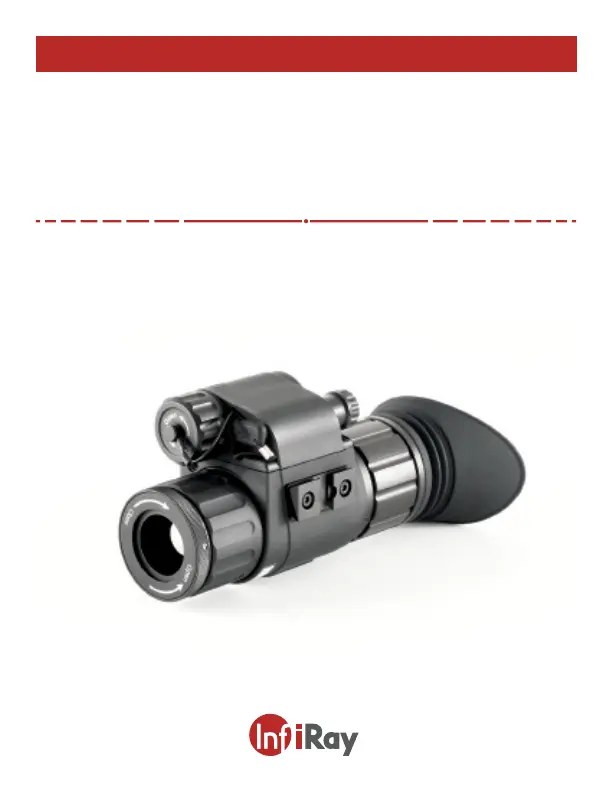
InfiRay MINI MH25 V2 - User Manual

InfiRay MINI MH25 V2
23 pages
Print Icon
To Next Page IconTo Next Page
Loading...
INFIRAY OUTDOOR
MINI MH25V2
Multi-function Thermal Imager
User’s Manual
Outdoor

Questions and Answers

  • R
    Roy GreenAug 6, 2025
    What to do if the InfiRay Laboratory Equipment MH25 V2 will not turn on?
    • M
      michaelwagnerAug 6, 2025
      If your MH25 V2 won't turn on, it's likely that the battery is very low or completely discharged. The suggested solution is to charge the external power supply.
  • J
    Johnathan CarrollAug 11, 2025
    Why is the image too dark on my InfiRay Laboratory Equipment MH25 V2?
    • J
      Jason WarrenAug 11, 2025
      If the image appears too dark, it could be that the display brightness level is set too low. Try adjusting the display brightness in the quick menu to brighten the image.
  • J
    Joshua HarrisAug 15, 2025
    How to fix a fuzzy image on InfiRay Laboratory Equipment?
    • S
      Stephen JohnstonAug 15, 2025
      If the image appears fuzzy, unclear, unbalanced, or shows artifacts, perform a non-uniformity correction. This can be done by accessing Setting Menu and setting NUC Mode on.
  • P
    Paula DavisAug 20, 2025
    What to do if InfiRay Laboratory Equipment MH25 V2 lens is not focused?
    • K
      Kyle HillAug 20, 2025
      If the lens is not focused, try the following: 1. Adjust the focus on the target by rotating the Objective Focus Ring. 2. Adjust the image sharpness in the quick menu.
  • T
    Timothy CastilloAug 25, 2025
    Why can't my InfiRay Laboratory Equipment MH25 V2 connect to my mobile device?
    • J
      josephfryAug 26, 2025
      If your MH25 V2 cannot connect to your mobile device, here are a few possible reasons and solutions: * **Wi-Fi is not turned on:** Turn on Wi-Fi in the main menu. * **Wrong Wi-Fi password entered:** On your mobile device, go to Settings > Wi-Fi and enter the correct password. The default password is 12345678. * **Too many Wi-Fi signals:** Move the MH25 V2 and mobile device to an area with no or fewer Wi-Fi signals. * Try again when the Wi-Fi signal is stable. * Move the MH25 V2 closer to the Wi-Fi signal.
  • W
    whitneysanchezAug 30, 2025
    Why is the image quality of my InfiRay Laboratory Equipment MH25 V2 worse in low temperatures?
    • M
      Melissa GainesAug 30, 2025
      When the MH25 V2 is used in low-temperature conditions, the image quality decreasing is a normal function of a thermal imager due to environmental conditions and is not an indicator of detector performance.

Summary

Overview

Features

Technical Specifications

Accessories

Components and Controls

Quick Start Guide

Installing the Battery

Charging the Battery

Removing the Battery

Battery Safety Warnings

External Power Supply

Mounting the MH25 V2 to a Helmet

Mounting with the Built-in MUM Rail Interface

How to mount using the built-in MUM rail interface.

Mounting with the Optional AC49 Mini Dovetail Shoe

How to mount using the optional AC49 mini dovetail shoe.

Operating Instructions

Adjusting the Diopter;Eyepiece

How to adjust the diopter and eyepiece for clear vision.

Focusing the Objective Lens

How to adjust the objective lens for fine focus on the target.

Status Bar Overview

Explains the icons and information displayed on the status bar.

Battery Status

Describes the battery icon and its different states.

Using the Quick Menu

Instructions on how to use the quick menu for various settings.

Non-uniformity Correction

Automatic Mode

Explains the automatic mode for non-uniformity correction.

Manual Mode

Details on performing manual non-uniformity correction.

Photography and Video Recording

Photography

Instructions on how to take a photo.

Video Recording

Instructions on how to record video.

Video and Photography Tips

Tips for recording photos and videos.

Accessing the Internal Memory

Using the Bluetooth Remote

Connecting the Bluetooth Remote to the MH25 V2

Steps to pair the Bluetooth remote with the MH25 V2.

Using the Bluetooth Remote

How to operate the device using the Bluetooth remote.

Using the InfiRay Outdoor App

Video Output

Digital Zoom

Picture in Picture (PIP)

Stadiametric Rangefinder

Main Menu Options and Descriptions

Device Menu Options

Options for adjusting device settings like Wi-Fi, Bluetooth, and motion sensor.

Function Menu Options

Options for adjusting functions like video output, rangefinder, and PIP.

Calibration Menu Options

Options for adjusting time and date settings.

Setting Menu Options

Options for general settings like factory reset, sharpness, NUC, and standby.

Device Menu > Wi-Fi

How to turn the Wi-Fi function on or off.

Device Menu > Bluetooth

How to turn the Bluetooth function on or off.

Device Menu > Msensor

How to turn the motion sensor on or off.

Function Menu > Video Output

How to turn the video output function on or off.

Function Menu > Rangefinder

How to open the stadiametric rangefinder.

Function Menu > PIP

How to turn the Picture in Picture (PIP) window on or off.

Calibration Menu > Time

How to set the date and time on the device.

Setting Menu > Factory Reset

How to restore the device to its factory default settings.

Setting Menu > Sharpness

How to adjust the image sharpness level.

Setting Menu > NUC Mode

How to select the non-uniformity correction mode.

Setting Menu > Standby

How to enable or disable the automatic standby mode.

Basic Inspection

Basic Maintenance

Warranty

General Troubleshooting

InfiRay MINI MH25 V2 Specifications

General IconGeneral
Frame Rate50Hz
Field of View10.5° × 8°
Weight<350g
FocusManual
InterfaceType-C
Objective Lens25mm
Sensor TypeUncooled microbolometer
Spectral Range8-14μm
Display Size0.39"
Operating Temperature-20℃~+50℃
Storage Temperature-40°C to +60°C

Related product manuals