25
Advanced > Image menu
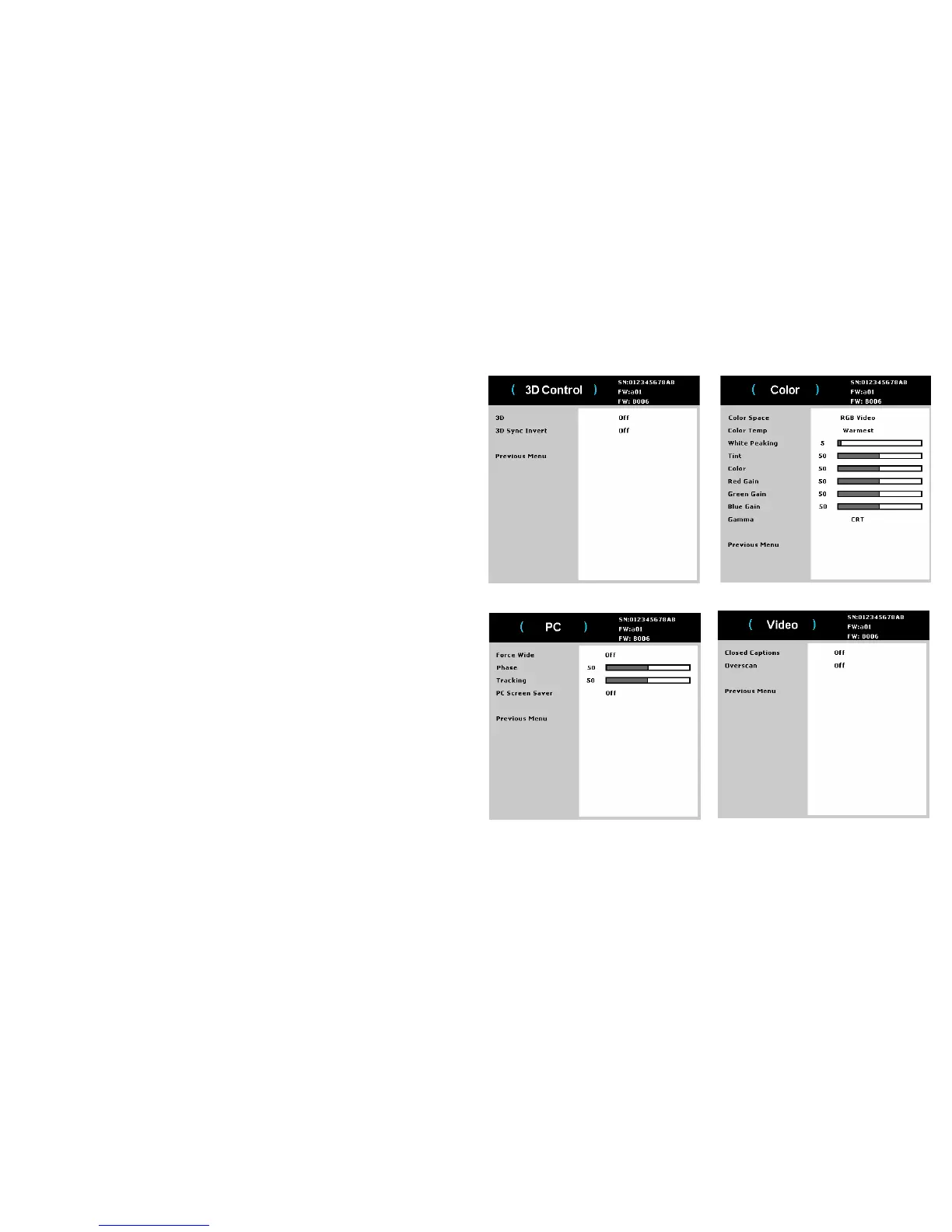
3D Control:
• 3D: toggles between on and off. Turn it
on to display the image in 3D.
• 3D Sync Invert: togg
les between on and off. Turn it on when the image is
discrete or overlapping.
Color:
• Color Space: This
option applies to computer and component video sources. It
allows you to select a color space that has been specifically tuned for the input
signal. When Auto is selected, the projector automatically determines the
standard. To choose a different setting, turn off Auto, then choose RGB for
computer sources or choose either REC709 or REC601 for component video
sources.
• Color T
e
mp: changes the intensity of the colors. Select a listed relative
warmth value.
• White Peaking: (video
sources only) increases
the brightness of whites that
are near 100%.
• Tint: adjusts the red-green color balance in the image of NTSC video images.
The tint setting applies to NTSC video sources only.
• Color: adjusts the image from black and white to fully saturated color.
• Red
Gain: adjusts the gain of the red channel of the image.
• Green Gain: adj
usts the gain of the green channel of the image.
• Blue Gain: adjusts
the gain of the blue channel of the image.
• Gamma: selects the ap
propriate gamma from Video, Film, Bright, and CRT.
PC:
• Force Wide: This feature is to help with image-locking problems when the
correct mode cannot be determined. If this feature is off and the exact
resolution mode cannot be determined, the analog locking algorithms will use
a 4:3 mode for the image. If this feature is on and the exact mode cannot be
determined, the analog locking algorithms choose the best-matched wide mode
(either 16:9 or 16:10) for the image.
• Ph
ase: adjusts
the horizontal phase of a computer source.
• Tracking: adj
usts the vertical scan of a computer source.
• PC Scre
en Saver: allows your computer to go into Screen Save mode. The
projector must be connected to the PC via a USB cable for this feature to work.
Video:
• Closed Captions: controls closed caption d
isplay while audio is not muted.
• Overscan:
removes noise around the video image.


 To Next Page