6
Connecting a computer source
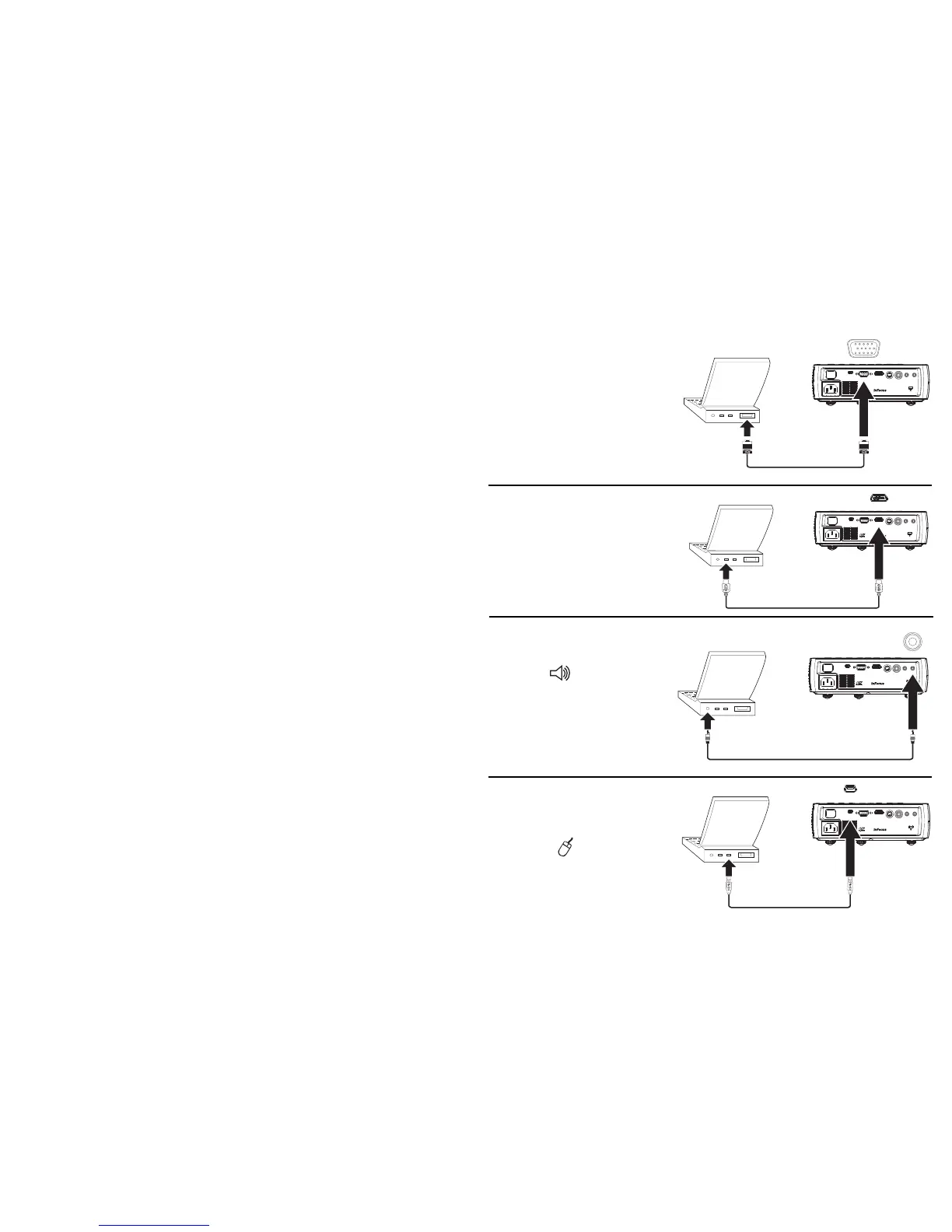
VESA connection
Connect one end of the provided computer cable to the Computer connector on the
projector and the other to the VESA connector on your computer. If you are using a
desktop computer, you will need to disconnect the monitor cable from the
computer’s video port first.
HDMI connection
HDMI is a standard, uncompressed, all-digital audio/video interface. HDMI
provides an interface between sources, such as set-top boxes, DVD players, and
receivers and your projector. Plug a HDMI cable into the video out connector on the
video device and into the HDMI connector on the projector.
To take advantage of HDMI 1.3 Deep Colo
r (30
bit) you must have an 1.3-
compatible source.
Power connection
Connect the black power cord to the Power connector on the side of the projector
and to your electrical outlet. The Power light on the Status Indicator Panel (page 10)
turns amber.
NOTE: Always use
the power
cord that shipped with the projector.
Optional computer connections
To get sound from the projector, connect an audio cable (optional cable, not
included) to your computer and to the Audio In connector on the projector. You
may also need an adapter.
To advance slides in a PowerPoint presentation using an optional r
emote control,
plug the USB cable into the USB mouse connector on your computer and the USB
connector on the projector.
USB
computer in
HDMI
video 1
video 2
audio out
audio in


 To Next Page