27
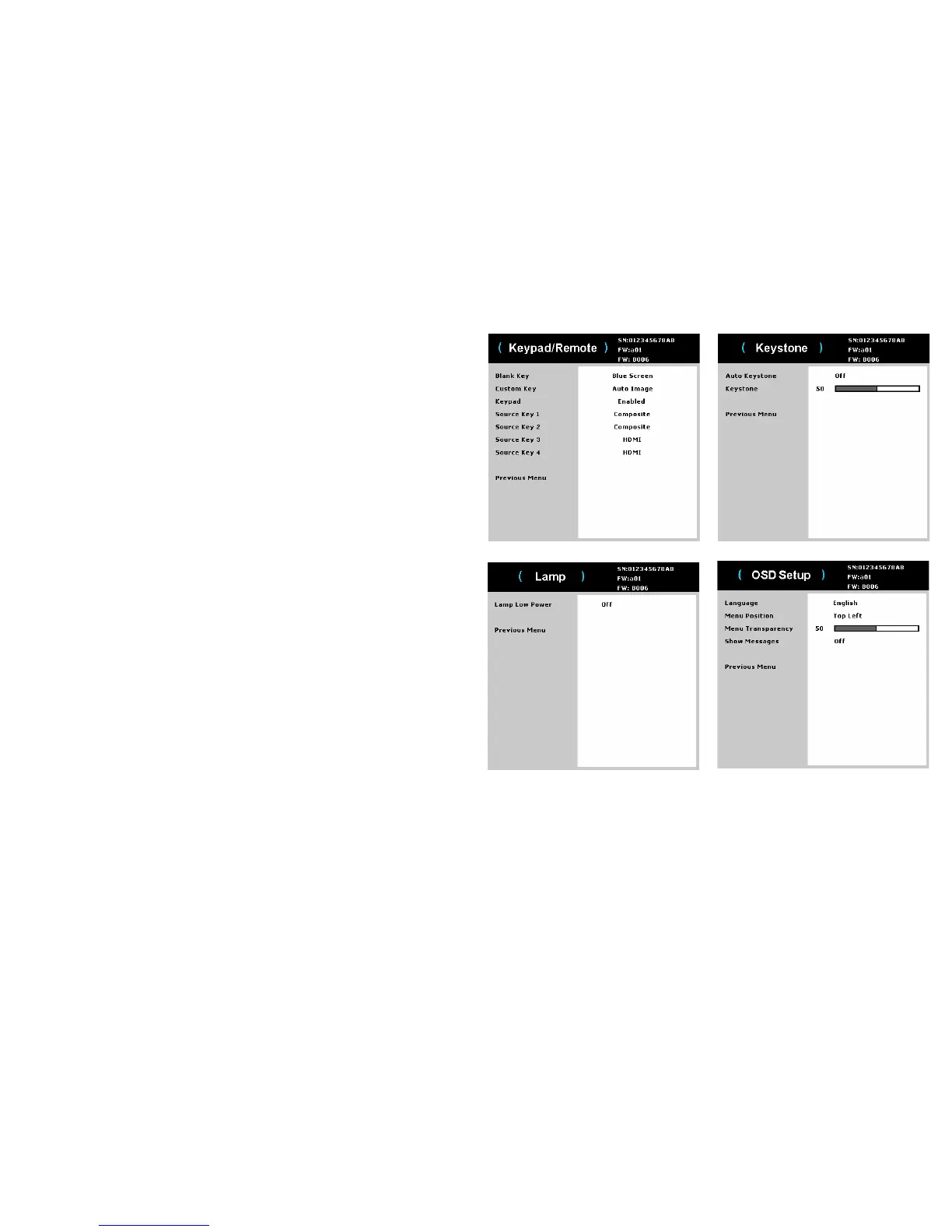
Keypad/Remote:
• Blank Key: sele
cts what to display when the Blank Key on the remote is
pressed: your custom snapshot, a solid color screen (blue, black or white), the
factory logo screen, a timer, or test patterns. The timer option is useful for
classroom tests or break times during meetings.
• Custom Key:
allows you to assign a dif
ferent function to the Custom button,
allowing you to quickly and easily use the effect. Highlight an effect and press
Select to choose a different one.
• Keypad: enables or disab
les keypad.
• Source Key 1~4:
allows you to assign a different input source for Source Key.
Keystone:
• Auto Keystone: toggles between on and off. Turn it on to automatically adjust
the image distortion.
• Ke
ystone: adj
usts the image vertically and makes a squarer image. You can
also adjust keystone from the keypad.
NOTE: The manual Keystone function is disabled when Auto Keystone is on.
Lamp:
• Lamp Low Power: toggles between on and off. Turn it on to lower the light
output of the lamp. This also lowers the fan speed, making the projector
quieter.
OSD Setup:
• Language: allows you to select a
language for the onscreen display.
• Menu Position: allows
you to change the position of the onscreen display.
• Menu Transparency: allows yo
u to change how much of the projected image
behind the menu you can see. As the value increases, more of the image behind
the menu is visible.
• Show Messages: displays statu
s messages (such as "Searching") in the lower-
left corner of the screen.


 To Next Page