21
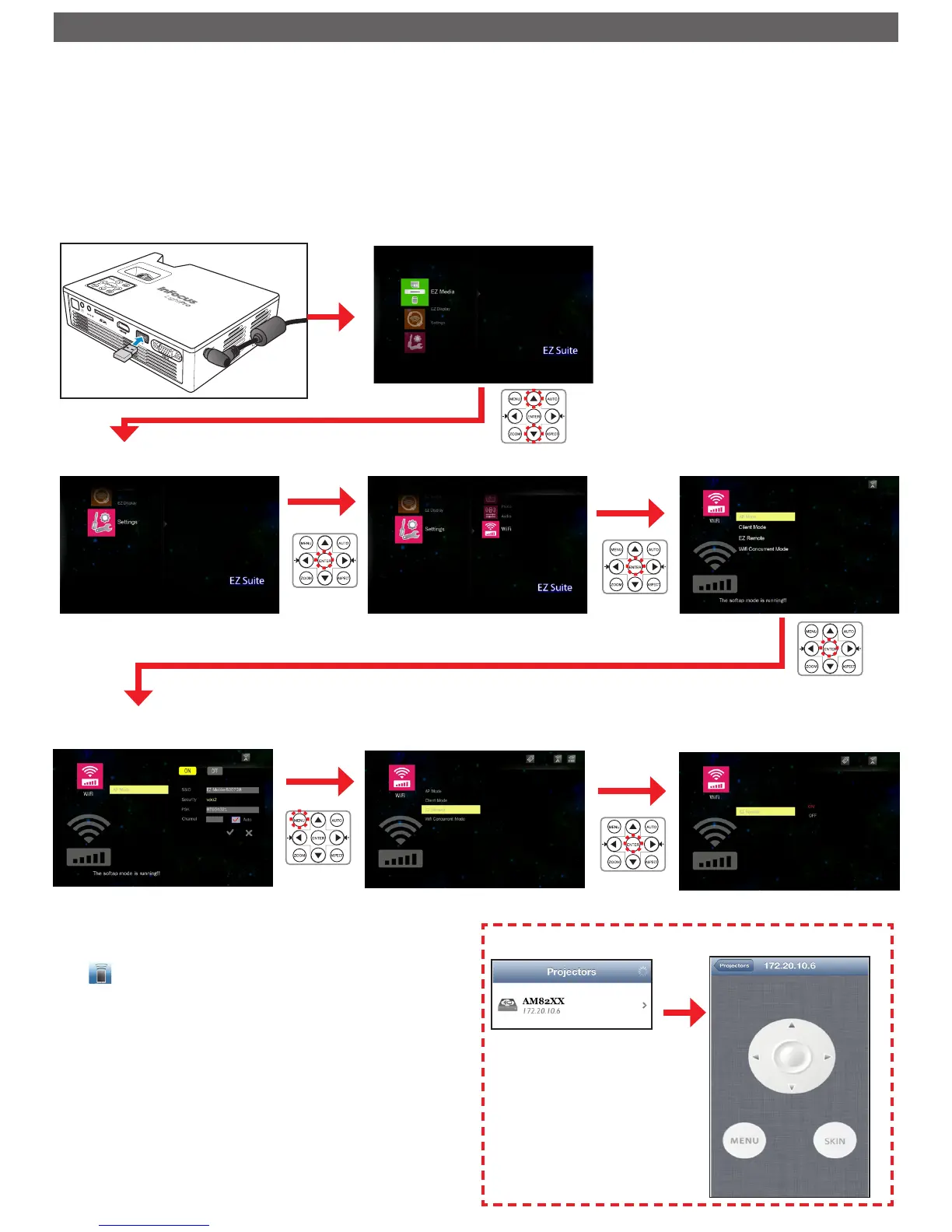
EZ Remote allows you to remotely control the projector on your portable device wirelessly.
To setup remote control, do the following:
1. In your portable device, download the "EZ Remote" application from the App Store (iOS) or Play Store (Android).
2. Plug the optional Wi-Fi dongle (SP-WIFIUSB-2) into the projector.
3. Enter the Client Mode in the projector's menu and set the mode ON (Home Menu > [Settings] > [WiFi] > [Client Mode]).
4. Connect the projector to a Wi-Fi Access Point.
5. Enter EZ Remote mode in projector's menu and enable the mode (Home Menu > [Settings] > [WiFi] > [EZ Remote]).
Enter [AP Mode]
Select [Settings]
Select [WiFi]
Select [ON]
Select [EZ Remote]
Select [ON]
Enter Home Menu
Plug in the Wi-Fi Dongle
Select [Projector]
Use Navigation Buttons
Tap
6. Connect your portable device to the same Wi-Fi Access Point with your
projector.
7. Tap to open "EZ Remote" and pair projector with your portable device.
8. In your portable device, use the on-screen navigation buttons to control
your projector.


 To Next Page