Page 21
INF8630eAG / INF8630AG Hardware Guide
Connecting the Display To a PC Using Wi
To connect a laptop or other external computer wirelessly, follow theses steps:
Step Do This... Location Result
1
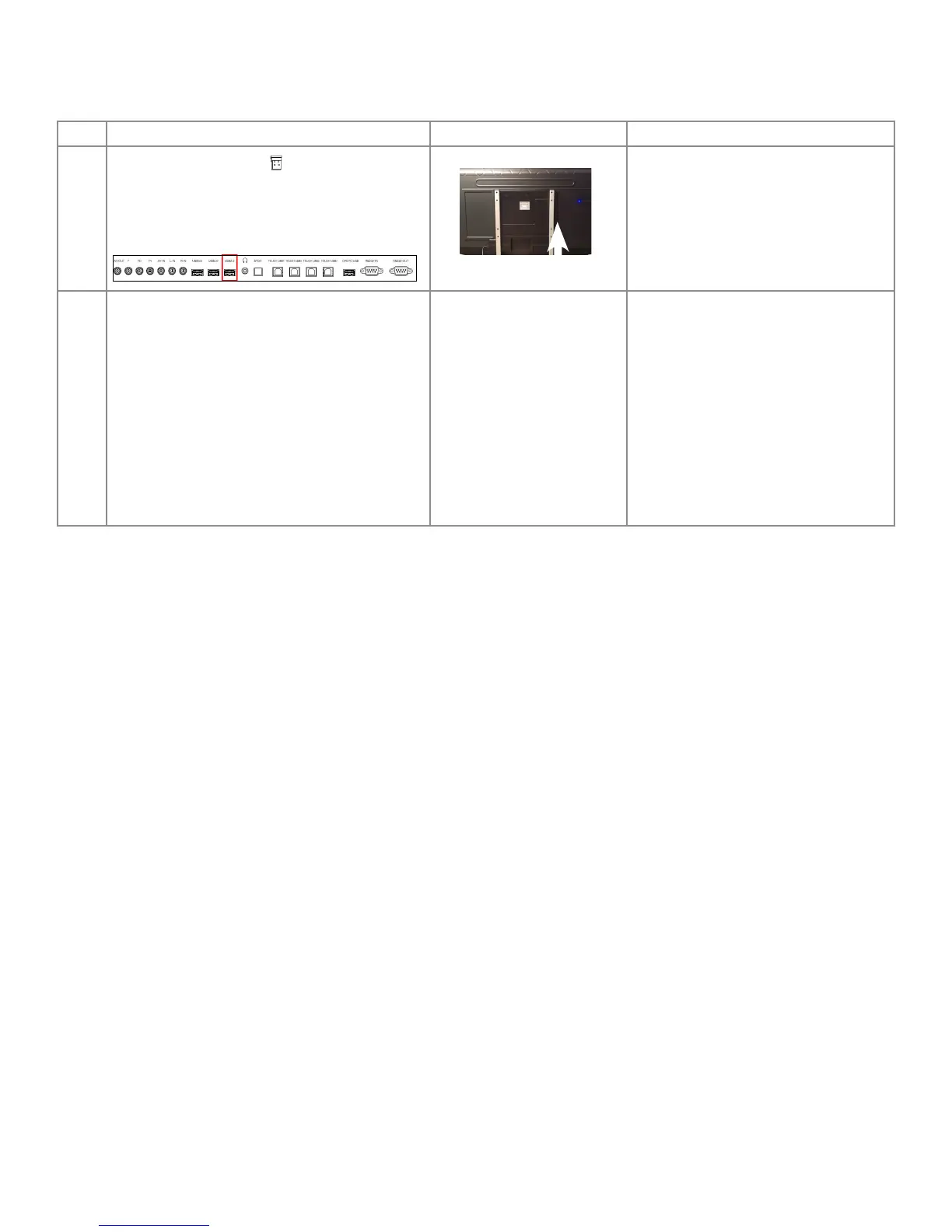
Remove the USB dongle, , from it's packaging
and connect it to the USB 2.0 port on the back
side of the display.
2 Choose the Display in the connection pop-up
window on your PC.
Note: The pop-up window usually displays
with signal strength bars and identies the wi
signals in your area. Usually it is accessed by
clicking the signal bars on the lower right of your
computer screen.
Note: You may have to enter a password for
your local wi server.
Once the PC is connected, it will
automatically be selected as the source.
Note: This connection allows you to
cast from your PC screen to the display
screen and to control the display screen
from your PC.


 To Next Page